
Act on Notifications
Folio notifies you when something happens that involves you — most of it comment activity, plus a few Document-level events.
What triggers a notification
Comments and mentions
- You’re @-mentioned in a Document body
- You’re @-mentioned in a comment
- Someone replies on a thread you started
- Someone replies on a thread you’re a participant in
- Someone resolves or reopens a thread you started
- Someone resolves or reopens a thread you’re involved in
- Someone edits a comment on a thread you’re involved in — ”
edited a comment” , sent to the thread’s creator, its participants, and the Document’s owner - Someone comments on a Document you own — only when none of the above already covers you
Document changes
- A Document is shared with you — ”
shared this Document with you” - A Document is transferred to you — ”
transferred this Document to you” - A Document you own is restored to an earlier version — ”
restored this Document to version 12” , naming the version number shown in the version rail, sent to the owner - A Document you own comes back from the Recycle Bin — ”
restored your Document from the Recycle Bin” , sent to the owner when an admin un-archives it
These reach individual Users only. Sharing with a Public Group or a Queue never fans out to its members, and a Document owned by a Queue produces no transfer or restore notification — there’s no single person to send it to. Sharing done by automation notifies the same way.
Rules that shape what you actually receive
These rules limit how many notifications a single thread generates:
- You are never notified about your own actions.
- The most specific notification wins. If you’re mentioned in a reply on your own thread, you get the mention only — not a mention and a reply notification.
- Repeat activity refreshes rather than stacks. While a notification is still unread, further activity on the same thread updates it in place instead of adding another.
- Only active users with a Folio Docs license receive notifications.
- Automated actions are credited to “Automation.” When a share or transfer runs under a record-triggered or scheduled Flow, the notification names Automation rather than a person. A screen flow or quick action credits whoever launched it.
Where they appear
- The Notifications area on the Folio Docs home page, with a red dot when you have unread ones. This is the org-wide view across every Document you have access to. Notifications there are grouped by Document, with a preview of the comment on each one.
- The bell icon in the Document header, with a red dot when any are unread, showing notifications for the Document you’re currently in.
- An email digest of your unread notifications, if your admin has digests enabled.
Unread is always marked with a red dot — on the Notifications tab, on the bell, and on the unread comment itself in the Document. Viewing the comment a notification is about clears all three at once: the comment’s red dot, the bell’s, and the notification in the Notifications tab. (The blue dot on a Document row on the home page is a different thing — it means the Document changed since you last viewed it, not that you have a notification.)
It’s the same notification in two places. Opening it in one location marks it read in both. Both update in real time, with no page refresh.
Acting on a notification
- A notification about being @-mentioned in a Document body opens the Document.
- A notification about comment activity opens that specific comment within the Document — not just the Document, but the thread itself.
Managing them
Mark notifications read or unread, individually or several at once. Archive them to move them out of the list entirely; archived notifications live under View archive and can be pulled back out if you need them. The Notifications tab has the per-row and bulk controls.
Notifications are kept for a period set by your admin — 6 months by default.

Email digests
Folio can email you your unread notifications on a schedule you choose. Anything you’ve already read is left out.
Choosing your frequency
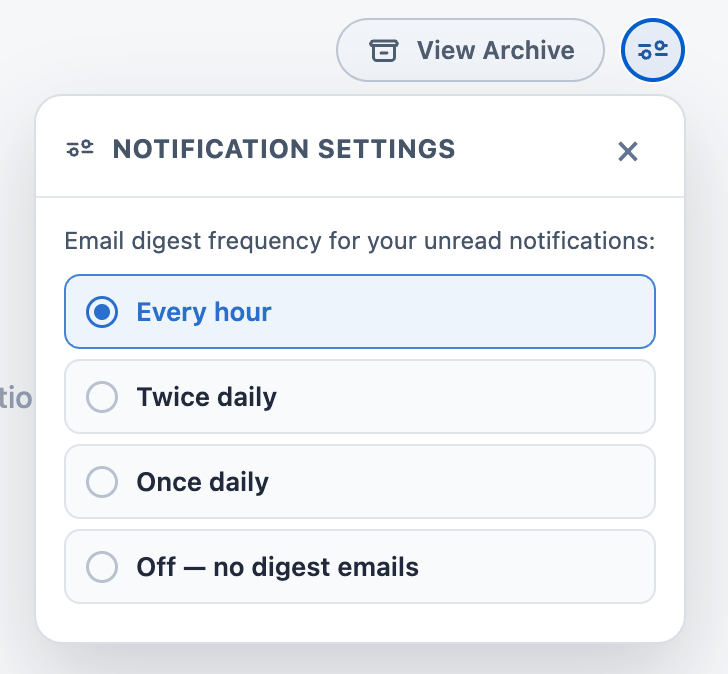
Open the Notifications tab on the Folio Docs home page and click the Notification Settings gear at the top right. Four choices:
| Setting | What you get |
|---|---|
| Every hour | A digest on the hour whenever you have unread notifications. The default until you choose otherwise. |
| Twice daily | Two digests a day |
| Once daily | One digest a day |
| Off — no digest emails | In-app notifications only |
A digest is only sent when you actually have unread notifications — a quiet hour produces no email.
If your admin hasn’t enabled digests, the panel says so, and your choice is saved and takes effect whenever they turn them on.
What the digest looks like
The email mirrors the Notifications tab. It opens with the Folio Docs lockup and a button that takes you straight into Folio, then lists your notifications grouped under the Document they belong to, with each Document’s title linking to it. Under each Document, every notification carries the same icon it has in the app — mention, comment, resolved, reopened, shared, transferred, version restored, restored from the Recycle Bin — alongside its message, the comment preview where there is one, and a timestamp in your timezone, followed by a link that opens the Document, or the specific comment thread for comment notifications.
The subject line counts what’s inside: “You have 7 unread notifications on Folio Docs.”
Long stretches are capped rather than sent in full. A digest carries at most 50 notifications, across at most 20 Documents, with at most 10 per Document; anything beyond that becomes an “and N more” line linking into Folio.
A digest reaches back 7 days at most. Nothing older than that is included, however long it has been since your last one, so switching digests on never produces a dump of old history.
Documents you’ve lost access to drop out. Access is re-checked for each recipient at send time, so if a Document is unshared between the notification and the digest, it silently disappears from the email.
Turning digests on doesn’t change the in-app experience. The Notifications tab and the Document bell work exactly as before; the digest is an extra copy delivered by email. See Admin Panel Settings for the org-level switch and sender address.
Related: Collaborate with Comments · Browse the Folio Docs home page · Using the Folio Document Editor · Admin Panel Settings
View this page as Markdown — for LLMs and plain-text tools.