
Add Folio Docs to the Navigation Bar
The Folio Docs tab is a Salesforce Tab and can be added onto the navigation bar for whichever apps your end users mostly use. Adding Folio Docs to those apps makes it a one-click destination for finding and editing Documents without leaving their daily workflow.
Why surface Folio Docs in the nav bar
Beyond convenience, the Folio Docs home page is where deep search lives. From it, users can:
- Search across every Document they have access to, by title, body content, Tag, or linked record name.
- Narrow results with Advanced Filters — by ownership, Tag, related object, created date, or star status.
That combination is what turns a growing pile of Documents into something people can actually find things in. See Browse the Folio Docs home page.
The value of the Folio Docs home page is that it serves as a home base where users can find all their Documents in one place, easily searchable and filterable, and lets users edit directly from the page.
The embedded Folio Document Editor Lightning Web Component on any object’s record page is great for Documents in context of the parent record. The Folio Docs home page complements this by allowing users to navigate across different contexts easily:
- Users can create and access Documents that have no parent context.
- Users can quickly navigate between different Documents with different record-linked contexts in one interface, without having to actually click into each individual Salesforce record.
- Users can view Documents that have links to objects where there is no editor Lightning Web Component on the record page. For example, you may have Contact as a Linkable Object, but not have the editor Lightning Web Component on the Contact page; under the Folio Docs home page, users can still see, access, and edit those Documents based on the Contact relationship, even though they wouldn’t show up on the Contact page without the Lightning Web Component on it.

Add Folio Docs to an app’s navigation bar
- Go to Setup → App Manager.
- Find the Lightning app where you want Folio Docs to appear and click Edit.
- Open the Navigation Items section.
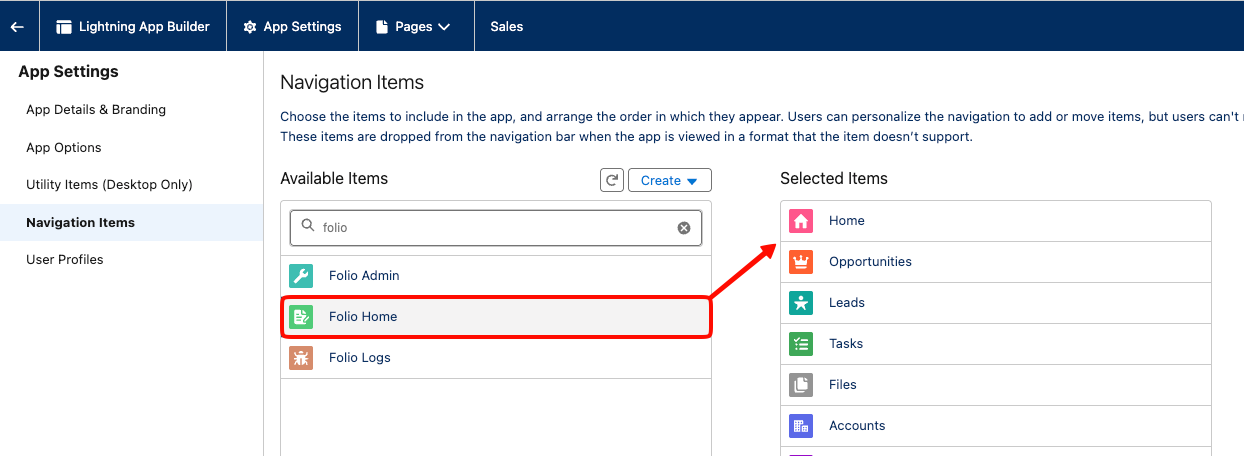
- Move Folio Docs from Available Items to Selected Items.
- Optionally, drag Folio Docs to the desired position in the nav bar. The most common placement is just to the right of the Home tab, but admins can put it wherever makes sense for their organization’s needs.
- Save.
Once saved, all users with access to that app will see the Folio Docs tab in the navigation bar (subject to their Folio permission set assignment; see Assign Permissions).
Which Folio tabs to add
Searching Folio in Available Items turns up four tabs. Three are worth adding, and one isn’t:
| Tab | Add it to |
|---|---|
| Folio Docs | Every app your admins and end users work in. This is the main entry point. |
| Folio Admin | Apps your admins spend time in. |
| Folio Logs | Apps your admins spend time in, alongside Folio Admin. |
| Folio Documents | Skip it. |
Folio Documents is the default Salesforce list view of Folio Document records. It works, but it offers little to end users — the useful ways into a Document are the Folio Document Editor on a record page and the Folio Docs home page, both of which show Documents in the context they belong to rather than as a flat list of records.
Related: Browse the Folio Docs home page · Add Components to Lightning Pages
View this page as Markdown — for LLMs and plain-text tools.