
Admin Panel — Recycle Bin
When hard delete is disabled — the default — deleting a Document doesn’t remove it. It sets an Archived flag, which takes the Document out of every user-facing view while leaving the record intact.
The Recycle Bin tab of the Folio Admin app is where those Documents wait. It lists them org-wide, lets you read one before deciding, and restores it in a click.
Admins only, and org-wide. The tab requires the Folio Docs Administrator permission set, and it shows every archived Document regardless of who owned it or whether it was ever shared with you. See Assign Permissions.
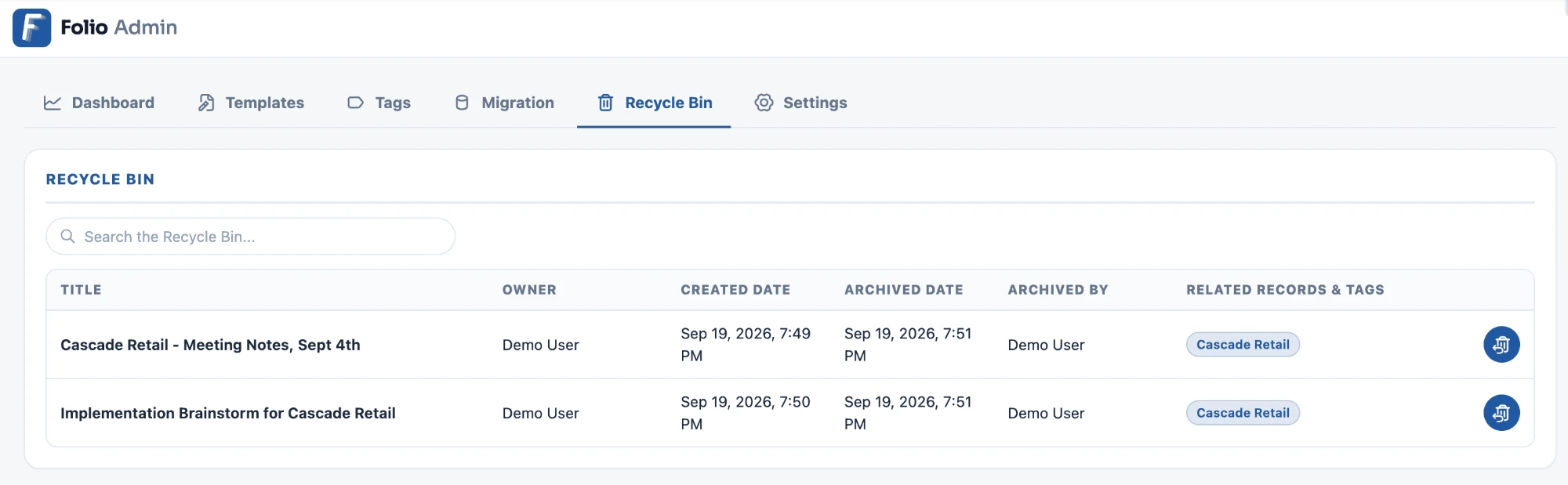
Browsing archived Documents
The table lists archived Documents most recently archived first, with six columns:
| Column | What it shows |
|---|---|
| Title | The Document’s title when it was archived |
| Owner | Who owned it at the time |
| Created Date | When the Document was originally created |
| Archived Date | When it was deleted into the Recycle Bin |
| Archived By | Who deleted it |
| Related Records & Tags | The Document’s linked records and Tags, as pills — an em dash when it has none |
Archived Date and Archived By are stamped at the moment of deletion, which is what makes an accidental delete traceable to a person and a time. Documents archived before these stamps existed fall back to their last-modified date and user.
Templates never appear here. The Recycle Bin lists Documents only; archived Templates are managed from the Templates tab.
When nothing is archived, the tab reads “The Recycle Bin is empty — no archived documents.”
Searching
Search the Recycle Bin… filters the table as you type, across titles, owners, who archived it, linked records, and Tag names. It matches on any part of a value, not just the start, and it narrows the entire list rather than only the part of it on screen.
Searching does not look inside Document content. When nothing matches, the table reads “No archived documents match your search.” Clear the box with the ✕ to get the full list back.
Previewing before you restore
Click any row to open the Document read-only. Titles alone are often not enough to tell two archived Documents apart, so the viewer opens the real content — formatting, Salesforce components, and comments included — in the Folio editor with editing turned off.
Nothing in the viewer can change the Document: the content is not editable, comments are read-only, and the editing controls are hidden. The only action available is Restore, in the header.
Restoring a Document
Restore — from the button on the row, or from inside the viewer — un-archives the Document immediately. It returns to its owner’s view and to search with its content, sharing, Tags, related records, comments, and version history exactly as they were, and the Archived Date and Archived By stamps are cleared.
There is no confirmation step, because restoring is not destructive. Restoring the wrong Document just means deleting it again.
The Document’s owner is notified that you restored it, so they find out without being told. Restoring a Document you own yourself is silent, as is restoring one owned by a Queue.
A Document deleted while hard delete was enabled never reaches the Recycle Bin. With Users can hard delete Docs turned on, deleting removes the record from Salesforce outright and there is nothing to restore. See Delete Permissions.
How long archived Documents are kept
Archived Documents do not sit in the bin forever. Archived Document Retention, in the Data Retention section of the Settings tab, sets how many months they’re kept — 6 by default. A nightly job permanently deletes anything past that window.
Purging is permanent and complete. It removes the Document along with its comments, versions, Junctions, stars, and view preferences. Nothing survives to be recovered.
Set the value to 0 to keep archived Documents indefinitely. That guarantees nothing is ever lost, at the cost of an archive that only grows — see Data Storage in Folio for what that costs.
The purge runs as a background job. With Background Jobs disabled, archived Documents accumulate indefinitely whatever the retention value says.
Related: Use the Admin Panel · Settings · Templates · Data Storage in Folio · Update Data in Bulk
View this page as Markdown — for LLMs and plain-text tools.