
Formatting Documents
Folio’s editor gives you the block types you’d expect from a modern document tool — headings, lists, tables, images, code blocks — plus callouts, toggles, drawers, columns, and task lists. It also does something a generic editor can’t: it inserts live Salesforce components directly into the page.
The editor’s own placeholder says it best: / for formatting & Salesforce components, @ for mentions.
There are three ways to format:
- The
/menu — type/for every block type and Salesforce component. This page covers it in full. - Markdown shortcuts — type familiar syntax like
#or-and the editor converts it as you go. - Keyboard shortcuts — see Use Keyboard Shortcuts.
This page covers the / menu itself. For the components it can insert, see Use Salesforce Components. To insert Record Links and Live Fields, type @ — see Insert Mentions with @. The two menus are separate entry points: / starts from a position in the page, @ starts from a record.
The / menu
Type / anywhere in the editor to open the menu.
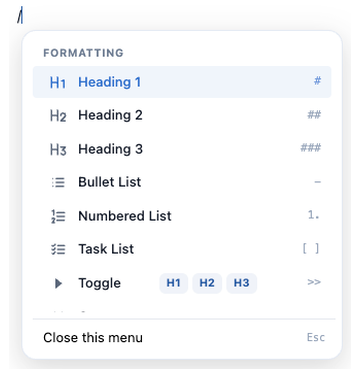
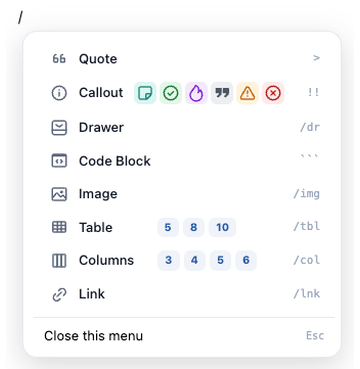
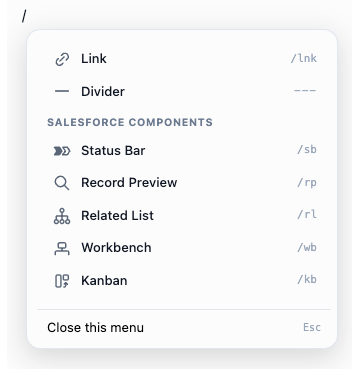
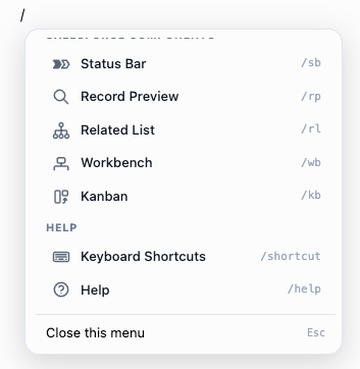
Use ↑ and ↓ to move, Enter to choose, and Escape to dismiss. Type to filter. The menu shows at most 24 items at a time, and is organized into three labeled sections rendered in this order.
Four items — Callout, Table, Columns, and Toggle — offer variants you reach with ← and → before pressing Enter. See Choosing a variant with the arrow keys.
Formatting
| Item | Shortcut |
|---|---|
| Text | — |
| Heading 1 | # |
| Heading 2 | ## |
| Heading 3 | ### |
| Bullet List | - |
| Numbered List | 1. |
| Task List | [ ] |
| Toggle | >> |
| Quote | > |
| Callout | !! |
| Drawer | /dr |
| Code Block | ``` |
| Image | /img |
| Table | /tbl |
| Columns | /col |
| Link | /lnk |
| Divider | --- |
Salesforce Components
The / menu is also how you insert Salesforce components — live CRM data embedded in the page rather than pasted into it.
| Item | Shortcut |
|---|---|
| Status Bar | /sb |
| Record Preview | /rp |
| Related List | /rl |
| Workbench | /wb |
| Kanban | /kb |
See Use Salesforce Components for what each one shows, how to configure it, and which fields it can display. Four of the five can also be inserted from the @ menu, anchored to a record you pick; Workbench is /-only.
Help
| Item | Shortcut |
|---|---|
| Keyboard Shortcuts | /shortcut |
| Help | /help |
The Help section is always visible and always renders last.
Scrolling the menu from top to bottom passes through all three sections in order:
Filtering the menu
Items match on their title and on a keyword list, so several spellings reach the same item:
/sb,/status,/path,/stage,/progress→ Status Bar/tbl,/table,/grid,/rows→ Table/cmp,/component,/sf,/salesforce,/sfdc→ the Salesforce Components section
Two section filters are worth knowing, because neither is discoverable on its own:
/fmt(or any prefix of “formatting”) filters to the Formatting section only, hiding the Salesforce components./sfor/cmpdoes the inverse, surfacing the components.
Choosing a variant with the arrow keys
Four items in the / menu aren’t a single choice — they’re a row of options. Highlight the item, then use ← and → to move along that row and Enter to insert the variant you landed on. Press Enter without arrowing and you get the default.
| Item | Default | Other options |
|---|---|---|
| Callout | Info | Note, Success, Tip, Quote, Warning, Error |
| Table | 3×3 | 5×5, 8×8, 10×10 |
| Columns | 2 columns | 3, 4, 5, or 6 columns |
| Toggle | Plain text | Heading 1, Heading 2, or Heading 3 as the toggle’s title |
This is the fastest way to get what you want in one step, such as a 5×5 table or a Warning callout. Other than using this shortcut, you can still insert a default component and modify it as a next step, but that takes a few more clicks.
Every one of these also has a typed equivalent if you’d rather not arrow: !!warn for a Warning callout, >>h2 for a Heading 2 toggle. See Markdown shortcuts.
Where blocks can go
Folio’s containers each accept some block types and not others. The same rules govern every way of placing a block — the / menu, drag and drop with the node handle, Change into on the node handle, and paste — so a block you can’t insert somewhere is also a block you can’t drag or paste there.
These rules describe what Folio will let you build. They’re deliberate editorial limits rather than storage limits, so they’re best read as “Folio won’t let you insert this here” rather than “a Document can never contain this.”
What each container accepts
| Container | Accepts |
|---|---|
| Document body | Everything |
| Drawer | Everything except another drawer |
| Callout | Text, headings, lists, dividers, images, code blocks, quotes, toggles, and block Live Fields |
| Column | Text, headings, lists, dividers, images, quotes, toggles, and block Live Fields |
| Quote | Text, headings, lists |
| Toggle | Text, headings, lists |
| Table cell | Text, lists, toggles |
| List or task item | Text, and nested lists |
| Code block | Nothing — literal text only |
“Everything” here means headings, text, lists, dividers, images, code blocks, tables, quotes, toggles, drawers, callouts, columns, block Live Fields, and Salesforce components.
Nesting rules
- Callouts hold more than you might expect — code blocks, images, toggles, and quotes all work inside one. What a callout can’t hold is another callout, a table, a drawer, columns, or a Salesforce component.
- Drawers are the most permissive container. A drawer accepts everything except another drawer.
- Columns exclude Salesforce components, can’t nest inside each other, and live at the document’s top level or inside a drawer — never in a quote, toggle, callout, list, or table cell.
- Toggles and drawers don’t nest symmetrically. Neither nests inside itself, and a toggle inside a drawer is allowed while a drawer inside a toggle is not.
- Tables go in the document body and drawers only — never inside a callout, column, quote, toggle, or another table.
- Salesforce components go in the document body and drawers only — never inside a quote, toggle, list, callout, column, or table.
How the menu responds
The / menu handles an unsupported block three different ways, depending on where your cursor is:
| Your cursor is in | An unsupported block is |
|---|---|
| A callout, column, or table cell | Hidden from the menu |
| A quote, toggle body, list item, or task item | Still offered — and inserted immediately after the container |
| A code block | Not applicable — the / menu doesn’t open at all |
The middle row is worth noting. Inside a quote you can pick Table, and the table is created after the quote rather than inside it. Where an action still makes sense, Folio places the block in the nearest valid position rather than failing silently; where it doesn’t, the option isn’t offered at all.
Title rows
The header row of a toggle, drawer, or callout offers exactly what that container’s body offers, so the menu doesn’t change depending on whether your cursor is in the title or the body. The block you insert lands in the body, since titles hold inline content only.
Move between a container’s header and its body with Tab and Shift + Tab. The same keys move between columns in a Columns block. See Containers — moving around inside one.
Callout styles
Callout is a single item in the / menu, but it has seven styles, each with its own icon and color: Info, Note, Success, Tip, Quote, Warning, and Error.
There are three ways to get the style you want:
- Arrow to it in the
/menu. Highlight Callout, then use ← and → to move through the seven styles and Enter to insert the one you want. See Choosing a variant with the arrow keys. - Type it directly:
!!or!!info·!!note·!!success·!!tip·!!quote·!!warn·!!error. Typing!!warncreates a Warning callout in one step. - Switch after inserting, from the callout’s own controls.
Markdown shortcuts
Type these at the start of a line and the editor converts them as you go.
Press Space to trigger the conversion. The prefix on its own does nothing — it’s the space after it that fires the shortcut. Typing
#leaves you with a literal#; typing#then Space turns the line into a Heading 1. The tables below spell the space out, because it’s the step people miss.
| Type at line start | Creates |
|---|---|
# + Space | Heading 1 |
## + Space | Heading 2 |
### + Space | Heading 3 |
- or * + Space | Bullet list |
1. + Space | Numbered list |
[ ] + Space | Task list item |
> + Space | Quote |
>> + Space | Toggle |
>>h1 · >>h2 · >>h3 + Space | Toggle with a heading as its title |
!! + Space | Callout — see Callout styles |
--- + Space | Divider |
``` | Code block — no Space needed |
Three behaviors that surprise people:
- The Space is required. A prefix typed without a following space does not convert.
- Code blocks are the exception. Typing
```at the start of a paragraph creates the block immediately, with no Space and no Enter. >>h1,>>h2, and>>h3create a toggle whose title is already a heading.
URLs auto-link as you type — paste or type https://… or www.… and the editor turns it into a hyperlink.
Typography auto-replacements
These fire inline the moment the pattern completes.
| Type this | Becomes |
|---|---|
--> | → |
<-- | ← |
<-> | ↔ |
==> | ⇒ |
<== | ⇐ |
–> (after an en dash was already created) | → |
<– (same) | ← |
--- + Space | — (em dash) |
-- + Space | – (en dash) |
... | … |
(c) | © |
!= | ≠ |
>= + Space | ≥ |
<= + Space | ≤ |
+- | ± |
Why some need a trailing space. --, ---, >=, and <= are each the beginning of a longer pattern (-->, ==>, <==), so they wait for a space rather than firing before you’ve finished typing the arrow.
And a note on ---: on a blank line it becomes a divider; typed inline within other text it becomes an em dash.
Related: Use Salesforce Components · Insert Mentions with @ · Use Keyboard Shortcuts · Using the Folio Document Editor
View this page as Markdown — for LLMs and plain-text tools.