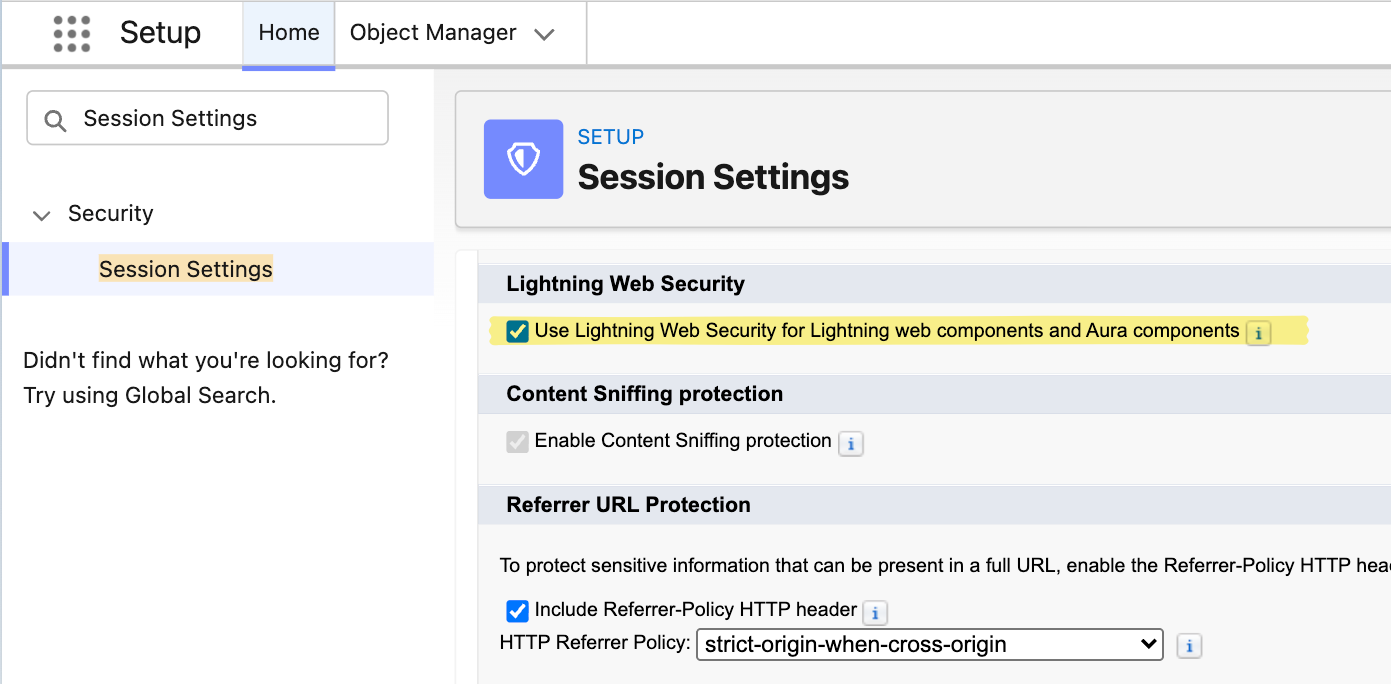
 ### If you're turning LWS on for the first time
Lightning Web Security is an org-wide platform setting, so it affects every Lightning component in the org — not just Folio. If your org has custom Lightning Web Components or Aura components built by another team, coordinate with them and test in a sandbox before enabling it in production. Salesforce's own LWS documentation covers the migration considerations in detail.
## What's next
Once your edition and LWS are confirmed, you're ready to configure Folio:
- If you haven't installed the package yet, start with [Install the Package](/docs/getting-started/installation) and [Assign Permissions](/docs/getting-started/licenses-and-permissions).
- If the package is installed and licensed, go to [Use the Admin Panel](/docs/admin/admin-panel) to configure Folio for your org.
- For a full, ordered rollout plan, follow the [Setup Checklist](/docs/getting-started/setup-checklist).
**Related:** [Install the Package](/docs/getting-started/installation) · [Assign Permissions](/docs/getting-started/licenses-and-permissions) · [Use the Admin Panel](/docs/admin/admin-panel) · [Follow the Setup Checklist](/docs/getting-started/setup-checklist)
---
# Install the Package
Source: https://foliosolutions.net/docs/getting-started/installation
Install the Folio managed package from the Salesforce AgentExchange.
Folio is a managed package installable from the Salesforce AgentExchange (formerly known as the AppExchange).
1. **Open the listing:** go to the Folio listing on the Salesforce AgentExchange. _(Stub: link to listing coming soon. The listing URL will be added here once published.)_
2. **Run Install:** start the installer from the listing and complete the prompts.
3. **Choose scope:** pick the install scope that matches your use case:
- **All Users** or **Specific Profiles**: choose one of these if any end users of your Salesforce org will use Folio Docs. Users must have permission to access the Folio package classes for the editor and Live Fields to function for them.
- **Admins Only**: acceptable only when the install is purely for admin testing or sandbox validation before broader rollout. Do not use this scope when end users need access to Folio.
In short: pick the scope based on the purpose of the install. If end users will use Folio, use **All Users** or **Specific Profiles**; for admin-only evaluation or sandbox testing, **Admins Only** is fine.
4. **Finish:** complete the install (often a few minutes). Folio custom objects, Lightning components, and the Folio app become available in your org.
After installation, assign the appropriate permission sets. See [Assign Permissions](/docs/getting-started/licenses-and-permissions).
---
# Assign Permissions
Source: https://foliosolutions.net/docs/getting-started/licenses-and-permissions
The Folio Docs License permission set license, the two Folio permission sets, and which combination to assign to users and admins.
Access to Folio comes from two things, and every Folio user needs both:
1. The **Folio Docs License** permission set license — the seat that entitles a user to Folio at all.
2. **One** Folio permission set — either **Folio Docs User** or **Folio Docs Administrator**, depending on the role that person plays.
After installation, assign both to each user.
## The Folio Docs License
**Folio Docs License** is a permission set license, not a permission set. It grants no Folio features on its own; it entitles a user to hold a Folio permission set. Everyone who touches Folio needs it — end users and administrators alike.
The number of users you may assign it to is controlled by the number of Folio Docs seats your organization has purchased on the Salesforce AppExchange. Assign the license first, then the permission set.
## The two Folio permission sets
Each user needs exactly one of these:
- **Folio Docs User:** access to the Folio Docs editor and everything that comes with it — read and write Documents, create Documents from Templates, share Documents, link Documents to records, insert inline mentions and Salesforce components inside Documents, comment on them, and more.
- **Folio Docs Administrator:** everything **Folio Docs User** grants, plus access to the [Admin Panel](/docs/admin/admin-panel), the ability to control Folio package settings, and read access to error logs on the Folio Log object.
**Folio Docs Administrator is a superset of Folio Docs User.** Every permission in Folio Docs User is also in Folio Docs Administrator, so an admin does not need both.
## Enabled Folio Docs users
Either permission set makes someone an **enabled Folio Docs user**. Anywhere Folio requires that — owning a Document, being a share target, being @-mentioned, or being named by an [invocable action](/docs/admin/automation-invocable-apex) — holding **Folio Docs User** or **Folio Docs Administrator** satisfies it. Admins are not a special case here, and they do not need Folio Docs User on top to qualify.
## What to assign
Choose the row that matches each user's role:
| Role | Permission set license | Permission set |
| --- | --- | --- |
| **Folio user** — a fully set up end user of Folio Docs | Folio Docs License | Folio Docs User |
| **Folio admin** — a fully set up administrator of Folio Docs | Folio Docs License | Folio Docs Administrator |
> **Folio Docs Administrator alone does not unlock every setting.** Changing the org-level settings in the Admin Panel requires additional Salesforce system permissions on top of the permission set — a Folio admin without them sees those settings as read-only. See [Who can change what](/docs/admin/admin-panel/settings#who-can-change-what) for exactly which settings need which permission.
## Assign the license and the permission set
1. In Setup, go to **Users** and open a user.
2. In **Permission Set License Assignments**, click **Edit Assignments**, enable **Folio Docs License**, and save.
3. Back on the user record, open **Permission Set Assignments** → **Edit Assignments**.
4. Add **Folio Docs User** for an end user, or **Folio Docs Administrator** for an administrator.
5. Save.
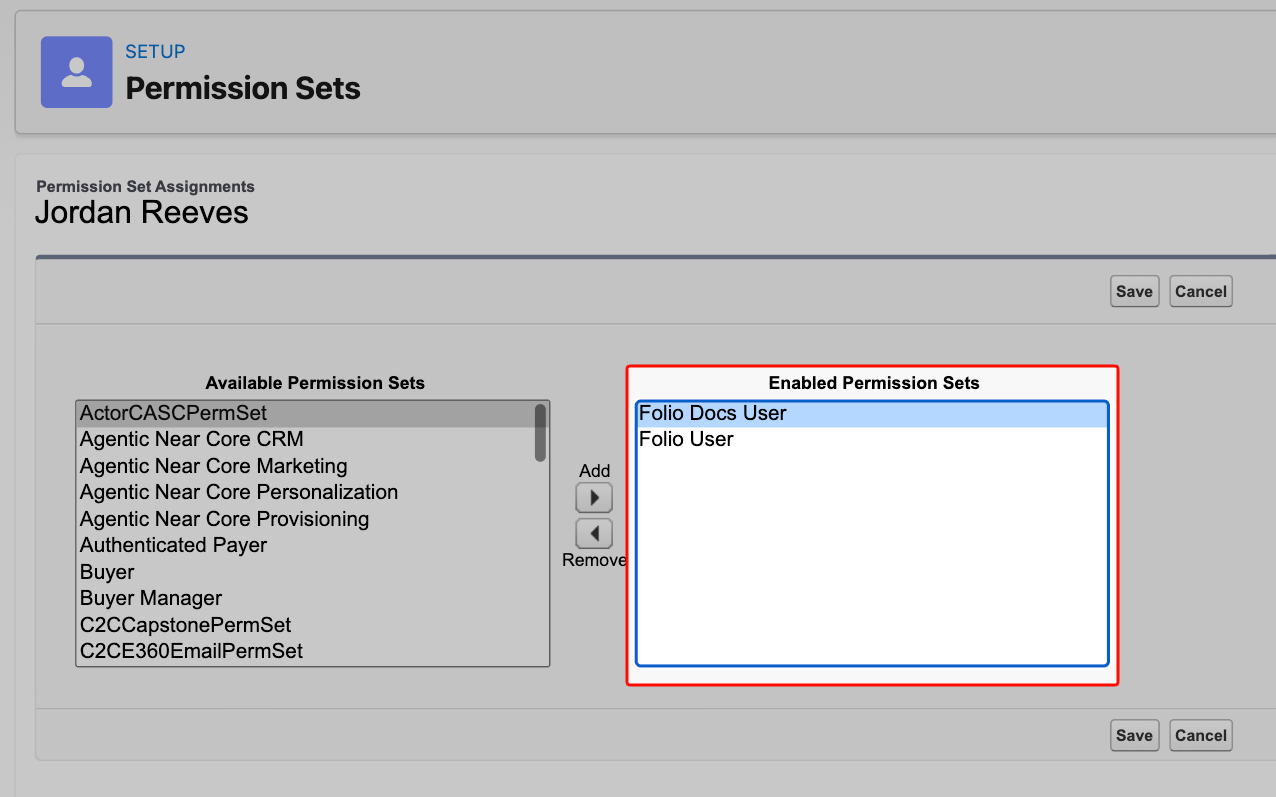
> **Assign the Folio permission sets directly — Permission Set Groups and clones don't work.** Due to Salesforce platform limitations, bundling a Folio permission set inside a **Permission Set Group** does not grant Folio Docs access. **Cloning** a Folio package permission set doesn't work either: Salesforce's 2GP licensing controls tie access to the packaged permission sets themselves, so a clone can be created and assigned but won't grant access. Only **Folio Docs User** and **Folio Docs Administrator**, assigned directly to the user as permission set assignments, grant Folio Docs access.
### If you're turning LWS on for the first time
Lightning Web Security is an org-wide platform setting, so it affects every Lightning component in the org — not just Folio. If your org has custom Lightning Web Components or Aura components built by another team, coordinate with them and test in a sandbox before enabling it in production. Salesforce's own LWS documentation covers the migration considerations in detail.
## What's next
Once your edition and LWS are confirmed, you're ready to configure Folio:
- If you haven't installed the package yet, start with [Install the Package](/docs/getting-started/installation) and [Assign Permissions](/docs/getting-started/licenses-and-permissions).
- If the package is installed and licensed, go to [Use the Admin Panel](/docs/admin/admin-panel) to configure Folio for your org.
- For a full, ordered rollout plan, follow the [Setup Checklist](/docs/getting-started/setup-checklist).
**Related:** [Install the Package](/docs/getting-started/installation) · [Assign Permissions](/docs/getting-started/licenses-and-permissions) · [Use the Admin Panel](/docs/admin/admin-panel) · [Follow the Setup Checklist](/docs/getting-started/setup-checklist)
---
# Install the Package
Source: https://foliosolutions.net/docs/getting-started/installation
Install the Folio managed package from the Salesforce AgentExchange.
Folio is a managed package installable from the Salesforce AgentExchange (formerly known as the AppExchange).
1. **Open the listing:** go to the Folio listing on the Salesforce AgentExchange. _(Stub: link to listing coming soon. The listing URL will be added here once published.)_
2. **Run Install:** start the installer from the listing and complete the prompts.
3. **Choose scope:** pick the install scope that matches your use case:
- **All Users** or **Specific Profiles**: choose one of these if any end users of your Salesforce org will use Folio Docs. Users must have permission to access the Folio package classes for the editor and Live Fields to function for them.
- **Admins Only**: acceptable only when the install is purely for admin testing or sandbox validation before broader rollout. Do not use this scope when end users need access to Folio.
In short: pick the scope based on the purpose of the install. If end users will use Folio, use **All Users** or **Specific Profiles**; for admin-only evaluation or sandbox testing, **Admins Only** is fine.
4. **Finish:** complete the install (often a few minutes). Folio custom objects, Lightning components, and the Folio app become available in your org.
After installation, assign the appropriate permission sets. See [Assign Permissions](/docs/getting-started/licenses-and-permissions).
---
# Assign Permissions
Source: https://foliosolutions.net/docs/getting-started/licenses-and-permissions
The Folio Docs License permission set license, the two Folio permission sets, and which combination to assign to users and admins.
Access to Folio comes from two things, and every Folio user needs both:
1. The **Folio Docs License** permission set license — the seat that entitles a user to Folio at all.
2. **One** Folio permission set — either **Folio Docs User** or **Folio Docs Administrator**, depending on the role that person plays.
After installation, assign both to each user.
## The Folio Docs License
**Folio Docs License** is a permission set license, not a permission set. It grants no Folio features on its own; it entitles a user to hold a Folio permission set. Everyone who touches Folio needs it — end users and administrators alike.
The number of users you may assign it to is controlled by the number of Folio Docs seats your organization has purchased on the Salesforce AppExchange. Assign the license first, then the permission set.
## The two Folio permission sets
Each user needs exactly one of these:
- **Folio Docs User:** access to the Folio Docs editor and everything that comes with it — read and write Documents, create Documents from Templates, share Documents, link Documents to records, insert inline mentions and Salesforce components inside Documents, comment on them, and more.
- **Folio Docs Administrator:** everything **Folio Docs User** grants, plus access to the [Admin Panel](/docs/admin/admin-panel), the ability to control Folio package settings, and read access to error logs on the Folio Log object.
**Folio Docs Administrator is a superset of Folio Docs User.** Every permission in Folio Docs User is also in Folio Docs Administrator, so an admin does not need both.
## Enabled Folio Docs users
Either permission set makes someone an **enabled Folio Docs user**. Anywhere Folio requires that — owning a Document, being a share target, being @-mentioned, or being named by an [invocable action](/docs/admin/automation-invocable-apex) — holding **Folio Docs User** or **Folio Docs Administrator** satisfies it. Admins are not a special case here, and they do not need Folio Docs User on top to qualify.
## What to assign
Choose the row that matches each user's role:
| Role | Permission set license | Permission set |
| --- | --- | --- |
| **Folio user** — a fully set up end user of Folio Docs | Folio Docs License | Folio Docs User |
| **Folio admin** — a fully set up administrator of Folio Docs | Folio Docs License | Folio Docs Administrator |
> **Folio Docs Administrator alone does not unlock every setting.** Changing the org-level settings in the Admin Panel requires additional Salesforce system permissions on top of the permission set — a Folio admin without them sees those settings as read-only. See [Who can change what](/docs/admin/admin-panel/settings#who-can-change-what) for exactly which settings need which permission.
## Assign the license and the permission set
1. In Setup, go to **Users** and open a user.
2. In **Permission Set License Assignments**, click **Edit Assignments**, enable **Folio Docs License**, and save.
3. Back on the user record, open **Permission Set Assignments** → **Edit Assignments**.
4. Add **Folio Docs User** for an end user, or **Folio Docs Administrator** for an administrator.
5. Save.
> **Assign the Folio permission sets directly — Permission Set Groups and clones don't work.** Due to Salesforce platform limitations, bundling a Folio permission set inside a **Permission Set Group** does not grant Folio Docs access. **Cloning** a Folio package permission set doesn't work either: Salesforce's 2GP licensing controls tie access to the packaged permission sets themselves, so a clone can be created and assigned but won't grant access. Only **Folio Docs User** and **Folio Docs Administrator**, assigned directly to the user as permission set assignments, grant Folio Docs access.
 **Related:** [Install the Package](/docs/getting-started/installation) · [Use the Admin Panel](/docs/admin/admin-panel)
---
# Follow the Setup Checklist
Source: https://foliosolutions.net/docs/getting-started/setup-checklist
A printable, time-boxed checklist of every step a Salesforce Administrator needs to complete to roll Folio out to their org.
This is the master checklist for rolling out Folio in a new org. Work through the **Required setup** items in order; the **Optional / Advanced** items can be done later as your team's needs grow.
**Total time to set up: 30–45 minutes.**
---
## Required setup
### Install and provision
- [ ] **Confirm your edition is supported and Lightning Web Security is enabled (2 min)** — Folio runs on Enterprise, Unlimited, Performance, and Developer Editions, and will not work without LWS, which is enabled by default in most orgs. See [Check the Prerequisites](/docs/getting-started/prerequisites).
- [ ] **Install the package (5 min)** — Install the Folio managed package from the Salesforce AgentExchange and choose the right install scope. See [Install the Package](/docs/getting-started/installation).
- [ ] **Assign permissions (5 min)** — Assign the **Folio Docs License** permission set license to every Folio user, then one permission set each: **Folio Docs User** for end users, **Folio Docs Administrator** for anyone who will manage the package. See [Assign Permissions](/docs/getting-started/licenses-and-permissions).
### Configure Folio Docs
- [ ] **Configure settings in the Admin Panel (15 min)** — Open the Folio Admin page and walk through every section. See [Use the Admin Panel](/docs/admin/admin-panel) for full details.
- [ ] Select your **Linkable Objects** (the Salesforce objects users can attach Documents to).
- [ ] For each Linkable Object, select the **Linkable Fields** that should be available to Live Fields and the Salesforce components.
- [ ] For each Linkable Field, toggle **Enable Write-Back** where applicable.
- [ ] Set the org-wide **Linkable Field Write-Back** master toggle.
- [ ] Configure **Auto-Share Level with Record Owner** for each Linkable Object.
- [ ] **Decide how the User object is configured — it behaves differently from every other object.** For User, Auto-Share Level doesn't govern record ownership; it governs **@-mentions of people**. If User isn't among your Selected Objects, users cannot be @-mentioned in Document bodies at all. If it is, the level you pick is the access a mentioned person receives on the Document. See [Special case: the User object](/docs/admin/admin-panel/settings#special-case-the-user-object).
- [ ] Turn on **Background Jobs** under Asynchronous Processing. This single toggle schedules all nine of Folio's background jobs: search indexing, search-by-record-name sync, Team member sharing, the usage data behind the [Dashboard](/docs/admin/admin-panel/dashboard), version history consolidation, email digests, the archive purge, and log, export, and notification cleanup. Enable it once during setup and leave it on — see [Asynchronous Processing](/docs/admin/admin-panel/settings#asynchronous-processing). **Enable it as an account that will stick around** — a system automation or integration service account, or a long-standing admin. The jobs run as whoever turns the toggle on, and stop if that user is ever deactivated.
- [ ] Decide whether to run **Notification Email Digest**, and pick the Organization-Wide Email Address they send from — it must have **Allow All Profiles to Use this From Address** enabled. Off by default; users choose their own frequency once you enable it. See [Notification Email Digest](/docs/admin/admin-panel/settings#notification-email-digest).
- [ ] Configure **Automatic Team Sharing** with Account / Opportunity / Case Teams.
- [ ] Configure **Automatic Record Linking** (Opportunity → Account, Contact → Account).
- [ ] Set **Delete permissions** for Documents (hard-delete enabled or disabled).
- [ ] **Set up real-time updates for objects beyond the built-in four (5 min per object)** — **Account**, **Contact**, **Opportunity**, and **Case** work automatically with no setup. For every other Linkable Object, add an after-save record-triggered Flow calling **Folio: Refresh Document from Record Changes**. This keeps Documents current with record data and re-applies owner-based sharing when a record changes hands. See [Set up Real-Time Updates](/docs/admin/real-time-updates).
### Surface Folio in the UI
- [ ] **Add components to the right Lightning pages (5 min per page)** — Place the Folio Document Editor on the main content area of high-traffic record pages (Account, Opportunity, Case, etc.). See [Add Components to Lightning Pages](/docs/admin/adding-editors-to-record-pages).
- [ ] **Add Folio Docs to the navigation bar for end users (2 min per app)** — In each Lightning app where your users live (Sales, Service, etc.), edit the navigation items to include the **Folio Docs** tab so users have a one-click destination to find and edit their Documents. See [Add Folio Docs to the Navigation Bar](/docs/admin/adding-folio-docs-home-to-navigation).
- [ ] **Add Folio Admin to the navigation bar for admins (2 min)** — In your administrative app(s), add the **Folio Admin** tab to the navigation bar so administrators have one-click access to the Admin Panel for ongoing configuration changes. Use the same App Manager → Navigation Items workflow described in [Add Folio Docs to the Navigation Bar](/docs/admin/adding-folio-docs-home-to-navigation), but select the **Folio Admin** tab instead.
---
## Optional / Advanced
These are not required to use Folio, but unlock more value as your team's needs grow.
- [ ] **Set up Document Templates (15–30 min, varies by complexity)** — Build reusable starter Documents (Account Plans, Close Plans, CS Handoffs, Case Summaries) with merge fields that resolve from a Source Record at instantiation time. See [Manage Templates](/docs/admin/admin-panel/templates).
- [ ] **Set up automations with invocable Apex (15+ min for the first flow)** — Use Folio's invocable Apex actions in Salesforce Flow to automate Document creation, sharing, tagging, linking, and ownership transfer based on real-time business events. See [Automate with Invocable Apex](/docs/admin/automation-invocable-apex) and [Review Invocable Apex Use Cases](/docs/admin/invocable-apex-use-cases) for worked examples.
- [ ] **Curate your Tag vocabulary (ongoing)** — Once users start tagging, use the Tags tab to set colors on the Tags that carry org-wide meaning and merge the duplicates that inevitably appear. See [Admin Panel Tags](/docs/admin/admin-panel/tags).
- [ ] **Review data retention (5 min if needed)** — The **Data Retention** section at the bottom of the Settings tab controls how long version snapshots, notifications, export files, and logs are kept. The defaults are sensible; adjust them if your org has specific retention requirements. See [Data Retention](/docs/admin/admin-panel/settings#data-retention).
---
## After you ship
- [ ] **Train your end users.** Point them at [What is Folio Docs?](/docs/user-guide/what-is-folio) and [Browse the Folio Docs home page](/docs/user-guide/folio-docs-home) as their starting points. Flag [View and Edit at the Same Time](/docs/user-guide/concurrent-editing) explicitly — the one-editor-at-a-time model is the thing users are most likely to be surprised by.
- [ ] **Check the Dashboard after a few weeks.** The [Dashboard tab](/docs/admin/admin-panel/dashboard) shows which objects and Templates are being used, and which Linkable Objects are going unused.
**Related:** [Check the Prerequisites](/docs/getting-started/prerequisites) · [Install the Package](/docs/getting-started/installation) · [Assign Permissions](/docs/getting-started/licenses-and-permissions) · [Use the Admin Panel](/docs/admin/admin-panel)
---
# Understand the Folio Data Model
Source: https://foliosolutions.net/docs/getting-started/data-model
A high-level look at the Folio objects and how they relate, so admins can write accurate flows, reports, and SOQL queries.
Folio is built from a small number of custom objects. This page gives you a high-level map of those objects and how they relate, without going into individual fields. Once you have this mental model, building flows, reports, and SOQL queries against Folio data becomes much more straightforward.
## The objects
The Folio package ships with around **20 objects**, but most exist to support features rather than to be queried directly. **Four do most of the work**, and they're the ones worth understanding before you write a flow, build a report, or run a SOQL query:
- **`folio__Document__c`** — the parent record for a Folio Document. One record per Document.
- **`folio__Tag__c`** — a single Tag definition. One record per unique Tag in the org.
- **`folio__Junction__c`** — the **central relationship object**. Every link between a Document and a Salesforce record, and every Tag applied to a Document, is one row in this object.
- **`folio__Document__Share`** — the standard Salesforce share table for `folio__Document__c`. This is what controls user/group access to Documents.
## How they relate
**Related:** [Install the Package](/docs/getting-started/installation) · [Use the Admin Panel](/docs/admin/admin-panel)
---
# Follow the Setup Checklist
Source: https://foliosolutions.net/docs/getting-started/setup-checklist
A printable, time-boxed checklist of every step a Salesforce Administrator needs to complete to roll Folio out to their org.
This is the master checklist for rolling out Folio in a new org. Work through the **Required setup** items in order; the **Optional / Advanced** items can be done later as your team's needs grow.
**Total time to set up: 30–45 minutes.**
---
## Required setup
### Install and provision
- [ ] **Confirm your edition is supported and Lightning Web Security is enabled (2 min)** — Folio runs on Enterprise, Unlimited, Performance, and Developer Editions, and will not work without LWS, which is enabled by default in most orgs. See [Check the Prerequisites](/docs/getting-started/prerequisites).
- [ ] **Install the package (5 min)** — Install the Folio managed package from the Salesforce AgentExchange and choose the right install scope. See [Install the Package](/docs/getting-started/installation).
- [ ] **Assign permissions (5 min)** — Assign the **Folio Docs License** permission set license to every Folio user, then one permission set each: **Folio Docs User** for end users, **Folio Docs Administrator** for anyone who will manage the package. See [Assign Permissions](/docs/getting-started/licenses-and-permissions).
### Configure Folio Docs
- [ ] **Configure settings in the Admin Panel (15 min)** — Open the Folio Admin page and walk through every section. See [Use the Admin Panel](/docs/admin/admin-panel) for full details.
- [ ] Select your **Linkable Objects** (the Salesforce objects users can attach Documents to).
- [ ] For each Linkable Object, select the **Linkable Fields** that should be available to Live Fields and the Salesforce components.
- [ ] For each Linkable Field, toggle **Enable Write-Back** where applicable.
- [ ] Set the org-wide **Linkable Field Write-Back** master toggle.
- [ ] Configure **Auto-Share Level with Record Owner** for each Linkable Object.
- [ ] **Decide how the User object is configured — it behaves differently from every other object.** For User, Auto-Share Level doesn't govern record ownership; it governs **@-mentions of people**. If User isn't among your Selected Objects, users cannot be @-mentioned in Document bodies at all. If it is, the level you pick is the access a mentioned person receives on the Document. See [Special case: the User object](/docs/admin/admin-panel/settings#special-case-the-user-object).
- [ ] Turn on **Background Jobs** under Asynchronous Processing. This single toggle schedules all nine of Folio's background jobs: search indexing, search-by-record-name sync, Team member sharing, the usage data behind the [Dashboard](/docs/admin/admin-panel/dashboard), version history consolidation, email digests, the archive purge, and log, export, and notification cleanup. Enable it once during setup and leave it on — see [Asynchronous Processing](/docs/admin/admin-panel/settings#asynchronous-processing). **Enable it as an account that will stick around** — a system automation or integration service account, or a long-standing admin. The jobs run as whoever turns the toggle on, and stop if that user is ever deactivated.
- [ ] Decide whether to run **Notification Email Digest**, and pick the Organization-Wide Email Address they send from — it must have **Allow All Profiles to Use this From Address** enabled. Off by default; users choose their own frequency once you enable it. See [Notification Email Digest](/docs/admin/admin-panel/settings#notification-email-digest).
- [ ] Configure **Automatic Team Sharing** with Account / Opportunity / Case Teams.
- [ ] Configure **Automatic Record Linking** (Opportunity → Account, Contact → Account).
- [ ] Set **Delete permissions** for Documents (hard-delete enabled or disabled).
- [ ] **Set up real-time updates for objects beyond the built-in four (5 min per object)** — **Account**, **Contact**, **Opportunity**, and **Case** work automatically with no setup. For every other Linkable Object, add an after-save record-triggered Flow calling **Folio: Refresh Document from Record Changes**. This keeps Documents current with record data and re-applies owner-based sharing when a record changes hands. See [Set up Real-Time Updates](/docs/admin/real-time-updates).
### Surface Folio in the UI
- [ ] **Add components to the right Lightning pages (5 min per page)** — Place the Folio Document Editor on the main content area of high-traffic record pages (Account, Opportunity, Case, etc.). See [Add Components to Lightning Pages](/docs/admin/adding-editors-to-record-pages).
- [ ] **Add Folio Docs to the navigation bar for end users (2 min per app)** — In each Lightning app where your users live (Sales, Service, etc.), edit the navigation items to include the **Folio Docs** tab so users have a one-click destination to find and edit their Documents. See [Add Folio Docs to the Navigation Bar](/docs/admin/adding-folio-docs-home-to-navigation).
- [ ] **Add Folio Admin to the navigation bar for admins (2 min)** — In your administrative app(s), add the **Folio Admin** tab to the navigation bar so administrators have one-click access to the Admin Panel for ongoing configuration changes. Use the same App Manager → Navigation Items workflow described in [Add Folio Docs to the Navigation Bar](/docs/admin/adding-folio-docs-home-to-navigation), but select the **Folio Admin** tab instead.
---
## Optional / Advanced
These are not required to use Folio, but unlock more value as your team's needs grow.
- [ ] **Set up Document Templates (15–30 min, varies by complexity)** — Build reusable starter Documents (Account Plans, Close Plans, CS Handoffs, Case Summaries) with merge fields that resolve from a Source Record at instantiation time. See [Manage Templates](/docs/admin/admin-panel/templates).
- [ ] **Set up automations with invocable Apex (15+ min for the first flow)** — Use Folio's invocable Apex actions in Salesforce Flow to automate Document creation, sharing, tagging, linking, and ownership transfer based on real-time business events. See [Automate with Invocable Apex](/docs/admin/automation-invocable-apex) and [Review Invocable Apex Use Cases](/docs/admin/invocable-apex-use-cases) for worked examples.
- [ ] **Curate your Tag vocabulary (ongoing)** — Once users start tagging, use the Tags tab to set colors on the Tags that carry org-wide meaning and merge the duplicates that inevitably appear. See [Admin Panel Tags](/docs/admin/admin-panel/tags).
- [ ] **Review data retention (5 min if needed)** — The **Data Retention** section at the bottom of the Settings tab controls how long version snapshots, notifications, export files, and logs are kept. The defaults are sensible; adjust them if your org has specific retention requirements. See [Data Retention](/docs/admin/admin-panel/settings#data-retention).
---
## After you ship
- [ ] **Train your end users.** Point them at [What is Folio Docs?](/docs/user-guide/what-is-folio) and [Browse the Folio Docs home page](/docs/user-guide/folio-docs-home) as their starting points. Flag [View and Edit at the Same Time](/docs/user-guide/concurrent-editing) explicitly — the one-editor-at-a-time model is the thing users are most likely to be surprised by.
- [ ] **Check the Dashboard after a few weeks.** The [Dashboard tab](/docs/admin/admin-panel/dashboard) shows which objects and Templates are being used, and which Linkable Objects are going unused.
**Related:** [Check the Prerequisites](/docs/getting-started/prerequisites) · [Install the Package](/docs/getting-started/installation) · [Assign Permissions](/docs/getting-started/licenses-and-permissions) · [Use the Admin Panel](/docs/admin/admin-panel)
---
# Understand the Folio Data Model
Source: https://foliosolutions.net/docs/getting-started/data-model
A high-level look at the Folio objects and how they relate, so admins can write accurate flows, reports, and SOQL queries.
Folio is built from a small number of custom objects. This page gives you a high-level map of those objects and how they relate, without going into individual fields. Once you have this mental model, building flows, reports, and SOQL queries against Folio data becomes much more straightforward.
## The objects
The Folio package ships with around **20 objects**, but most exist to support features rather than to be queried directly. **Four do most of the work**, and they're the ones worth understanding before you write a flow, build a report, or run a SOQL query:
- **`folio__Document__c`** — the parent record for a Folio Document. One record per Document.
- **`folio__Tag__c`** — a single Tag definition. One record per unique Tag in the org.
- **`folio__Junction__c`** — the **central relationship object**. Every link between a Document and a Salesforce record, and every Tag applied to a Document, is one row in this object.
- **`folio__Document__Share`** — the standard Salesforce share table for `folio__Document__c`. This is what controls user/group access to Documents.
## How they relate
 ## Where to start
If this is a new install, work through the tabs in this order:
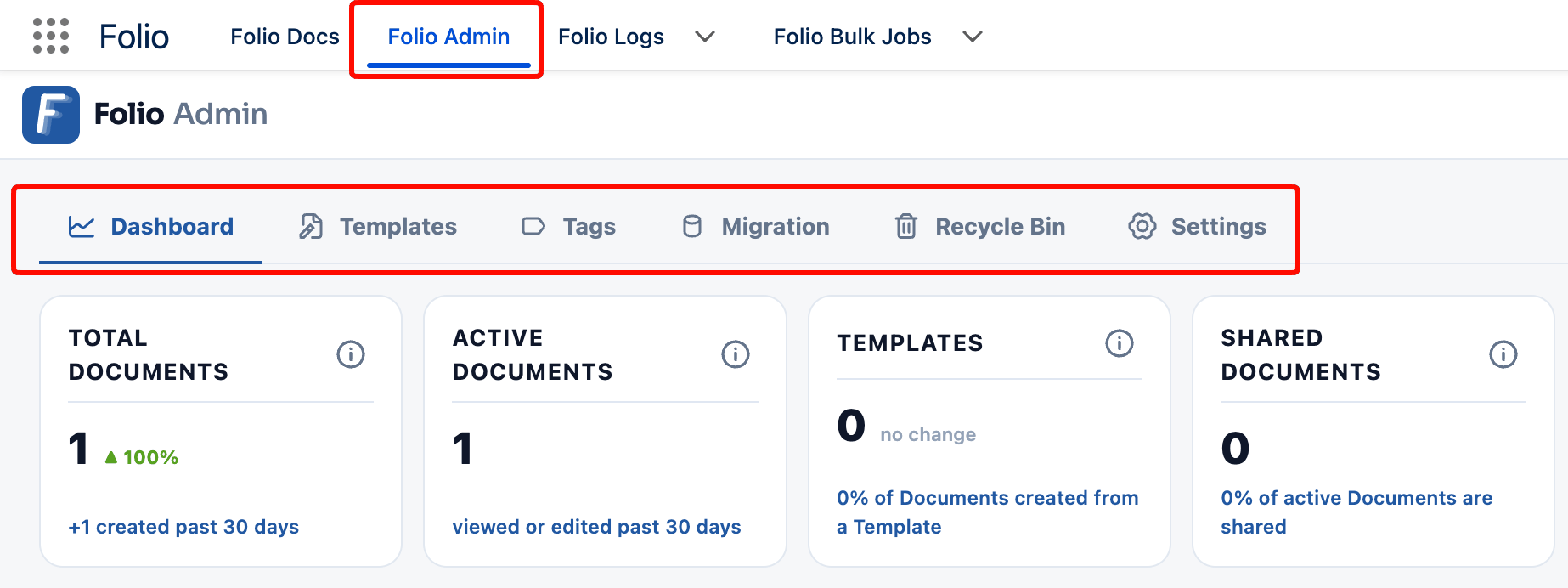
1. **[Settings](/docs/admin/admin-panel/settings)** first — choosing your Linkable Objects, selecting Linkable Fields, and turning on Background Jobs is what unlocks the most value from Folio Docs.
2. **[Templates](/docs/admin/admin-panel/templates)** next — once objects and fields are configured, Templates can reference them.
3. **[Tags](/docs/admin/admin-panel/tags)** as your users start creating content and a Tag vocabulary emerges.
4. **[Migration](/docs/admin/admin-panel/migration)** if you're bringing existing documents in from elsewhere.
5. **[Dashboard](/docs/admin/admin-panel/dashboard)** on an ongoing basis, to watch adoption and spot which Templates and objects are actually being used.
For a complete, ordered rollout plan that covers the Admin Panel alongside everything else, follow the [Setup Checklist](/docs/getting-started/setup-checklist).
**Related:** [Check the Prerequisites](/docs/getting-started/prerequisites) · [Dashboard](/docs/admin/admin-panel/dashboard) · [Templates](/docs/admin/admin-panel/templates) · [Tags](/docs/admin/admin-panel/tags) · [Migration](/docs/admin/admin-panel/migration) · [Recycle Bin](/docs/admin/admin-panel/recycle-bin) · [Settings](/docs/admin/admin-panel/settings) · [Understand the Folio Data Model](/docs/getting-started/data-model)
---
# Admin Panel — Dashboard
Source: https://foliosolutions.net/docs/admin/admin-panel/dashboard
Adoption and usage analytics for Folio Docs — KPI tiles, adoption trends, and breakdowns of Documents, Templates, components, and Flow actions.
The **Dashboard** tab is the first tab of the [Folio Admin app](/docs/admin/admin-panel). It reports on how much Folio is being used, which objects and Templates it's being used with, and which packaged automations are running.
Everything on this tab is read-only reporting. Nothing here changes configuration — for that, see the [Settings tab](/docs/admin/admin-panel/settings).
**Print Dashboard** produces a print-friendly rendering of everything below — the same tiles, trends, and charts laid out for paper or PDF — which is the practical way to take adoption numbers into a renewal or a steering meeting.
## KPI tiles
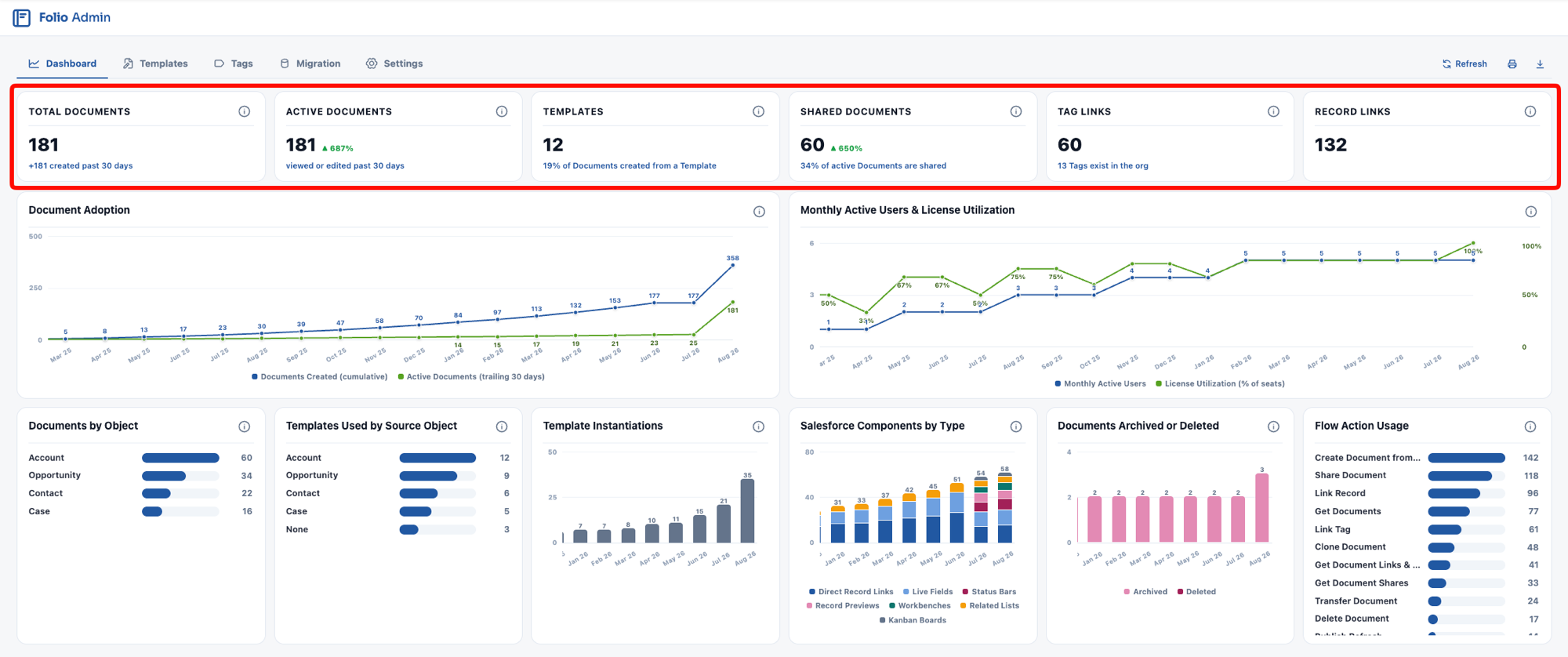
Six tiles run across the top of the Dashboard.
| Tile | What it counts |
| --- | --- |
| **Total Documents** | Every Document in the org, active and archived. Templates are not counted. The subtext shows how many were created in the past 30 days. |
| **Active Documents** | Documents viewed, edited, or created in the past 30 days. |
| **Templates** | The total number of Templates. The subtext shows what share of all Documents were created from a Template. |
| **Shared Documents** | Documents shared with at least one other user — that is, Documents that aren't private to their owner. The subtext shows what share of *active* Documents are shared. |
| **Tag Links** | Unique Document↔Tag links. The subtext shows how many distinct Tags exist in the org, which is a much smaller number — one Tag can account for many links. |
| **Record Links** | Unique Document↔record links. The subtext shows how many were linked in the past 30 days. |
A few things worth knowing when you read these numbers:
- **Total Documents includes archived Documents.** If your org has [hard delete disabled](/docs/admin/admin-panel/settings#delete-permissions) — the default and the recommendation — deleted Documents are archived rather than removed, so they stay in this count. The gap between **Total Documents** and **Active Documents** is not all abandonment; some of it is archived content.
- **Templates are excluded from Document counts** everywhere on this tab, so Template authoring never inflates adoption numbers.
- **The daily snapshots behind these charts are written by a nightly job.** If [Background Jobs](/docs/admin/admin-panel/settings#asynchronous-processing) is disabled for a period, the Dashboard has a permanent gap for those days — point-in-time state can't be reconstructed after the fact.
- **Record Links counts links, not Documents.** A single account plan linked to an Account, an Opportunity, and two Contacts contributes four Record Links.
- **Each tile carries a trend flag** — ▲, ▼, or *no change* — comparing the past 30 days against the 30 before them. Movement under 2% reads as no change, so the flag doesn't twitch on noise.
- **Every tile and chart has an ⓘ bubble** explaining exactly what it counts and what its trend compares. Hover it before drawing conclusions from a number; several metrics count links rather than Documents.
## Where to start
If this is a new install, work through the tabs in this order:
1. **[Settings](/docs/admin/admin-panel/settings)** first — choosing your Linkable Objects, selecting Linkable Fields, and turning on Background Jobs is what unlocks the most value from Folio Docs.
2. **[Templates](/docs/admin/admin-panel/templates)** next — once objects and fields are configured, Templates can reference them.
3. **[Tags](/docs/admin/admin-panel/tags)** as your users start creating content and a Tag vocabulary emerges.
4. **[Migration](/docs/admin/admin-panel/migration)** if you're bringing existing documents in from elsewhere.
5. **[Dashboard](/docs/admin/admin-panel/dashboard)** on an ongoing basis, to watch adoption and spot which Templates and objects are actually being used.
For a complete, ordered rollout plan that covers the Admin Panel alongside everything else, follow the [Setup Checklist](/docs/getting-started/setup-checklist).
**Related:** [Check the Prerequisites](/docs/getting-started/prerequisites) · [Dashboard](/docs/admin/admin-panel/dashboard) · [Templates](/docs/admin/admin-panel/templates) · [Tags](/docs/admin/admin-panel/tags) · [Migration](/docs/admin/admin-panel/migration) · [Recycle Bin](/docs/admin/admin-panel/recycle-bin) · [Settings](/docs/admin/admin-panel/settings) · [Understand the Folio Data Model](/docs/getting-started/data-model)
---
# Admin Panel — Dashboard
Source: https://foliosolutions.net/docs/admin/admin-panel/dashboard
Adoption and usage analytics for Folio Docs — KPI tiles, adoption trends, and breakdowns of Documents, Templates, components, and Flow actions.
The **Dashboard** tab is the first tab of the [Folio Admin app](/docs/admin/admin-panel). It reports on how much Folio is being used, which objects and Templates it's being used with, and which packaged automations are running.
Everything on this tab is read-only reporting. Nothing here changes configuration — for that, see the [Settings tab](/docs/admin/admin-panel/settings).
**Print Dashboard** produces a print-friendly rendering of everything below — the same tiles, trends, and charts laid out for paper or PDF — which is the practical way to take adoption numbers into a renewal or a steering meeting.
## KPI tiles
Six tiles run across the top of the Dashboard.
| Tile | What it counts |
| --- | --- |
| **Total Documents** | Every Document in the org, active and archived. Templates are not counted. The subtext shows how many were created in the past 30 days. |
| **Active Documents** | Documents viewed, edited, or created in the past 30 days. |
| **Templates** | The total number of Templates. The subtext shows what share of all Documents were created from a Template. |
| **Shared Documents** | Documents shared with at least one other user — that is, Documents that aren't private to their owner. The subtext shows what share of *active* Documents are shared. |
| **Tag Links** | Unique Document↔Tag links. The subtext shows how many distinct Tags exist in the org, which is a much smaller number — one Tag can account for many links. |
| **Record Links** | Unique Document↔record links. The subtext shows how many were linked in the past 30 days. |
A few things worth knowing when you read these numbers:
- **Total Documents includes archived Documents.** If your org has [hard delete disabled](/docs/admin/admin-panel/settings#delete-permissions) — the default and the recommendation — deleted Documents are archived rather than removed, so they stay in this count. The gap between **Total Documents** and **Active Documents** is not all abandonment; some of it is archived content.
- **Templates are excluded from Document counts** everywhere on this tab, so Template authoring never inflates adoption numbers.
- **The daily snapshots behind these charts are written by a nightly job.** If [Background Jobs](/docs/admin/admin-panel/settings#asynchronous-processing) is disabled for a period, the Dashboard has a permanent gap for those days — point-in-time state can't be reconstructed after the fact.
- **Record Links counts links, not Documents.** A single account plan linked to an Account, an Opportunity, and two Contacts contributes four Record Links.
- **Each tile carries a trend flag** — ▲, ▼, or *no change* — comparing the past 30 days against the 30 before them. Movement under 2% reads as no change, so the flag doesn't twitch on noise.
- **Every tile and chart has an ⓘ bubble** explaining exactly what it counts and what its trend compares. Hover it before drawing conclusions from a number; several metrics count links rather than Documents.
 ## Adoption charts
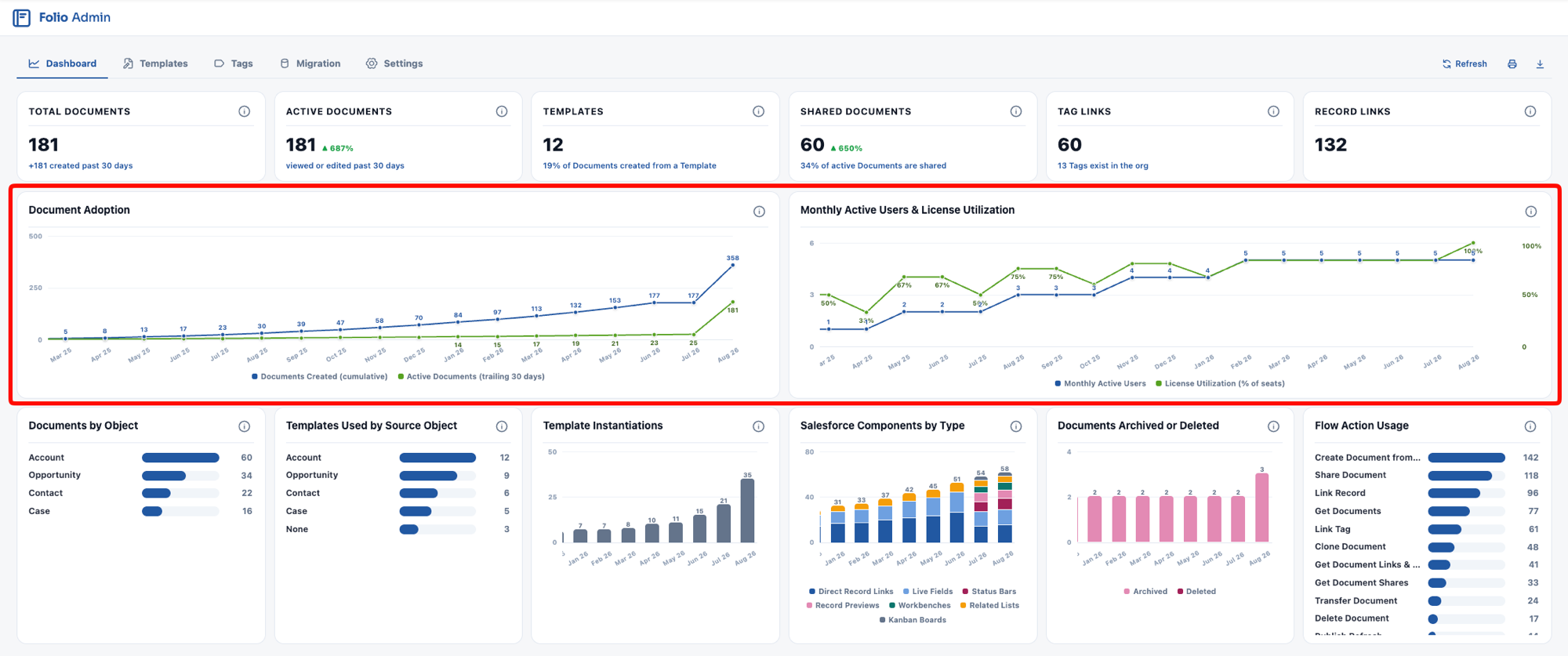
Below the tiles sit two line charts, side by side. They measure adoption on two separate axes — **document adoption** on the left, **user adoption** on the right — and are most useful read together. Rising documents with flat users indicates a small number of users creating most of the content. Rising users with flat documents indicates people opening Folio without creating anything in it.
### Document Adoption
- **Blue — Documents Created:** the cumulative total of Documents created, so this line only ever climbs. Its slope is what matters: a steepening curve means creation is accelerating.
- **Green — Active Documents:** Documents viewed, edited, or created on a trailing 30-day basis. Unlike the blue line, this one can fall — and a falling green line against a rising blue line means Documents are being created and then abandoned.
### Monthly Active Users & License Utilization
- **Blue — Monthly Active Users:** the count of distinct users who viewed or edited a Document in that month.
- **Green — License Utilization:** monthly active users as a percentage of your provisioned Folio Docs seats.
License Utilization is the number to watch at renewal: it tells you whether the seats you're paying for are the seats being used. If utilization sits low while monthly active users climbs, you have room to onboard more of the org before buying more licenses.
## Adoption charts
Below the tiles sit two line charts, side by side. They measure adoption on two separate axes — **document adoption** on the left, **user adoption** on the right — and are most useful read together. Rising documents with flat users indicates a small number of users creating most of the content. Rising users with flat documents indicates people opening Folio without creating anything in it.
### Document Adoption
- **Blue — Documents Created:** the cumulative total of Documents created, so this line only ever climbs. Its slope is what matters: a steepening curve means creation is accelerating.
- **Green — Active Documents:** Documents viewed, edited, or created on a trailing 30-day basis. Unlike the blue line, this one can fall — and a falling green line against a rising blue line means Documents are being created and then abandoned.
### Monthly Active Users & License Utilization
- **Blue — Monthly Active Users:** the count of distinct users who viewed or edited a Document in that month.
- **Green — License Utilization:** monthly active users as a percentage of your provisioned Folio Docs seats.
License Utilization is the number to watch at renewal: it tells you whether the seats you're paying for are the seats being used. If utilization sits low while monthly active users climbs, you have room to onboard more of the org before buying more licenses.
 ## Usage breakdowns
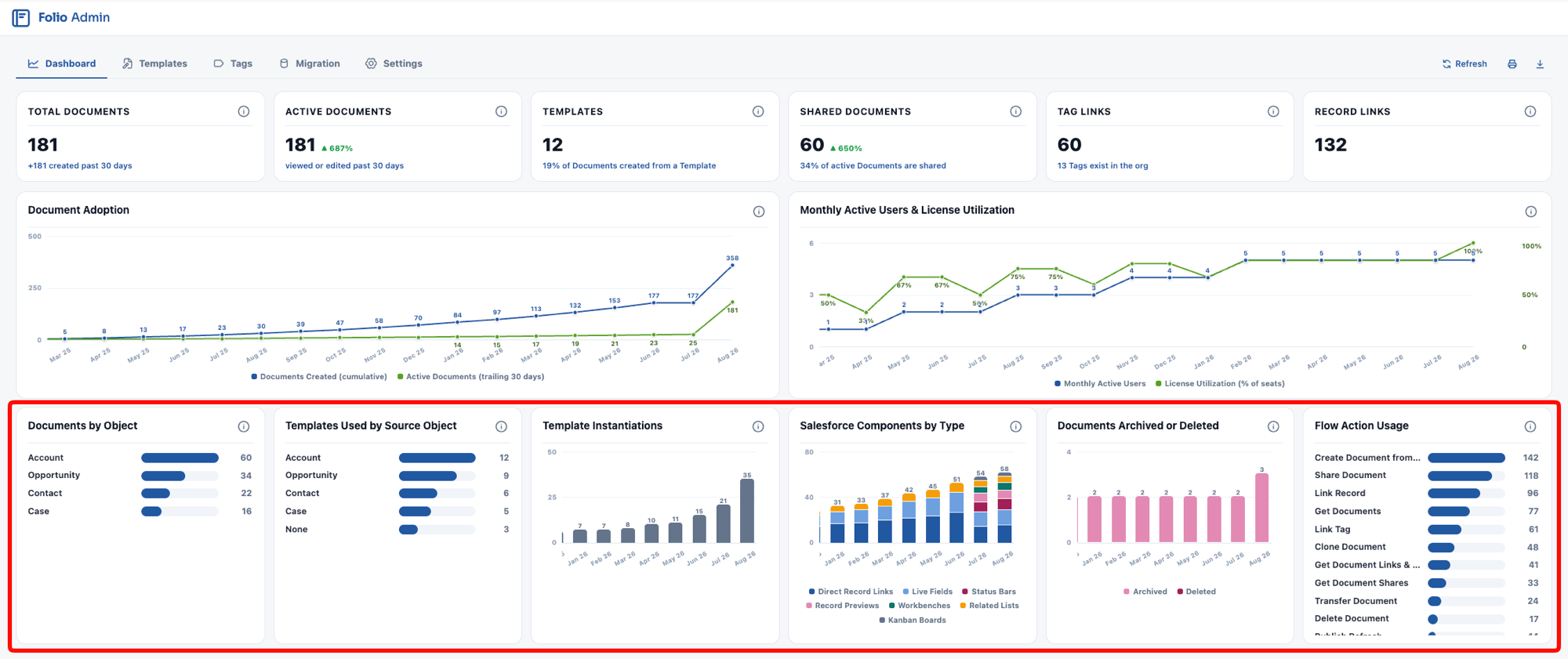
Six more components sit below the adoption charts, breaking usage down by object, Template, component type, automation, and email digest adoption.
### Documents by Object
Record links grouped by the object of the linked record. This is the clearest picture of where Folio is actually being used in your CRM — whether it's an Opportunity tool, a Case tool, or something your team has taken in an unexpected direction.
Use it to sanity-check your [Linkable Objects](/docs/admin/admin-panel/settings#choose-linkable-objects) configuration. An object you enabled that never appears here is configuration overhead with no return; an object your users keep asking about that isn't listed may need enabling.
### Template Instantiations
A bar chart of Template instantiations by month, **stacked by the [Source Object](/docs/admin/admin-panel/templates#source-object) of the Template each one came from**, so a single chart answers both how much Template use there is and which objects it's happening on. **None** covers Templates with no Source Object set; **Other** covers instantiations whose Template can no longer be resolved. Read alongside the **Templates** KPI tile. A large Template library with few instantiations can mean several things: users can't find the Templates, don't know they exist, don't know how to use them, or have looked and didn't find them valuable. Each has a different fix, so it's worth asking rather than assuming.
This chart also measures process compliance. If your team has obligatory Template usage requirements — every deal over $50k must have a Close Plan at the Negotiation stage, say — this is how you find out whether people are actually following the process.
### Salesforce Components by Type
A stacked bar chart by month, stacked by type. It tracks all seven kinds of Salesforce content a Document can hold — both [inline mentions](/docs/user-guide/at-commands) and all five [Salesforce components](/docs/user-guide/salesforce-components):
**Direct Record Links** · **Live Fields** · **Status Bars** · **Record Previews** · **Workbenches** · **Related Lists** · **Kanban Boards**
This measures whether people are using Folio as a live extension of Salesforce or just as a place to type. Documents carrying these stay current on their own; Documents without them go stale like any other file.
### Documents Archived or Deleted
A stacked bar chart by month, split into **Archived** and **Deleted**.
**If [hard delete is disabled](/docs/admin/admin-panel/settings#delete-permissions) — the default and the recommendation — this chart normally shows Archived only.** A Deleted bar in an org with hard delete disabled means Documents were removed some other way, such as a raw Flow **Delete Records** element. See [the guidance on deleting Documents](/docs/admin/automation-invocable-apex#updating-and-deleting-folio-data) for why that should always go through the **Folio: Delete Document** action instead.
### Email Digest Settings
A donut chart of how your licensed active users have their [email digest frequency](/docs/user-guide/notifications#email-digests) set — hourly, twice daily, daily, or off — with the user count in the center and a legend giving each slice's count and percentage. Unlike the other breakdowns this one is **read live** rather than from rolled-up statistics, so it reflects the org as it stands right now.
**Users who have never opened the setting count as Hourly**, since that's the default, and a note under the legend says how many of the Hourly slice are there by default rather than by choice. A large default share means the frequency is working for people or that nobody has noticed it — the **Digest Link Opens** figure below the legend is what tells the two apart.
**Digest Link Opens (past 30 days)** counts clicks from a digest email into Folio over the trailing 30 days, with a trend against the 30 before it. Near-zero opens alongside a large Hourly slice is the signal that the digest is being ignored rather than relied on.
### Flow Action Usage
Invocations of each packaged Folio Flow action over the past 12 months, **including actions that have never been used**.
Actions with zero invocations are listed as well, so the chart doubles as a list of available automation the org has not yet adopted. See [Automate with Invocable Apex](/docs/admin/automation-invocable-apex) for what each action does, and [Review Invocable Apex Use Cases](/docs/admin/invocable-apex-use-cases) for worked examples.
## Usage breakdowns
Six more components sit below the adoption charts, breaking usage down by object, Template, component type, automation, and email digest adoption.
### Documents by Object
Record links grouped by the object of the linked record. This is the clearest picture of where Folio is actually being used in your CRM — whether it's an Opportunity tool, a Case tool, or something your team has taken in an unexpected direction.
Use it to sanity-check your [Linkable Objects](/docs/admin/admin-panel/settings#choose-linkable-objects) configuration. An object you enabled that never appears here is configuration overhead with no return; an object your users keep asking about that isn't listed may need enabling.
### Template Instantiations
A bar chart of Template instantiations by month, **stacked by the [Source Object](/docs/admin/admin-panel/templates#source-object) of the Template each one came from**, so a single chart answers both how much Template use there is and which objects it's happening on. **None** covers Templates with no Source Object set; **Other** covers instantiations whose Template can no longer be resolved. Read alongside the **Templates** KPI tile. A large Template library with few instantiations can mean several things: users can't find the Templates, don't know they exist, don't know how to use them, or have looked and didn't find them valuable. Each has a different fix, so it's worth asking rather than assuming.
This chart also measures process compliance. If your team has obligatory Template usage requirements — every deal over $50k must have a Close Plan at the Negotiation stage, say — this is how you find out whether people are actually following the process.
### Salesforce Components by Type
A stacked bar chart by month, stacked by type. It tracks all seven kinds of Salesforce content a Document can hold — both [inline mentions](/docs/user-guide/at-commands) and all five [Salesforce components](/docs/user-guide/salesforce-components):
**Direct Record Links** · **Live Fields** · **Status Bars** · **Record Previews** · **Workbenches** · **Related Lists** · **Kanban Boards**
This measures whether people are using Folio as a live extension of Salesforce or just as a place to type. Documents carrying these stay current on their own; Documents without them go stale like any other file.
### Documents Archived or Deleted
A stacked bar chart by month, split into **Archived** and **Deleted**.
**If [hard delete is disabled](/docs/admin/admin-panel/settings#delete-permissions) — the default and the recommendation — this chart normally shows Archived only.** A Deleted bar in an org with hard delete disabled means Documents were removed some other way, such as a raw Flow **Delete Records** element. See [the guidance on deleting Documents](/docs/admin/automation-invocable-apex#updating-and-deleting-folio-data) for why that should always go through the **Folio: Delete Document** action instead.
### Email Digest Settings
A donut chart of how your licensed active users have their [email digest frequency](/docs/user-guide/notifications#email-digests) set — hourly, twice daily, daily, or off — with the user count in the center and a legend giving each slice's count and percentage. Unlike the other breakdowns this one is **read live** rather than from rolled-up statistics, so it reflects the org as it stands right now.
**Users who have never opened the setting count as Hourly**, since that's the default, and a note under the legend says how many of the Hourly slice are there by default rather than by choice. A large default share means the frequency is working for people or that nobody has noticed it — the **Digest Link Opens** figure below the legend is what tells the two apart.
**Digest Link Opens (past 30 days)** counts clicks from a digest email into Folio over the trailing 30 days, with a trend against the 30 before it. Near-zero opens alongside a large Hourly slice is the signal that the digest is being ignored rather than relied on.
### Flow Action Usage
Invocations of each packaged Folio Flow action over the past 12 months, **including actions that have never been used**.
Actions with zero invocations are listed as well, so the chart doubles as a list of available automation the org has not yet adopted. See [Automate with Invocable Apex](/docs/admin/automation-invocable-apex) for what each action does, and [Review Invocable Apex Use Cases](/docs/admin/invocable-apex-use-cases) for worked examples.
 **Related:** [Use the Admin Panel](/docs/admin/admin-panel) · [Templates](/docs/admin/admin-panel/templates) · [Tags](/docs/admin/admin-panel/tags) · [Settings](/docs/admin/admin-panel/settings) · [Automate with Invocable Apex](/docs/admin/automation-invocable-apex)
---
# Admin Panel — Templates
Source: https://foliosolutions.net/docs/admin/admin-panel/templates
Create and maintain Document Templates — the Template Builder, Status and Source Object, the Merge Field Picker, and merge-field syntax.
Templates are starter Documents that admins define so users can create new Documents in a few clicks, with Salesforce data already resolved from a chosen record. The **Templates** tab of the [Folio Admin app](/docs/admin/admin-panel) is where you create and maintain them.
**Only users with the Folio Docs Administrator permission set can create, edit, or delete Templates.** End users cannot author Templates; they can only create Documents from Templates an admin has already published. See [Create Documents from Templates](/docs/user-guide/create-documents-from-templates) for the end-user side.
## The Template list
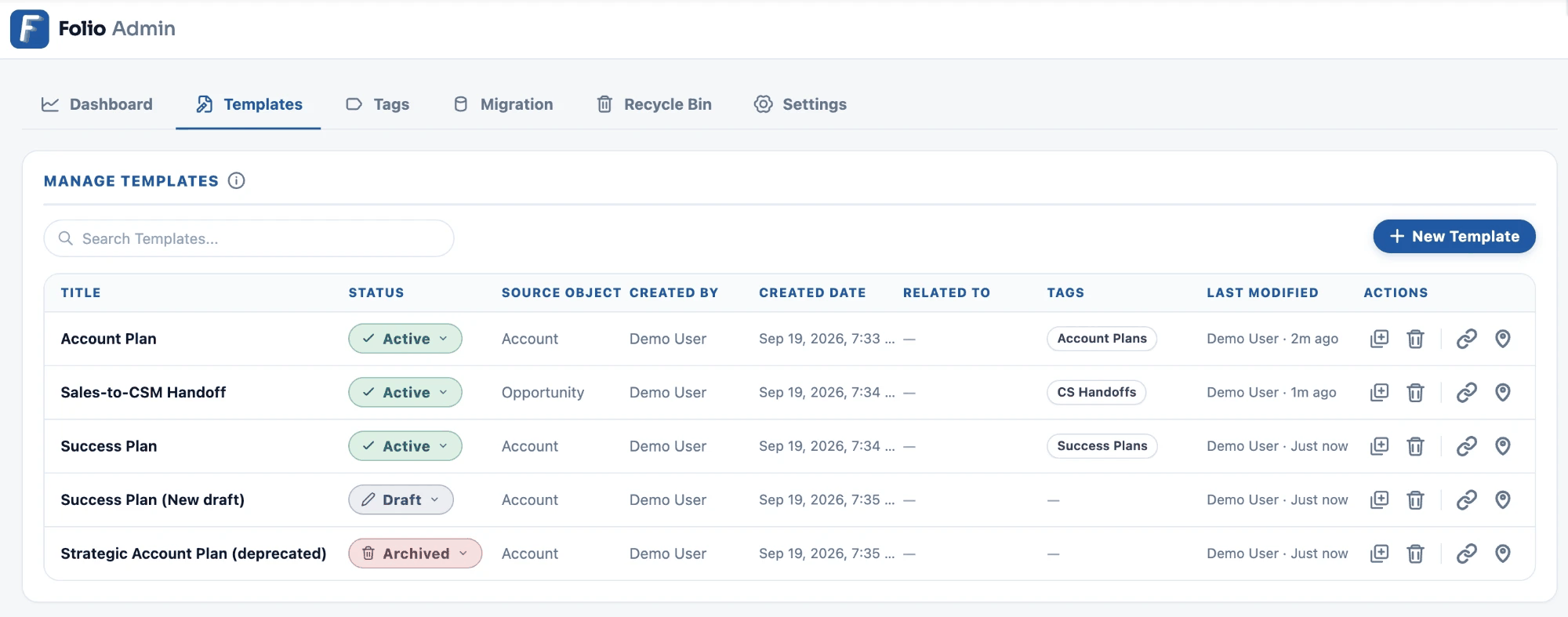
Every Template in the org appears in the list. From the utility buttons on each row you can:
- **Edit** the Template — opens it in the [Template Builder](#the-template-builder).
- **Clone** the Template.
- **Delete** the Template.
- **Copy link** — a direct link to the Template, useful for sharing with another Folio admin.
- **Copy ID** — the Template's record ID. You need this to instantiate the Template from automation; see the [Folio: Create Document from Template](/docs/admin/automation-invocable-apex#create-document-from-template) invocable action.
Click any Template row to open it, or click **New Template** in the upper right to start a blank one.
### Template Status
Every Template has a **Status** of **Draft**, **Active**, or **Archived**.
- **Draft** — a work in progress. Not available to users.
- **Active** — published and available. **Only Active Templates can be used to create Documents**, whether from the UI or from the **Folio: Create Document from Template** invocable action.
- **Archived** — retired. Not available to users, but retained so you don't lose the content.
Archived Templates sort to the bottom of the list, so your active and in-progress work stays at the top.
> **A Template that "doesn't appear" for users is almost always still in Draft.** Status is the first thing to check when someone reports a missing Template, and it's the most common reason an automated flow fails to instantiate one.
**Related:** [Use the Admin Panel](/docs/admin/admin-panel) · [Templates](/docs/admin/admin-panel/templates) · [Tags](/docs/admin/admin-panel/tags) · [Settings](/docs/admin/admin-panel/settings) · [Automate with Invocable Apex](/docs/admin/automation-invocable-apex)
---
# Admin Panel — Templates
Source: https://foliosolutions.net/docs/admin/admin-panel/templates
Create and maintain Document Templates — the Template Builder, Status and Source Object, the Merge Field Picker, and merge-field syntax.
Templates are starter Documents that admins define so users can create new Documents in a few clicks, with Salesforce data already resolved from a chosen record. The **Templates** tab of the [Folio Admin app](/docs/admin/admin-panel) is where you create and maintain them.
**Only users with the Folio Docs Administrator permission set can create, edit, or delete Templates.** End users cannot author Templates; they can only create Documents from Templates an admin has already published. See [Create Documents from Templates](/docs/user-guide/create-documents-from-templates) for the end-user side.
## The Template list
Every Template in the org appears in the list. From the utility buttons on each row you can:
- **Edit** the Template — opens it in the [Template Builder](#the-template-builder).
- **Clone** the Template.
- **Delete** the Template.
- **Copy link** — a direct link to the Template, useful for sharing with another Folio admin.
- **Copy ID** — the Template's record ID. You need this to instantiate the Template from automation; see the [Folio: Create Document from Template](/docs/admin/automation-invocable-apex#create-document-from-template) invocable action.
Click any Template row to open it, or click **New Template** in the upper right to start a blank one.
### Template Status
Every Template has a **Status** of **Draft**, **Active**, or **Archived**.
- **Draft** — a work in progress. Not available to users.
- **Active** — published and available. **Only Active Templates can be used to create Documents**, whether from the UI or from the **Folio: Create Document from Template** invocable action.
- **Archived** — retired. Not available to users, but retained so you don't lose the content.
Archived Templates sort to the bottom of the list, so your active and in-progress work stays at the top.
> **A Template that "doesn't appear" for users is almost always still in Draft.** Status is the first thing to check when someone reports a missing Template, and it's the most common reason an automated flow fails to instantiate one.
 ## The Template Builder
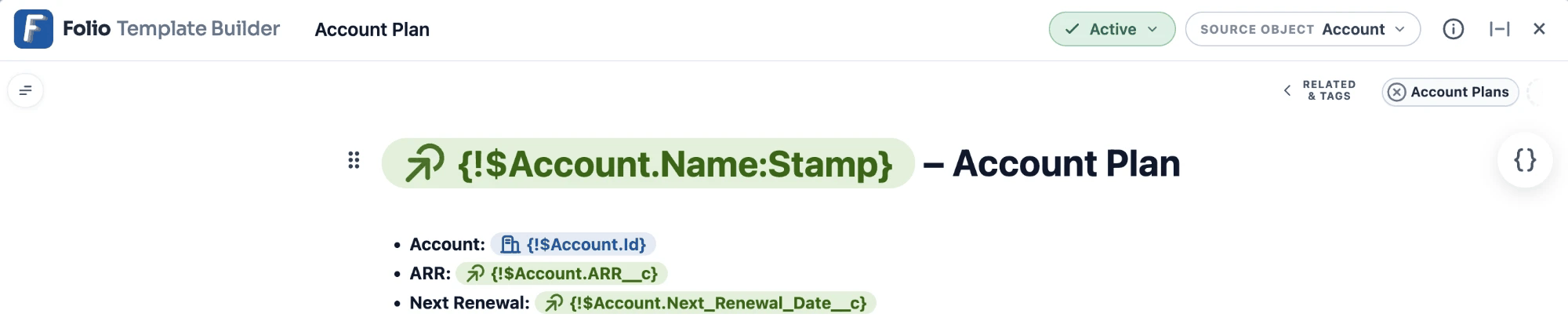
The Template Builder is mostly the same editing experience as the [Folio Document Editor](/docs/user-guide/document-editor). You get:
- The outline / table-of-contents pane
- The title, with the **Saving…** badge and saved indicator
- The header bar
- The [Related & Tags drawer](/docs/user-guide/document-editor#5-related--tags-drawer)
- The document information icon
- The wide-view toggle
- The full `/` command menu
### What's different from the Document Editor
**Document-only actions are absent.** These apply to the *Documents* created from a Template, not to the Template itself, so the Template Builder doesn't carry them:
- Sharing and transfer ownership
- Notifications
- Print, Export as, and Save to Files as
- Version history
- The Editing / Viewing toggle
- Delete
**Two dropdowns replace them in the header:** **Status** and **Source Object**.
You can change a Template's **Status** from either place — the header bar while you have the Template open, or the Status column in the Template list on the [Templates tab](#the-template-list).
**There is no `@` menu.** This is the biggest difference from the Document Editor.
- In a **Document**, `@` inserts record mentions — Record Links, Live Fields, and the Salesforce components where applicable.
- In a **Template**, there is no `@` menu at all. Record Links and Live Fields go in either through the [Merge Field Picker](#the-merge-field-picker) or by typing the [merge-field syntax](#merge-field-syntax-reference) by hand.
**The `/` menu works normally**, including for the five Salesforce components — **Status Bar**, **Record Preview**, **Related List**, **Workbench**, and **Kanban Board** — as well as standard formatting — headings, lists, callouts, tables, images, columns, and others. Markdown shortcuts and [keyboard shortcuts](/docs/user-guide/keyboard-shortcuts) work the same way they do in a Document. See [Formatting Documents](/docs/user-guide/formatting-documents) for the complete `/` menu catalog.
### Source Object
**Source Object is required on every Template**, but it may be set to **None** for Templates that don't need one.
When a user creates a Document from the Template, the Source Object determines which records are selectable as the **Source Record**. That single choice then drives everything record-dependent in the Template:
- Every **Record Link** and **Live Field** merge field in the Template body
- The record behind **Status Bar** and **Record Preview** components
- The **Parent Record** of a **Related List** component
- The parent record of a **Kanban** component when it's in **Parent Record** mode (not in Assigned mode)
For how each of these components behaves and how they're configured, see [Use Salesforce Components](/docs/user-guide/salesforce-components) and [Insert Mentions with @](/docs/user-guide/at-commands).
A Template with Source Object set to **None** skips the Source Record step entirely at instantiation.
> **A Template with no Source Object supports no record-dependent content at all** — no Live Fields, no Record Links, no Status Bar, no Record Preview, no Related List, and no Kanban in Parent Record mode. There is no record for any of them to resolve against.
>
**Two exceptions:** a **Workbench**, and a **Kanban in Assigned mode**. Both depend only on the running user instantiating the Template, not on any record reference, so both work fine in a Source-Object-less Template.
That makes **None** the right choice for a purely structural Template — a meeting-notes skeleton, a checklist — or for one built around a Workbench of the running user's own records.
### Naming your Templates
New Documents are named `{Template Name} for {Source Record Name}` — for example, "Account Plan for Acme Inc." Avoid putting the word "template" in the Title; the resulting Document name reads more naturally without it.
### Related Records and Tags on a Template
Anything you set in the Template's **Related & Tags** drawer is applied to every Document created from it.
- **Tags** are the common use: label Templates with Tags like "Account Plan" or "CS Handoff" so users can filter for them on [the Folio Docs home page](/docs/user-guide/folio-docs-home).
- **Related Records** is rarer but useful for static context — a Template used only for one key Account can be set to always link its Documents to that Account.
**Related records and Tags carried over from a Template are locked on the resulting Document and cannot be removed.** At instantiation they come across to the new Document and render with a **lock icon** instead of the usual **×** — users can't delete them from that individual Document. The only way to change them is to edit the Template, and that affects only Documents created afterward.
This makes Template Tags and Related Records enforceable: a Document created from a "QBR" Template will always be findable under the QBR Tag.
**Anything set here applies permanently to every Document the Template produces.** Add a Tag to the Template when it describes what the Document is. Leave it off when it describes a state that may change, since users cannot correct it later — a "Draft" or "Needs Review" Tag is a poor fit for this reason.
See [Template-locked items](/docs/user-guide/document-editor#5-related--tags-drawer) for what this looks like to the user.
## The Template Builder
The Template Builder is mostly the same editing experience as the [Folio Document Editor](/docs/user-guide/document-editor). You get:
- The outline / table-of-contents pane
- The title, with the **Saving…** badge and saved indicator
- The header bar
- The [Related & Tags drawer](/docs/user-guide/document-editor#5-related--tags-drawer)
- The document information icon
- The wide-view toggle
- The full `/` command menu
### What's different from the Document Editor
**Document-only actions are absent.** These apply to the *Documents* created from a Template, not to the Template itself, so the Template Builder doesn't carry them:
- Sharing and transfer ownership
- Notifications
- Print, Export as, and Save to Files as
- Version history
- The Editing / Viewing toggle
- Delete
**Two dropdowns replace them in the header:** **Status** and **Source Object**.
You can change a Template's **Status** from either place — the header bar while you have the Template open, or the Status column in the Template list on the [Templates tab](#the-template-list).
**There is no `@` menu.** This is the biggest difference from the Document Editor.
- In a **Document**, `@` inserts record mentions — Record Links, Live Fields, and the Salesforce components where applicable.
- In a **Template**, there is no `@` menu at all. Record Links and Live Fields go in either through the [Merge Field Picker](#the-merge-field-picker) or by typing the [merge-field syntax](#merge-field-syntax-reference) by hand.
**The `/` menu works normally**, including for the five Salesforce components — **Status Bar**, **Record Preview**, **Related List**, **Workbench**, and **Kanban Board** — as well as standard formatting — headings, lists, callouts, tables, images, columns, and others. Markdown shortcuts and [keyboard shortcuts](/docs/user-guide/keyboard-shortcuts) work the same way they do in a Document. See [Formatting Documents](/docs/user-guide/formatting-documents) for the complete `/` menu catalog.
### Source Object
**Source Object is required on every Template**, but it may be set to **None** for Templates that don't need one.
When a user creates a Document from the Template, the Source Object determines which records are selectable as the **Source Record**. That single choice then drives everything record-dependent in the Template:
- Every **Record Link** and **Live Field** merge field in the Template body
- The record behind **Status Bar** and **Record Preview** components
- The **Parent Record** of a **Related List** component
- The parent record of a **Kanban** component when it's in **Parent Record** mode (not in Assigned mode)
For how each of these components behaves and how they're configured, see [Use Salesforce Components](/docs/user-guide/salesforce-components) and [Insert Mentions with @](/docs/user-guide/at-commands).
A Template with Source Object set to **None** skips the Source Record step entirely at instantiation.
> **A Template with no Source Object supports no record-dependent content at all** — no Live Fields, no Record Links, no Status Bar, no Record Preview, no Related List, and no Kanban in Parent Record mode. There is no record for any of them to resolve against.
>
**Two exceptions:** a **Workbench**, and a **Kanban in Assigned mode**. Both depend only on the running user instantiating the Template, not on any record reference, so both work fine in a Source-Object-less Template.
That makes **None** the right choice for a purely structural Template — a meeting-notes skeleton, a checklist — or for one built around a Workbench of the running user's own records.
### Naming your Templates
New Documents are named `{Template Name} for {Source Record Name}` — for example, "Account Plan for Acme Inc." Avoid putting the word "template" in the Title; the resulting Document name reads more naturally without it.
### Related Records and Tags on a Template
Anything you set in the Template's **Related & Tags** drawer is applied to every Document created from it.
- **Tags** are the common use: label Templates with Tags like "Account Plan" or "CS Handoff" so users can filter for them on [the Folio Docs home page](/docs/user-guide/folio-docs-home).
- **Related Records** is rarer but useful for static context — a Template used only for one key Account can be set to always link its Documents to that Account.
**Related records and Tags carried over from a Template are locked on the resulting Document and cannot be removed.** At instantiation they come across to the new Document and render with a **lock icon** instead of the usual **×** — users can't delete them from that individual Document. The only way to change them is to edit the Template, and that affects only Documents created afterward.
This makes Template Tags and Related Records enforceable: a Document created from a "QBR" Template will always be findable under the QBR Tag.
**Anything set here applies permanently to every Document the Template produces.** Add a Tag to the Template when it describes what the Document is. Leave it off when it describes a state that may change, since users cannot correct it later — a "Draft" or "Needs Review" Tag is a poor fit for this reason.
See [Template-locked items](/docs/user-guide/document-editor#5-related--tags-drawer) for what this looks like to the user.
 ## The Merge Field Picker
A floating **`{}`** icon sits on the right side of the Template Builder, below the Related & Tags drawer. Clicking it opens the **Merge Field Picker** — the recommended way to insert merge fields, since it always produces valid syntax.
## The Merge Field Picker
A floating **`{}`** icon sits on the right side of the Template Builder, below the Related & Tags drawer. Clicking it opens the **Merge Field Picker** — the recommended way to insert merge fields, since it always produces valid syntax.
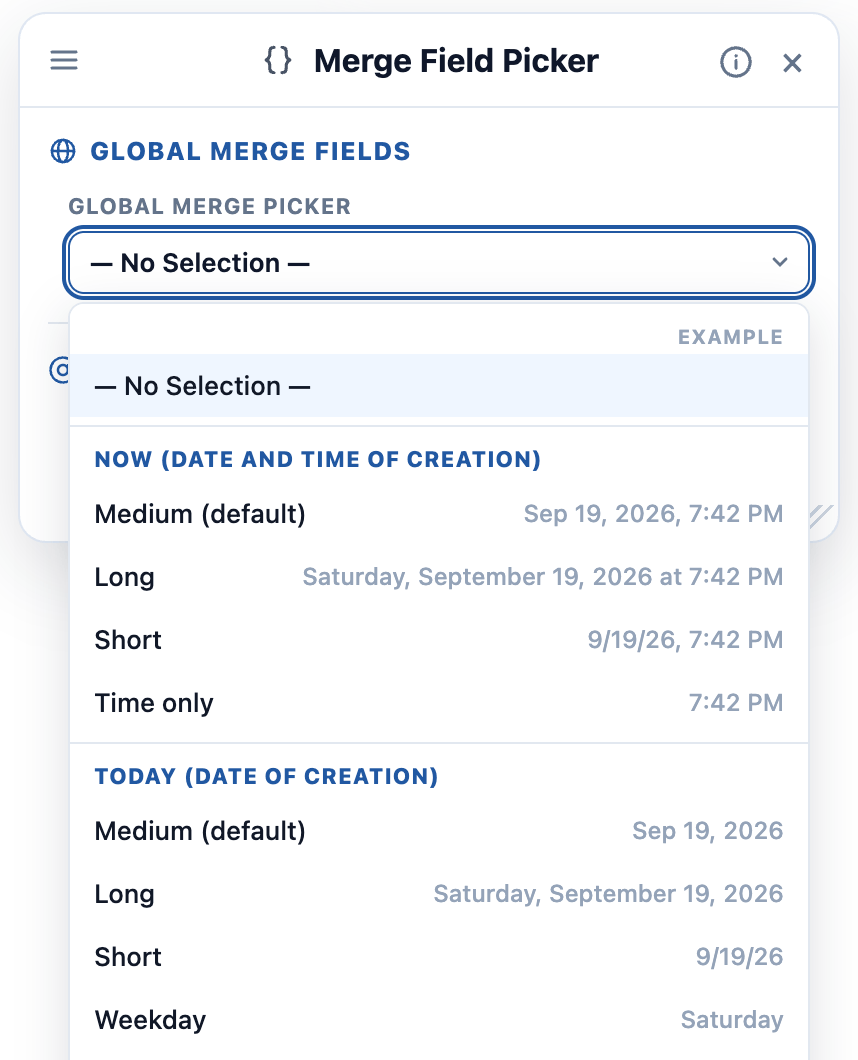
 The picker has two sections.
### 1. Global Merge Fields
These resolve without any record link at all, so they work in every Template regardless of Source Object — including Templates set to **None**.
**Date and time.** The picker labels each option by format; the example column shows what you'd get for a Document created on Thursday, 20 August 2026 at 10:23 AM.
**Now** — date and time of creation:
| Picker label | Token | Example |
| --- | --- | --- |
| Medium (default) | `$Now` | Aug 20, 2026, 10:23 AM |
| Long | `$Now:Long` | Thursday, August 20, 2026 at 10:23 AM |
| Short | `$Now:Short` | 8/20/26, 10:23 AM |
| Time only | `$Now:Time` | 10:23 AM |
**Today** — date of creation:
| Picker label | Token | Example |
| --- | --- | --- |
| Medium (default) | `$Today` | Aug 20, 2026 |
| Long | `$Today:Long` | Thursday, August 20, 2026 |
| Short | `$Today:Short` | 8/20/26 |
| Weekday | `$Today:Weekday` | Thursday |
| Month | `$Today:Month` | August |
| Year | `$Today:Year` | 2026 |
| Fiscal Quarter | `$Today:Quarter` | Q3 2026 |
**Running user** — whoever creates the Document, not the Template's author:
`$User` (full name), `$User:FirstName`, `$User:LastName`, `$User:Title`, `$User:Email`, `$User:Phone`, `$User:Department`, `$User:CompanyName`, `$User:ManagerName`
**Template and document**
`$Template:Name` (the name of the Template the Document came from) and `$Document:Title` (the title of the resulting Document).
### Locked vs. Unlocked insertion
Every Global Merge Field can be inserted in one of two styles, and the choice matters:
- **Unlocked** — the resolved value is written into the Document as ordinary, editable text. Once the Document exists, it's indistinguishable from anything the user typed.
- **Locked** — the value is inserted as a **gray pill** whose contents cannot be edited. The pill itself can still be deleted from the Document; only its internal content is protected.
Use **Locked** for values that should stay as generated — the date a plan was created, who created it, the Template it came from. Use **Unlocked** for starting points you expect people to overwrite.
The picker has two sections.
### 1. Global Merge Fields
These resolve without any record link at all, so they work in every Template regardless of Source Object — including Templates set to **None**.
**Date and time.** The picker labels each option by format; the example column shows what you'd get for a Document created on Thursday, 20 August 2026 at 10:23 AM.
**Now** — date and time of creation:
| Picker label | Token | Example |
| --- | --- | --- |
| Medium (default) | `$Now` | Aug 20, 2026, 10:23 AM |
| Long | `$Now:Long` | Thursday, August 20, 2026 at 10:23 AM |
| Short | `$Now:Short` | 8/20/26, 10:23 AM |
| Time only | `$Now:Time` | 10:23 AM |
**Today** — date of creation:
| Picker label | Token | Example |
| --- | --- | --- |
| Medium (default) | `$Today` | Aug 20, 2026 |
| Long | `$Today:Long` | Thursday, August 20, 2026 |
| Short | `$Today:Short` | 8/20/26 |
| Weekday | `$Today:Weekday` | Thursday |
| Month | `$Today:Month` | August |
| Year | `$Today:Year` | 2026 |
| Fiscal Quarter | `$Today:Quarter` | Q3 2026 |
**Running user** — whoever creates the Document, not the Template's author:
`$User` (full name), `$User:FirstName`, `$User:LastName`, `$User:Title`, `$User:Email`, `$User:Phone`, `$User:Department`, `$User:CompanyName`, `$User:ManagerName`
**Template and document**
`$Template:Name` (the name of the Template the Document came from) and `$Document:Title` (the title of the resulting Document).
### Locked vs. Unlocked insertion
Every Global Merge Field can be inserted in one of two styles, and the choice matters:
- **Unlocked** — the resolved value is written into the Document as ordinary, editable text. Once the Document exists, it's indistinguishable from anything the user typed.
- **Locked** — the value is inserted as a **gray pill** whose contents cannot be edited. The pill itself can still be deleted from the Document; only its internal content is protected.
Use **Locked** for values that should stay as generated — the date a plan was created, who created it, the Template it came from. Use **Unlocked** for starting points you expect people to overwrite.
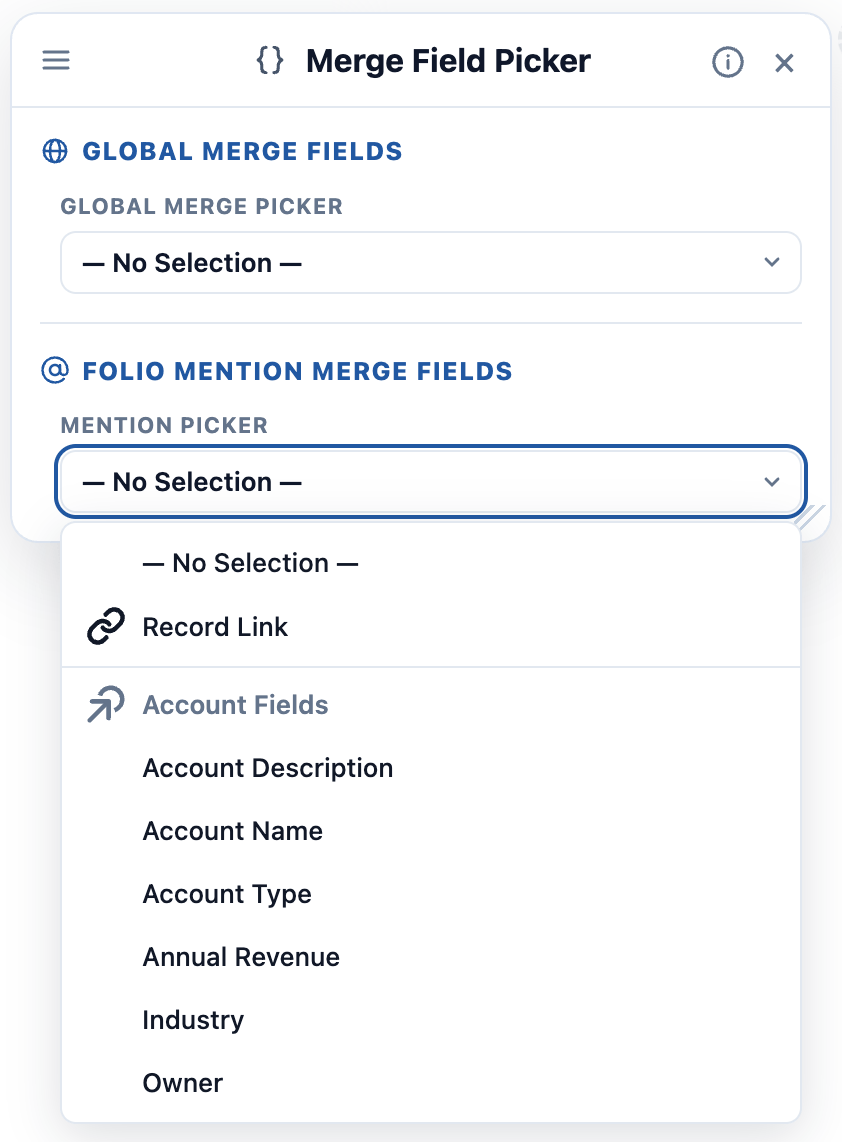
 ### 2. Folio Mention Merge Fields
These resolve against the **Source Record** chosen at instantiation, so they require a Source Object.
- **Record Link** — inserts a record-link mention pointing at the Source Record used to instantiate the Document.
- **Live Fields** — the configured linkable fields from the Source Object, listed for you to choose from. Which fields appear here is controlled by [Choose Live Fields](/docs/admin/admin-panel/settings#choose-linkable-fields) on the Settings tab.
Each has its own **Insert as** options:
- **Record Link** inserts as a **Live Record Link** or a **Text Stamp**.
- **Live Fields** insert as a **Live Field** or a **Text Stamp**.
The **live** forms stay connected to Salesforce and keep updating as the record changes — see [Set up Real-Time Updates](/docs/admin/real-time-updates) for how those updates propagate. A **Text Stamp** writes the record name, or the field's text value, as of the moment of instantiation; it does not stay connected, and it is freely editable in the Document afterward.
**Live or stamp is a documentation decision, not a technical one.** A close plan's "Amount" should usually be **Live** so it never contradicts the Opportunity. An Account's **Description** is a good candidate for a **Text Stamp** — you want the Document to capture how the account was described when the plan was written, and to let the author edit that text freely afterward without touching the record.
### 2. Folio Mention Merge Fields
These resolve against the **Source Record** chosen at instantiation, so they require a Source Object.
- **Record Link** — inserts a record-link mention pointing at the Source Record used to instantiate the Document.
- **Live Fields** — the configured linkable fields from the Source Object, listed for you to choose from. Which fields appear here is controlled by [Choose Live Fields](/docs/admin/admin-panel/settings#choose-linkable-fields) on the Settings tab.
Each has its own **Insert as** options:
- **Record Link** inserts as a **Live Record Link** or a **Text Stamp**.
- **Live Fields** insert as a **Live Field** or a **Text Stamp**.
The **live** forms stay connected to Salesforce and keep updating as the record changes — see [Set up Real-Time Updates](/docs/admin/real-time-updates) for how those updates propagate. A **Text Stamp** writes the record name, or the field's text value, as of the moment of instantiation; it does not stay connected, and it is freely editable in the Document afterward.
**Live or stamp is a documentation decision, not a technical one.** A close plan's "Amount" should usually be **Live** so it never contradicts the Opportunity. An Account's **Description** is a good candidate for a **Text Stamp** — you want the Document to capture how the account was described when the plan was written, and to let the author edit that text freely afterward without touching the record.
 ## Salesforce components in a Template
All five Salesforce components can be placed in a Template from the `/` menu: **Status Bar**, **Record Preview**, **Related List**, **Workbench**, and **Kanban**. Each renders in the Template as a formatted placeholder styled the way it will appear in the finished Document, and resolves against the Source Record at instantiation.
For what each component does and how it's configured in general, see [Use Salesforce Components](/docs/user-guide/salesforce-components). What matters *here* is how each one relates to the Template's [Source Object](#source-object).
| Component | What the Source Record supplies |
| --- | --- |
| **Status Bar** | The record itself. Only the Source Record is passed in. |
| **Record Preview** | The record itself. Only the Source Record is passed in. |
| **Related List** | The **parent record**. You choose the child object, columns, and filters yourself. |
| **Workbench** | Nothing — a Workbench shows records owned by a user, group, or queue, so it needs no Source Record at all. |
| **Kanban** | In **Parent Record** mode, the parent record. In **Assigned** mode, nothing — it's driven by the running user. |
**Workbench and Kanban-in-Assigned-mode are the two components that work in a Template with no Source Object**, because neither depends on a record reference.
### How configuration differs in a Template
Components are configured the same way in a Template as in a Document — see [Use Salesforce Components](/docs/user-guide/salesforce-components) for what each one offers. Three things are specific to the Template Builder:
- **You configure against the Source Object, not a record.** There's no record to point at yet, so a component renders with **placeholder content** — placeholder rows in a Related List, placeholder values in a Record Preview — replaced with real data when the Template is instantiated.
- **Configuration is saved on the Template** and applied to every Document created from it. A Related List's columns, filters, and sorting carry through to every instance.
- **Users can reconfigure their own copy afterward** without affecting the Template or anyone else's Document.
> **Both the parent and the child object must be configured as [Linkable Objects](/docs/admin/admin-panel/settings#choose-linkable-objects)** for a component that spans two objects. For a Related List of Cases under an Account, both Case and Account must be enabled.
## Salesforce components in a Template
All five Salesforce components can be placed in a Template from the `/` menu: **Status Bar**, **Record Preview**, **Related List**, **Workbench**, and **Kanban**. Each renders in the Template as a formatted placeholder styled the way it will appear in the finished Document, and resolves against the Source Record at instantiation.
For what each component does and how it's configured in general, see [Use Salesforce Components](/docs/user-guide/salesforce-components). What matters *here* is how each one relates to the Template's [Source Object](#source-object).
| Component | What the Source Record supplies |
| --- | --- |
| **Status Bar** | The record itself. Only the Source Record is passed in. |
| **Record Preview** | The record itself. Only the Source Record is passed in. |
| **Related List** | The **parent record**. You choose the child object, columns, and filters yourself. |
| **Workbench** | Nothing — a Workbench shows records owned by a user, group, or queue, so it needs no Source Record at all. |
| **Kanban** | In **Parent Record** mode, the parent record. In **Assigned** mode, nothing — it's driven by the running user. |
**Workbench and Kanban-in-Assigned-mode are the two components that work in a Template with no Source Object**, because neither depends on a record reference.
### How configuration differs in a Template
Components are configured the same way in a Template as in a Document — see [Use Salesforce Components](/docs/user-guide/salesforce-components) for what each one offers. Three things are specific to the Template Builder:
- **You configure against the Source Object, not a record.** There's no record to point at yet, so a component renders with **placeholder content** — placeholder rows in a Related List, placeholder values in a Record Preview — replaced with real data when the Template is instantiated.
- **Configuration is saved on the Template** and applied to every Document created from it. A Related List's columns, filters, and sorting carry through to every instance.
- **Users can reconfigure their own copy afterward** without affecting the Template or anyone else's Document.
> **Both the parent and the child object must be configured as [Linkable Objects](/docs/admin/admin-panel/settings#choose-linkable-objects)** for a component that spans two objects. For a Related List of Cases under an Account, both Case and Account must be enabled.
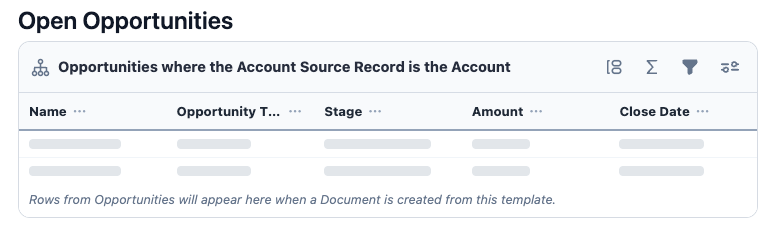 ## How merge fields render once instantiated
When a Template is instantiated, its merge fields become live nodes in the new Document:
- **Record Links** become **blue chips** with an icon on the left.
- **Live Fields** become **green chips** with an icon on the left — except those pointing at Rich Text, Long Text, or Text Area fields, which become full-document-width nodes containing the value.
Anything that fails to resolve appears as plain text highlighted in red. See [Merge fields must match your Settings configuration](#merge-fields-must-match-your-settings-configuration).
## Merge-field syntax reference
The [Merge Field Picker](#the-merge-field-picker) generates this syntax for you. You only need to type it by hand for [multi-level dot notation](#multiple-levels-of-dot-notation-advanced), which the picker cannot generate.
**Record Link:** `{!$Object.Id}` — where `Object` is the API name of the Source Object.
**Live Field:** `{!$Object.Field_Name__c}` — where `Object` is the API name of the Source Object and `Field_Name__c` is the API name of the target Live Field.
### How merge fields render in the Template body
As soon as a merge field's syntax is completed with its opening and closing curly brackets — `{!$___}` — it turns into a **blue chip** in the Template body, confirming the syntax was recognized. **If your text stays as plain characters and never becomes a chip, the syntax isn't valid yet.** That chip is your syntax check; use it.
Live Fields pointing at **Rich Text**, **Long Text**, or **Text Area** fields render instead as a formatted block in the style they'll take in the finished Document, with placeholder text in the middle.
### Multiple levels of dot notation (advanced)
Record Link and Live Field syntax supports multiple levels of dot notation. The instantiator traverses the path and takes the **final** segment as the thing to resolve.
**This is the one case that requires manual entry** — the Merge Field Picker only generates single-level merge fields.
Given `{!$Object.SecondObject.ThirdObject.Field__c}`, where `Object` is the Source Object:
- `Object` **must** be a Linkable Object — it's the Source Object of the Template, which must be linkable anyway.
- `SecondObject` **does not** need to be a Linkable Object — it's only an intermediate step in the path.
- `ThirdObject` **must** be a Linkable Object — it's the final object in the path.
- `Field__c` **must** be configured as a Live Field on `ThirdObject`.
When resolved, the merge field is written into the new Document as simply `{!ThirdObject.Field__c}`. The intermediate steps are dropped once the value resolves — the dot notation exists only to traverse the relationship path to the destination.
**A worked example.** On a Template with **Case** as the Source Object, `{!$Case.Opportunity.Account.Type}` walks from the Source Case to its Opportunity, then to that Opportunity's Account, and resolves the Account's **Type** field. Only **Account** needs to be a Linkable Object with **Type** enabled as a Linkable Field — Opportunity is just a step along the path.
## How merge fields render once instantiated
When a Template is instantiated, its merge fields become live nodes in the new Document:
- **Record Links** become **blue chips** with an icon on the left.
- **Live Fields** become **green chips** with an icon on the left — except those pointing at Rich Text, Long Text, or Text Area fields, which become full-document-width nodes containing the value.
Anything that fails to resolve appears as plain text highlighted in red. See [Merge fields must match your Settings configuration](#merge-fields-must-match-your-settings-configuration).
## Merge-field syntax reference
The [Merge Field Picker](#the-merge-field-picker) generates this syntax for you. You only need to type it by hand for [multi-level dot notation](#multiple-levels-of-dot-notation-advanced), which the picker cannot generate.
**Record Link:** `{!$Object.Id}` — where `Object` is the API name of the Source Object.
**Live Field:** `{!$Object.Field_Name__c}` — where `Object` is the API name of the Source Object and `Field_Name__c` is the API name of the target Live Field.
### How merge fields render in the Template body
As soon as a merge field's syntax is completed with its opening and closing curly brackets — `{!$___}` — it turns into a **blue chip** in the Template body, confirming the syntax was recognized. **If your text stays as plain characters and never becomes a chip, the syntax isn't valid yet.** That chip is your syntax check; use it.
Live Fields pointing at **Rich Text**, **Long Text**, or **Text Area** fields render instead as a formatted block in the style they'll take in the finished Document, with placeholder text in the middle.
### Multiple levels of dot notation (advanced)
Record Link and Live Field syntax supports multiple levels of dot notation. The instantiator traverses the path and takes the **final** segment as the thing to resolve.
**This is the one case that requires manual entry** — the Merge Field Picker only generates single-level merge fields.
Given `{!$Object.SecondObject.ThirdObject.Field__c}`, where `Object` is the Source Object:
- `Object` **must** be a Linkable Object — it's the Source Object of the Template, which must be linkable anyway.
- `SecondObject` **does not** need to be a Linkable Object — it's only an intermediate step in the path.
- `ThirdObject` **must** be a Linkable Object — it's the final object in the path.
- `Field__c` **must** be configured as a Live Field on `ThirdObject`.
When resolved, the merge field is written into the new Document as simply `{!ThirdObject.Field__c}`. The intermediate steps are dropped once the value resolves — the dot notation exists only to traverse the relationship path to the destination.
**A worked example.** On a Template with **Case** as the Source Object, `{!$Case.Opportunity.Account.Type}` walks from the Source Case to its Opportunity, then to that Opportunity's Account, and resolves the Account's **Type** field. Only **Account** needs to be a Linkable Object with **Type** enabled as a Linkable Field — Opportunity is just a step along the path.
 ### A subtle distinction: `Id` references
There is a small but consequential difference in how `Id` values behave during instantiation. Using a Template with **Case** as the Source Object:
- `{!$Case.AccountId}` refers to the `AccountId` field on Case, which is itself an Account lookup field. If that lookup field is configured as a Live Field, it resolves as a **Live Field** of a lookup data type.
- `{!$Case.Account.Id}` is interpreted differently. Here `Case` is only the path to the final segment, `Account.Id`. Anything ending in `*.Id` resolves as a **Record Link**, not a Live Field.
So the same underlying record can be inserted as either a Live Field or a Record Link, depending on whether you reference the lookup field directly (`Case.AccountId`) or traverse to the related record's `Id` (`Case.Account.Id`). The chip color tells you which you got: **green for a Live Field, blue for a Record Link**.
### A subtle distinction: `Id` references
There is a small but consequential difference in how `Id` values behave during instantiation. Using a Template with **Case** as the Source Object:
- `{!$Case.AccountId}` refers to the `AccountId` field on Case, which is itself an Account lookup field. If that lookup field is configured as a Live Field, it resolves as a **Live Field** of a lookup data type.
- `{!$Case.Account.Id}` is interpreted differently. Here `Case` is only the path to the final segment, `Account.Id`. Anything ending in `*.Id` resolves as a **Record Link**, not a Live Field.
So the same underlying record can be inserted as either a Live Field or a Record Link, depending on whether you reference the lookup field directly (`Case.AccountId`) or traverse to the related record's `Id` (`Case.Account.Id`). The chip color tells you which you got: **green for a Live Field, blue for a Record Link**.
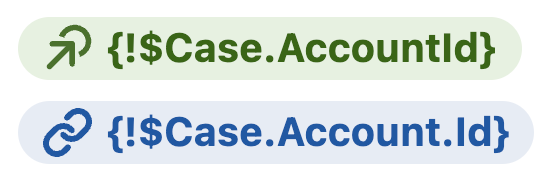 ### Merge fields must match your Settings configuration
Merge fields only resolve if their object and field are configured as [Linkable Objects](/docs/admin/admin-panel/settings#choose-linkable-objects) and [Linkable Fields](/docs/admin/admin-panel/settings#choose-linkable-fields). It is entirely possible to hand-type syntax that looks correct in the Template but silently fails at instantiation.
**Merge fields that fail to resolve appear in the finished Document as plain text highlighted with a red background**, so they're easy to spot — but easier still to avoid.
**Always test a Template end-to-end before announcing it to users or wiring it into an automated process.** Create a Document from it against a real record and confirm every merge field resolved.
### Merge fields and the instantiating user's access
The user creating a Document from a Template **may or may not** have object-, record-, or field-level access to every merge field it references, and that's fine. The Template still instantiates successfully and stores the merge-field path correctly in the new Document.
Folio respects Salesforce's standard object-, record-, and field-level security — but that security model does **not** block instantiation. It simply means a user without access won't see that value render. Any user who later opens the same Document *with* sufficient access sees it render normally.
## How Documents get created from Templates
There are two paths:
1. **Manually from the UI** — users click **New from Template** from either the [Folio Docs home page](/docs/user-guide/folio-docs-home) or the Document editor on a record page. See [Create Documents from Templates](/docs/user-guide/create-documents-from-templates).
2. **Programmatically from Flow** — the **Folio: Create Document from Template** invocable action instantiates a Template from any record trigger. For example, when an Opportunity reaches **Legal Negotiation**, automatically create a Sales-to-CS Handoff Document. See [Automate with Invocable Apex](/docs/admin/automation-invocable-apex#create-document-from-template) and [Review Invocable Apex Use Cases](/docs/admin/invocable-apex-use-cases).
Both paths require the Template to be **Active**, and both need the Template ID (available from **Copy ID** on the Template row) when driven from Flow.
**Related:** [Use the Admin Panel](/docs/admin/admin-panel) · [Settings](/docs/admin/admin-panel/settings) · [Tags](/docs/admin/admin-panel/tags) · [Create Documents from Templates](/docs/user-guide/create-documents-from-templates) · [Insert Mentions with @](/docs/user-guide/at-commands) · [Automate with Invocable Apex](/docs/admin/automation-invocable-apex)
---
# Admin Panel — Tags
Source: https://foliosolutions.net/docs/admin/admin-panel/tags
Org-wide Tag management — review usage, set default colors, and create, merge, or delete Tags across every Document that uses them.
Tags are free-form labels users apply to Documents from the [Related & Tags drawer](/docs/user-guide/document-editor#5-related--tags-drawer), and they're created inline as people type. That's good for adoption and bad for consistency — left alone, an org accumulates "QBR", "Quarterly Business Review", and "Quarterly Business Review (QBR)" as three separate Tags for the same thing. (Case alone won't do it — Tag uniqueness is case-insensitive, so "qbr" and "QBR" are already the same Tag.)
The **Tags** tab of the [Folio Admin app](/docs/admin/admin-panel) is where you curate that vocabulary org-wide.
## What you can do
From the Tags tab you can:
- **Review every Tag** in the org in one list.
- **View usage counts** — how many Documents each Tag is applied to.
- **Set a default Tag color**.
- **Create** a Tag directly, rather than waiting for a user to coin it.
- **Rename** a Tag. The new name applies everywhere the Tag is used — every Document carrying it picks up the change, since they all reference the same Tag record.
- **Merge** several Tags into one — every link repoints to the surviving Tag.
- **Delete** Tags, optionally applying one or more replacement Tags to every link the deleted Tags held.
Usage counts are the place to start. A Tag applied to one Document is usually a typo or a synonym of something else; a Tag applied to hundreds is part of your org's real taxonomy and should probably get a color.
### Merge fields must match your Settings configuration
Merge fields only resolve if their object and field are configured as [Linkable Objects](/docs/admin/admin-panel/settings#choose-linkable-objects) and [Linkable Fields](/docs/admin/admin-panel/settings#choose-linkable-fields). It is entirely possible to hand-type syntax that looks correct in the Template but silently fails at instantiation.
**Merge fields that fail to resolve appear in the finished Document as plain text highlighted with a red background**, so they're easy to spot — but easier still to avoid.
**Always test a Template end-to-end before announcing it to users or wiring it into an automated process.** Create a Document from it against a real record and confirm every merge field resolved.
### Merge fields and the instantiating user's access
The user creating a Document from a Template **may or may not** have object-, record-, or field-level access to every merge field it references, and that's fine. The Template still instantiates successfully and stores the merge-field path correctly in the new Document.
Folio respects Salesforce's standard object-, record-, and field-level security — but that security model does **not** block instantiation. It simply means a user without access won't see that value render. Any user who later opens the same Document *with* sufficient access sees it render normally.
## How Documents get created from Templates
There are two paths:
1. **Manually from the UI** — users click **New from Template** from either the [Folio Docs home page](/docs/user-guide/folio-docs-home) or the Document editor on a record page. See [Create Documents from Templates](/docs/user-guide/create-documents-from-templates).
2. **Programmatically from Flow** — the **Folio: Create Document from Template** invocable action instantiates a Template from any record trigger. For example, when an Opportunity reaches **Legal Negotiation**, automatically create a Sales-to-CS Handoff Document. See [Automate with Invocable Apex](/docs/admin/automation-invocable-apex#create-document-from-template) and [Review Invocable Apex Use Cases](/docs/admin/invocable-apex-use-cases).
Both paths require the Template to be **Active**, and both need the Template ID (available from **Copy ID** on the Template row) when driven from Flow.
**Related:** [Use the Admin Panel](/docs/admin/admin-panel) · [Settings](/docs/admin/admin-panel/settings) · [Tags](/docs/admin/admin-panel/tags) · [Create Documents from Templates](/docs/user-guide/create-documents-from-templates) · [Insert Mentions with @](/docs/user-guide/at-commands) · [Automate with Invocable Apex](/docs/admin/automation-invocable-apex)
---
# Admin Panel — Tags
Source: https://foliosolutions.net/docs/admin/admin-panel/tags
Org-wide Tag management — review usage, set default colors, and create, merge, or delete Tags across every Document that uses them.
Tags are free-form labels users apply to Documents from the [Related & Tags drawer](/docs/user-guide/document-editor#5-related--tags-drawer), and they're created inline as people type. That's good for adoption and bad for consistency — left alone, an org accumulates "QBR", "Quarterly Business Review", and "Quarterly Business Review (QBR)" as three separate Tags for the same thing. (Case alone won't do it — Tag uniqueness is case-insensitive, so "qbr" and "QBR" are already the same Tag.)
The **Tags** tab of the [Folio Admin app](/docs/admin/admin-panel) is where you curate that vocabulary org-wide.
## What you can do
From the Tags tab you can:
- **Review every Tag** in the org in one list.
- **View usage counts** — how many Documents each Tag is applied to.
- **Set a default Tag color**.
- **Create** a Tag directly, rather than waiting for a user to coin it.
- **Rename** a Tag. The new name applies everywhere the Tag is used — every Document carrying it picks up the change, since they all reference the same Tag record.
- **Merge** several Tags into one — every link repoints to the surviving Tag.
- **Delete** Tags, optionally applying one or more replacement Tags to every link the deleted Tags held.
Usage counts are the place to start. A Tag applied to one Document is usually a typo or a synonym of something else; a Tag applied to hundreds is part of your org's real taxonomy and should probably get a color.
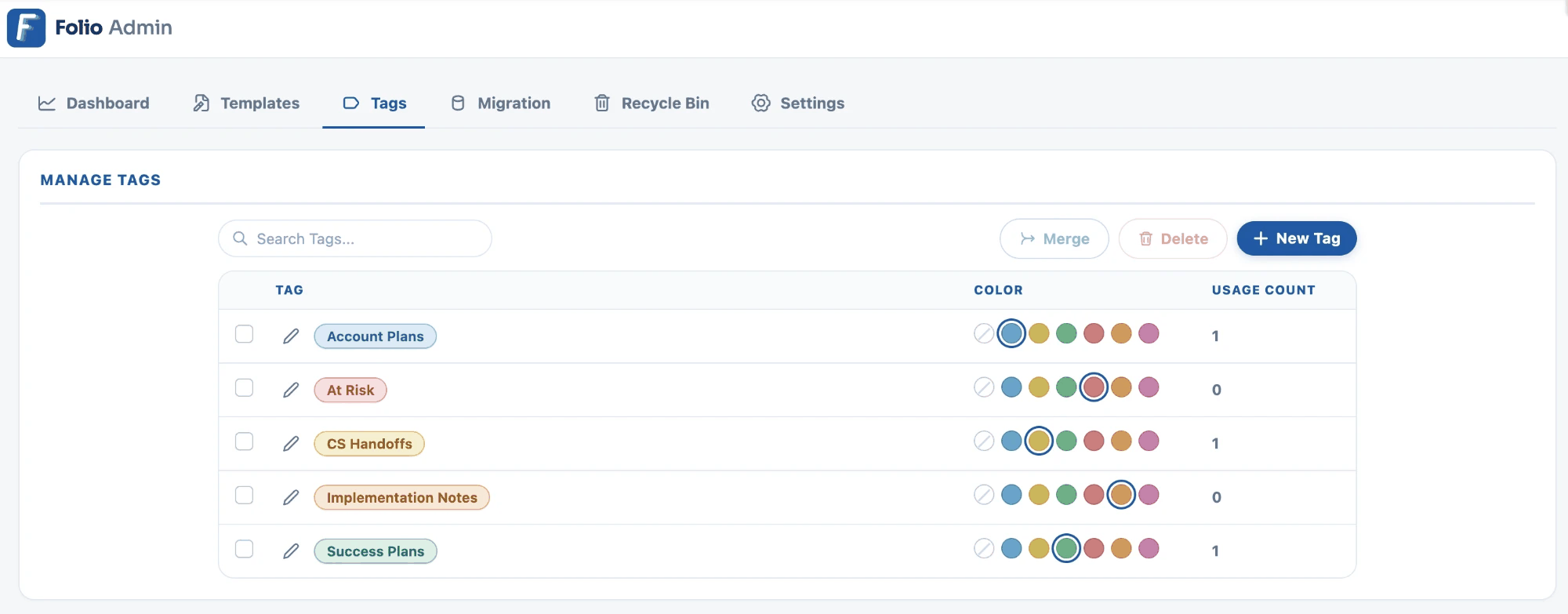 ## Tag colors
Folio uses a fixed palette of **six colors**: `blue`, `yellow`, `green`, `red`, `orange`, and `pink`. Leaving the color blank means no color.
**Emoji in Tag names are supported, and a common practice.** Putting an emoji at the left of a Tag name gives users a second visual cue beyond color — a bug for system defects, a pencil for meeting notes, a warning sign for at-risk accounts. It works well alongside the six-color palette: color groups Tags into broad categories, and the emoji identifies the specific one at a glance.
Colors are set from the swatches in each row of the Tags list. Behavior then depends on whether an admin has set one:
- **When an admin sets a color**, every pill of that Tag renders in it everywhere in the org, and **per-document color choices are disabled** for that Tag. Users can still apply and remove the Tag; they just can't recolor it.
- **When no admin color is set**, the Tag defaults to **white**, and users may pick a color on their own instance of the Tag.
This gives you a deliberate two-tier system. Set colors on the Tags that carry org-wide meaning — a red "At Risk", a green "Renewed" — so they mean the same thing on every Document anyone opens. Leave the long tail uncolored so individuals can organize their own work however they like.
**Setting an admin color is retroactive and org-wide.** It overrides any color individual users had already chosen on their own instances of that Tag. Check whether users have already colored a Tag themselves before standardizing it.
## Merging Tags
Merging is the cleanup tool for duplicates and synonyms. Select the Tags to merge, choose the one that survives, and every Document↔Tag link from the merged Tags repoints to the survivor.
Select the Tags in the list, click **Merge**, then pick the **primary Tag to keep**. The dialog shows each candidate's usage count, so you can keep the one already most established. Every Document the merged Tags were applied to receives the kept Tag, and the merged Tags are removed.
Nothing is lost from the Documents themselves — a Document tagged "Quarterly Business Review" ends up tagged "QBR" instead. Merging is the right tool whenever the Tags mean the same thing and you simply want one name for the concept.
## Tag colors
Folio uses a fixed palette of **six colors**: `blue`, `yellow`, `green`, `red`, `orange`, and `pink`. Leaving the color blank means no color.
**Emoji in Tag names are supported, and a common practice.** Putting an emoji at the left of a Tag name gives users a second visual cue beyond color — a bug for system defects, a pencil for meeting notes, a warning sign for at-risk accounts. It works well alongside the six-color palette: color groups Tags into broad categories, and the emoji identifies the specific one at a glance.
Colors are set from the swatches in each row of the Tags list. Behavior then depends on whether an admin has set one:
- **When an admin sets a color**, every pill of that Tag renders in it everywhere in the org, and **per-document color choices are disabled** for that Tag. Users can still apply and remove the Tag; they just can't recolor it.
- **When no admin color is set**, the Tag defaults to **white**, and users may pick a color on their own instance of the Tag.
This gives you a deliberate two-tier system. Set colors on the Tags that carry org-wide meaning — a red "At Risk", a green "Renewed" — so they mean the same thing on every Document anyone opens. Leave the long tail uncolored so individuals can organize their own work however they like.
**Setting an admin color is retroactive and org-wide.** It overrides any color individual users had already chosen on their own instances of that Tag. Check whether users have already colored a Tag themselves before standardizing it.
## Merging Tags
Merging is the cleanup tool for duplicates and synonyms. Select the Tags to merge, choose the one that survives, and every Document↔Tag link from the merged Tags repoints to the survivor.
Select the Tags in the list, click **Merge**, then pick the **primary Tag to keep**. The dialog shows each candidate's usage count, so you can keep the one already most established. Every Document the merged Tags were applied to receives the kept Tag, and the merged Tags are removed.
Nothing is lost from the Documents themselves — a Document tagged "Quarterly Business Review" ends up tagged "QBR" instead. Merging is the right tool whenever the Tags mean the same thing and you simply want one name for the concept.
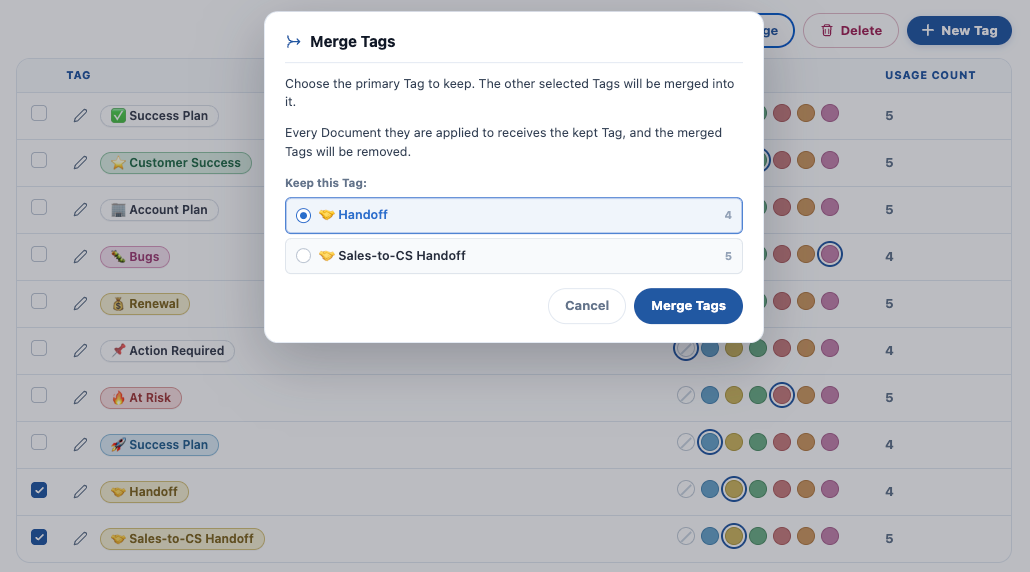 ## Deleting Tags
Deleting removes a Tag along with every link to it. **You can select several Tags and delete them together**, and optionally apply **one or more replacement Tags** to every link the deleted Tags held — which lets you retire Tags without leaving the Documents that used them uncategorized.
**The confirmation tells you the blast radius before you commit.** It names the Tags being deleted and how many Document links they account for between them, and lists candidate replacements with their own usage counts.
**Merge vs. delete-with-replacement:**
- **Merge** when the Tags are the same thing under different names — "Quarterly Business Review" and "Quarterly Business Review (QBR)" into "QBR".
- **Delete with a replacement** when you're restructuring the vocabulary and the mapping isn't one-to-one — retiring "FY24 Planning" in favor of "Planning" plus "Archive".
- **Delete without a replacement** only when the Tag was genuinely meaningless.
> **Merges and deletes apply across every Document in the org and cannot be undone from the Admin Panel.** Check the usage count before you act on a Tag with a large number of links.
## Deleting Tags
Deleting removes a Tag along with every link to it. **You can select several Tags and delete them together**, and optionally apply **one or more replacement Tags** to every link the deleted Tags held — which lets you retire Tags without leaving the Documents that used them uncategorized.
**The confirmation tells you the blast radius before you commit.** It names the Tags being deleted and how many Document links they account for between them, and lists candidate replacements with their own usage counts.
**Merge vs. delete-with-replacement:**
- **Merge** when the Tags are the same thing under different names — "Quarterly Business Review" and "Quarterly Business Review (QBR)" into "QBR".
- **Delete with a replacement** when you're restructuring the vocabulary and the mapping isn't one-to-one — retiring "FY24 Planning" in favor of "Planning" plus "Archive".
- **Delete without a replacement** only when the Tag was genuinely meaningless.
> **Merges and deletes apply across every Document in the org and cannot be undone from the Admin Panel.** Check the usage count before you act on a Tag with a large number of links.
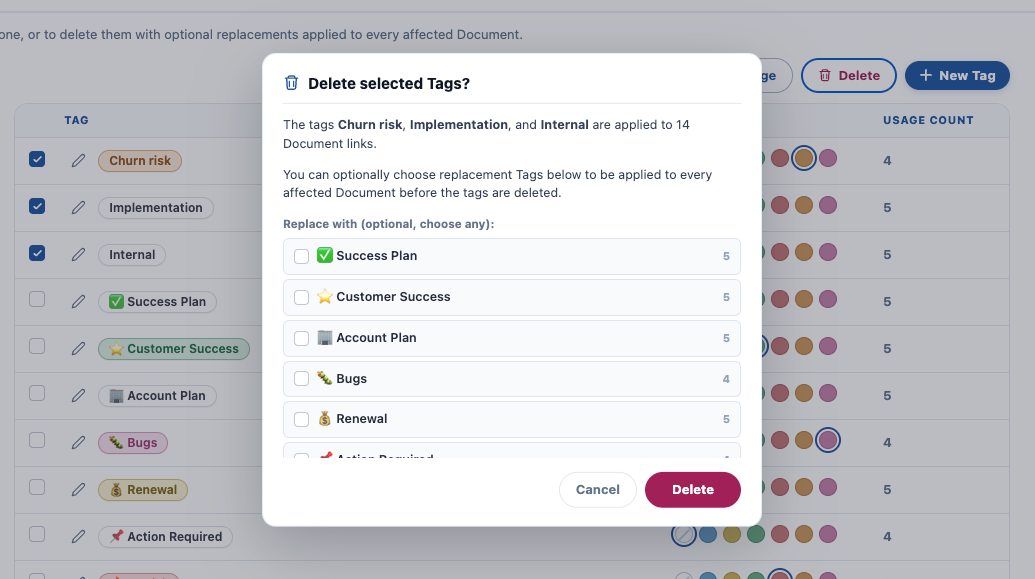 ## Tags elsewhere in Folio
- Users apply and remove Tags in the [Related & Tags drawer](/docs/user-guide/document-editor#5-related--tags-drawer) of the Document Editor.
- Tags are a filter dimension on the [Folio Docs home page](/docs/user-guide/folio-docs-home), under the **Advanced Filters** toggle — which is what makes a consistent vocabulary worth maintaining.
- [Templates](/docs/admin/admin-panel/templates) can carry Tags that are applied to every Document created from them — the most reliable way to keep a Tag used consistently. **Tags arriving this way are locked on the resulting Document and cannot be removed by users**, so a Template Tag is genuinely enforced rather than merely suggested. Choose them deliberately: it's permanent for every Document that Template produces.
- Automation can apply Tags with the [Folio: Apply Tag to Document](/docs/admin/automation-invocable-apex#apply-tag-to-document) invocable action, and query them with [Folio: Get Document Junctions](/docs/admin/automation-invocable-apex#get-document-junctions).
- For bulk Tag changes beyond what this tab offers, Tags and their links can be edited with a data loader — see [Update Data in Bulk](/docs/admin/bulk-data-updates).
**Related:** [Use the Admin Panel](/docs/admin/admin-panel) · [Templates](/docs/admin/admin-panel/templates) · [Settings](/docs/admin/admin-panel/settings) · [Update Data in Bulk](/docs/admin/bulk-data-updates) · [Using the Folio Document Editor](/docs/user-guide/document-editor)
---
# Admin Panel — Migration
Source: https://foliosolutions.net/docs/admin/admin-panel/migration
Import .docx and Markdown files into Folio Documents, and export Folio Documents back out to Word or Markdown.
The **Migration** tab of the [Folio Admin app](/docs/admin/admin-panel) moves documents in and out of Folio. It has two tabs of its own: **Import** and **Export**.
Both run as background jobs with their own history table, so you can start a job, leave, and check the result later.
## Who should run migration jobs
**Both jobs run in the context of the user who starts them**, and that has consequences at both ends.
**On export**, you only get the Documents and related records you can already see. A Folio admin without org-wide visibility exports a subset — and the job still reports success, so the shortfall is easy to miss.
**On import**, record references resolve only against records and fields the running user has access to. A Record Link or Live Field pointing at something outside their visibility can't be matched, so it lands unresolved.
> **Run migration jobs as a Salesforce Administrator with View All Data and View All Fields.** The **Folio Docs Administrator** permission set gets someone into the Migration tab; it does not grant visibility of every record in the org. Those are separate things, and only the second one determines what a job can actually see.
If a non-administrator must run a job, they need **View All** on the Folio Document object at minimum — and be aware that related-record resolution is still bounded by their access to those objects.
## Tags elsewhere in Folio
- Users apply and remove Tags in the [Related & Tags drawer](/docs/user-guide/document-editor#5-related--tags-drawer) of the Document Editor.
- Tags are a filter dimension on the [Folio Docs home page](/docs/user-guide/folio-docs-home), under the **Advanced Filters** toggle — which is what makes a consistent vocabulary worth maintaining.
- [Templates](/docs/admin/admin-panel/templates) can carry Tags that are applied to every Document created from them — the most reliable way to keep a Tag used consistently. **Tags arriving this way are locked on the resulting Document and cannot be removed by users**, so a Template Tag is genuinely enforced rather than merely suggested. Choose them deliberately: it's permanent for every Document that Template produces.
- Automation can apply Tags with the [Folio: Apply Tag to Document](/docs/admin/automation-invocable-apex#apply-tag-to-document) invocable action, and query them with [Folio: Get Document Junctions](/docs/admin/automation-invocable-apex#get-document-junctions).
- For bulk Tag changes beyond what this tab offers, Tags and their links can be edited with a data loader — see [Update Data in Bulk](/docs/admin/bulk-data-updates).
**Related:** [Use the Admin Panel](/docs/admin/admin-panel) · [Templates](/docs/admin/admin-panel/templates) · [Settings](/docs/admin/admin-panel/settings) · [Update Data in Bulk](/docs/admin/bulk-data-updates) · [Using the Folio Document Editor](/docs/user-guide/document-editor)
---
# Admin Panel — Migration
Source: https://foliosolutions.net/docs/admin/admin-panel/migration
Import .docx and Markdown files into Folio Documents, and export Folio Documents back out to Word or Markdown.
The **Migration** tab of the [Folio Admin app](/docs/admin/admin-panel) moves documents in and out of Folio. It has two tabs of its own: **Import** and **Export**.
Both run as background jobs with their own history table, so you can start a job, leave, and check the result later.
## Who should run migration jobs
**Both jobs run in the context of the user who starts them**, and that has consequences at both ends.
**On export**, you only get the Documents and related records you can already see. A Folio admin without org-wide visibility exports a subset — and the job still reports success, so the shortfall is easy to miss.
**On import**, record references resolve only against records and fields the running user has access to. A Record Link or Live Field pointing at something outside their visibility can't be matched, so it lands unresolved.
> **Run migration jobs as a Salesforce Administrator with View All Data and View All Fields.** The **Folio Docs Administrator** permission set gets someone into the Migration tab; it does not grant visibility of every record in the org. Those are separate things, and only the second one determines what a job can actually see.
If a non-administrator must run a job, they need **View All** on the Folio Document object at minimum — and be aware that related-record resolution is still bounded by their access to those objects.
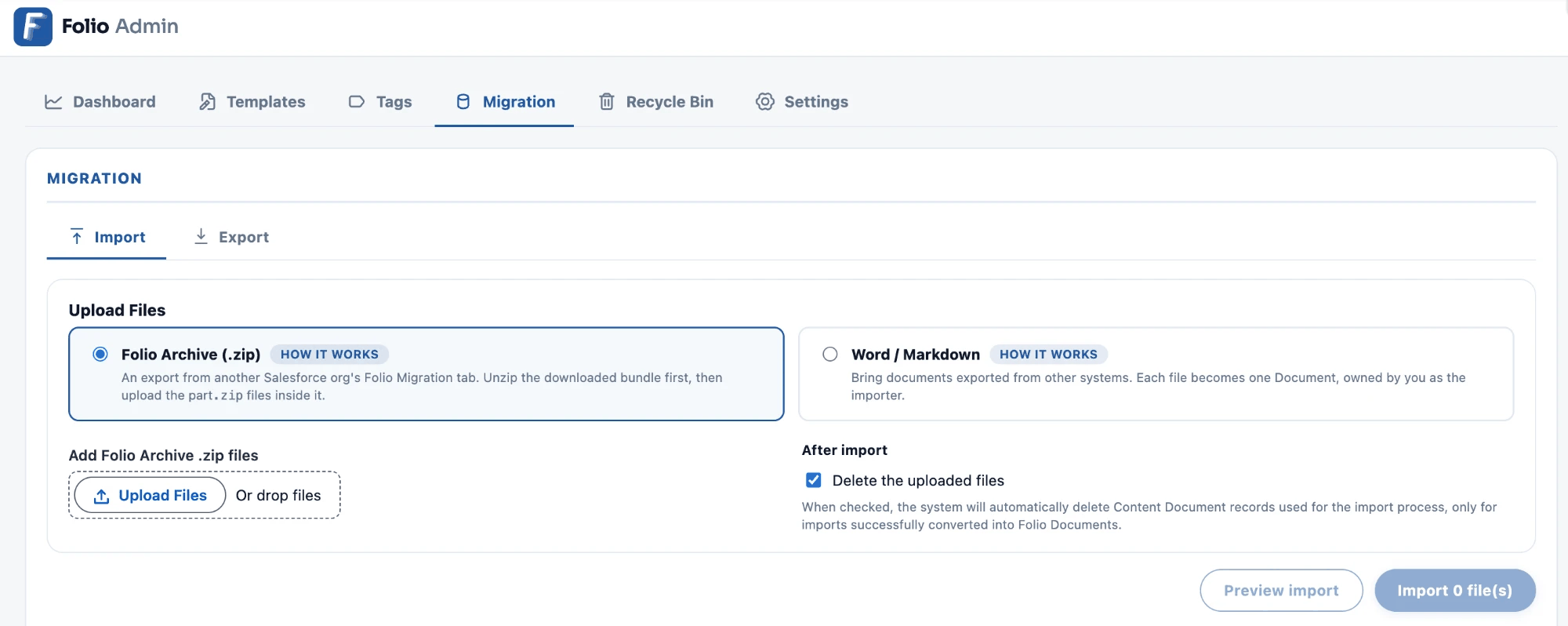 ## Import
Import turns `.docx` and Markdown files into Folio Documents. **Every file you upload creates one new Folio Document, owned by you as the person running the import.**
### What's Included
| Supported | Not supported |
| --- | --- |
| Headings, paragraphs, and text formatting | Images — re-add them in the editor |
| Bold, italic, underline, strikethrough, and inline code | Salesforce Components, Record Links, and Live Fields |
| Font color and highlight, matched to the nearest Folio color | Related Records and Tags |
| Bulleted, numbered, and checklist items | Header rows, header columns, and numbered rows |
| Tables, quotes, code blocks, and dividers | Merged cells — split them into individual cells first |
| Links to web and email addresses | |
**Folio imports text only.** Images are skipped and noted in the job log. This is worth knowing when a file is close to the size limit — a 5 MB document is almost always mostly images, so removing them usually brings it under.
Anything unsupported is dropped and recorded in the log rather than failing the file.
### Uploading files
Click **Upload Files**, or drop files onto the upload area.
Files stage in a list before anything runs, with a running count and an **×** on each row so you can drop one you didn't mean to add. The button reflects the count — **Import 3 file(s)** — so you can confirm the set before starting the job.
**After import: Delete the uploaded files** is an optional checkbox. With it selected, Folio deletes the ContentDocument records created for the import — but **only for files that converted successfully, and only files you uploaded yourself.**
Files that fail are always kept so you can inspect them. Deleted files are **recoverable from the Recycle Bin** until it's emptied.
Leaving the box unchecked keeps every uploaded file in the org. See [Import and export files](/docs/reference/data-storage#import-and-export-files) for the storage implications.
## Import
Import turns `.docx` and Markdown files into Folio Documents. **Every file you upload creates one new Folio Document, owned by you as the person running the import.**
### What's Included
| Supported | Not supported |
| --- | --- |
| Headings, paragraphs, and text formatting | Images — re-add them in the editor |
| Bold, italic, underline, strikethrough, and inline code | Salesforce Components, Record Links, and Live Fields |
| Font color and highlight, matched to the nearest Folio color | Related Records and Tags |
| Bulleted, numbered, and checklist items | Header rows, header columns, and numbered rows |
| Tables, quotes, code blocks, and dividers | Merged cells — split them into individual cells first |
| Links to web and email addresses | |
**Folio imports text only.** Images are skipped and noted in the job log. This is worth knowing when a file is close to the size limit — a 5 MB document is almost always mostly images, so removing them usually brings it under.
Anything unsupported is dropped and recorded in the log rather than failing the file.
### Uploading files
Click **Upload Files**, or drop files onto the upload area.
Files stage in a list before anything runs, with a running count and an **×** on each row so you can drop one you didn't mean to add. The button reflects the count — **Import 3 file(s)** — so you can confirm the set before starting the job.
**After import: Delete the uploaded files** is an optional checkbox. With it selected, Folio deletes the ContentDocument records created for the import — but **only for files that converted successfully, and only files you uploaded yourself.**
Files that fail are always kept so you can inspect them. Deleted files are **recoverable from the Recycle Bin** until it's emptied.
Leaving the box unchecked keeps every uploaded file in the org. See [Import and export files](/docs/reference/data-storage#import-and-export-files) for the storage implications.
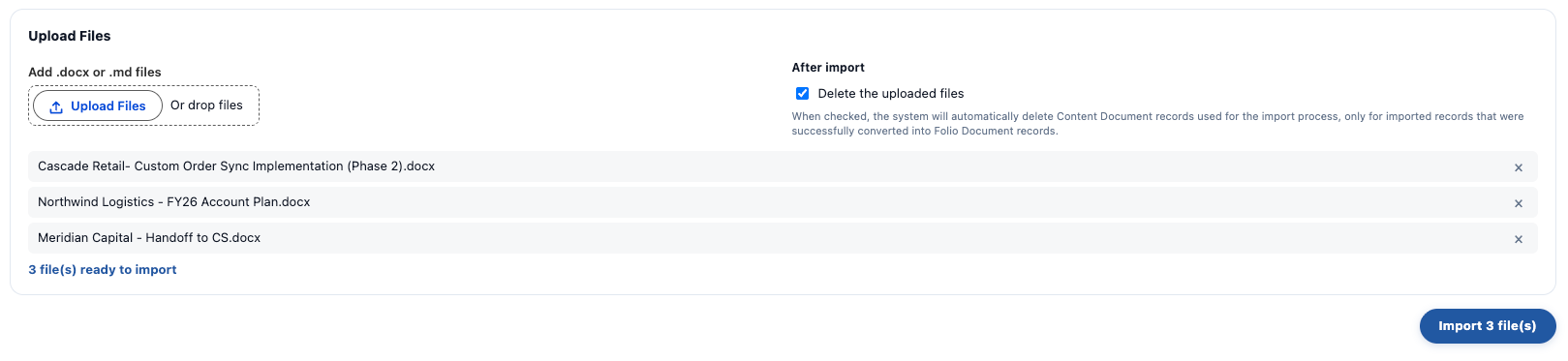 ### Import limits
| Limit | Value |
| --- | --- |
| Files per import job | 500 |
| Size per file | 5 MB |
| Content per document | 393,216 characters |
| Accepted file types | `.md`, `.docx` |
**More than 500 files is refused at submission**, with the message *"Import is limited to 500 files per job. Upload them in smaller sets."*
A file over 5 MB fails on its own with:
```
### Import limits
| Limit | Value |
| --- | --- |
| Files per import job | 500 |
| Size per file | 5 MB |
| Content per document | 393,216 characters |
| Accepted file types | `.md`, `.docx` |
**More than 500 files is refused at submission**, with the message *"Import is limited to 500 files per job. Upload them in smaller sets."*
A file over 5 MB fails on its own with:
```
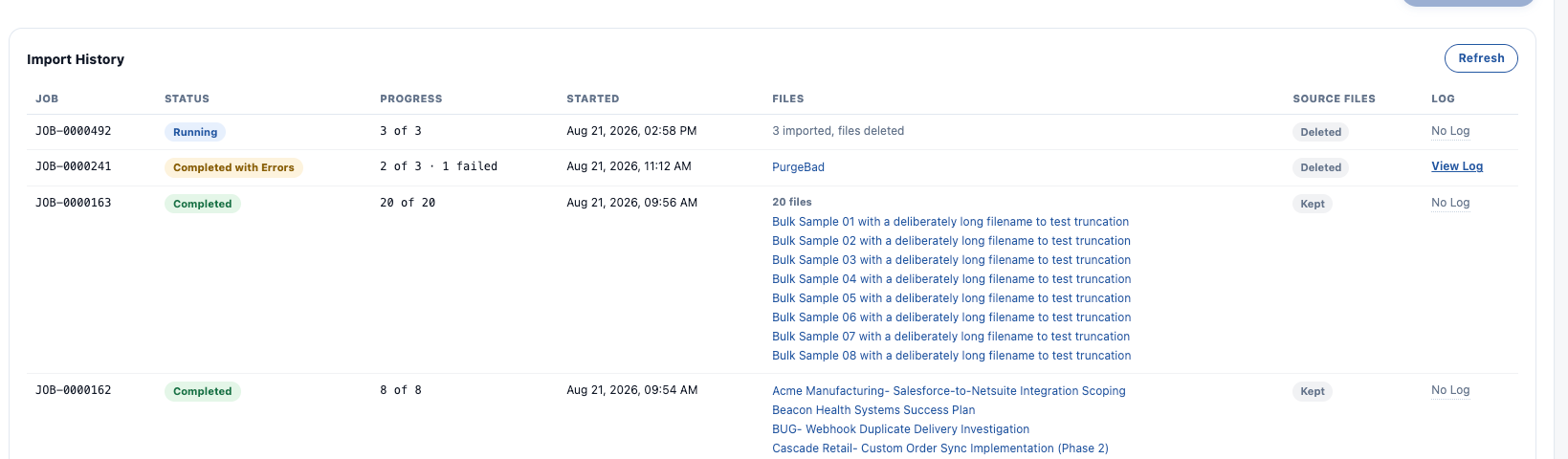 ### Reading the job log
**View Log** expands the log beneath its row, and **Hide Log** collapses it again. It records anything worth knowing about the job — unsupported file types, formatting that couldn't be carried across, and a note when source files were deleted:
```
PurgeBad.png: unsupported file type "png". Import accepts .md and .docx files.
2 uploaded file(s) were deleted after import. They are recoverable from the Recycle Bin until it is emptied.
```
**A log doesn't mean something went wrong.** A job that completed cleanly still logs the deletion note when source files were removed, so **View Log** on a green **Completed** row is routine rather than a warning.
### Reading the job log
**View Log** expands the log beneath its row, and **Hide Log** collapses it again. It records anything worth knowing about the job — unsupported file types, formatting that couldn't be carried across, and a note when source files were deleted:
```
PurgeBad.png: unsupported file type "png". Import accepts .md and .docx files.
2 uploaded file(s) were deleted after import. They are recoverable from the Recycle Bin until it is emptied.
```
**A log doesn't mean something went wrong.** A job that completed cleanly still logs the deletion note when source files were removed, so **View Log** on a green **Completed** row is routine rather than a warning.
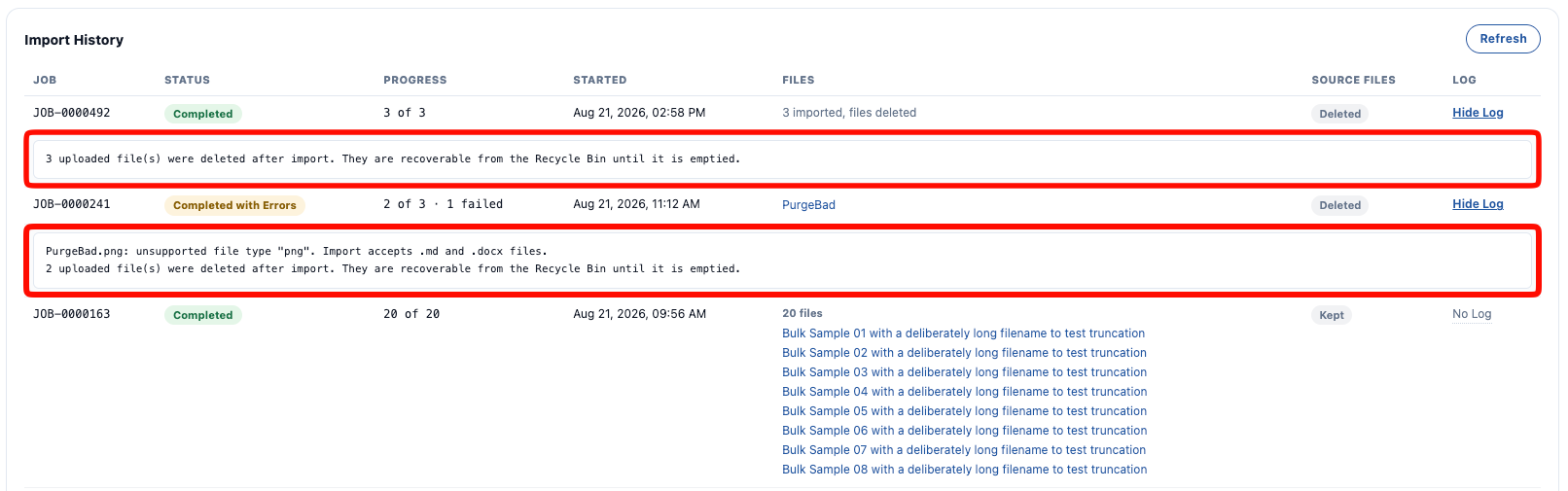 ## Export
Export turns Folio Documents into Word or Markdown files. The tab walks through four steps.
### 1. Choose what to export
Filters narrow which Documents are included. **Any filter left blank is ignored.**
| Filter | Notes |
| --- | --- |
| **Record Type** | **Documents only**, **Templates only**, or **Documents and templates** |
| **Title Contains** | Optional keyword match |
| **Created Date** | A start and end date range |
| **Owners** | Multi-select |
| **Tags** | Multi-select |
| **Related Object** | Multi-select |
| **Created From Template** | Multi-select |
In any multi-select list, **Shift-click selects a range**.
**Include archived documents** pulls in Documents that were archived rather than deleted — relevant when [hard delete is disabled](/docs/admin/admin-panel/settings#delete-permissions), which is the default.
**Preview match count** reports how many records the current filters match, as *"X document(s) match"*, before you commit to the job. **Clear all filters** resets every field at once.
**Preview match count reflects your own visibility.** The number it reports is what *you* can see, not what exists — see [Who should run migration jobs](#who-should-run-migration-jobs).
## Export
Export turns Folio Documents into Word or Markdown files. The tab walks through four steps.
### 1. Choose what to export
Filters narrow which Documents are included. **Any filter left blank is ignored.**
| Filter | Notes |
| --- | --- |
| **Record Type** | **Documents only**, **Templates only**, or **Documents and templates** |
| **Title Contains** | Optional keyword match |
| **Created Date** | A start and end date range |
| **Owners** | Multi-select |
| **Tags** | Multi-select |
| **Related Object** | Multi-select |
| **Created From Template** | Multi-select |
In any multi-select list, **Shift-click selects a range**.
**Include archived documents** pulls in Documents that were archived rather than deleted — relevant when [hard delete is disabled](/docs/admin/admin-panel/settings#delete-permissions), which is the default.
**Preview match count** reports how many records the current filters match, as *"X document(s) match"*, before you commit to the job. **Clear all filters** resets every field at once.
**Preview match count reflects your own visibility.** The number it reports is what *you* can see, not what exists — see [Who should run migration jobs](#who-should-run-migration-jobs).
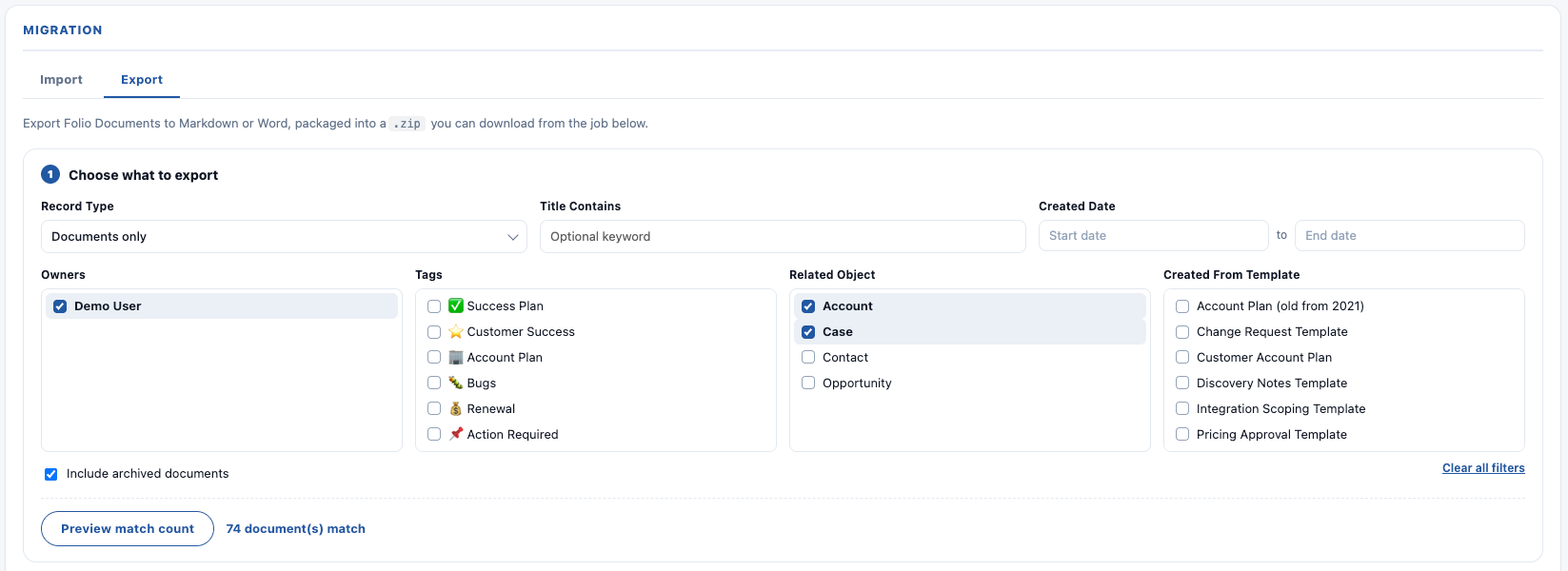 ### 2. Choose a format
| Format | Notes |
| --- | --- |
| **Word (.docx)** | Full fidelity. Keeps underline, font color, highlight, cell shading, and column widths. |
| **Markdown (.md)** | Portable and plain-text. Markdown has no syntax for underline, color, or highlight, so those are dropped and listed in the job log. |
Bulk export offers these two formats. A **single** Document can also be exported as **PDF**, via **Export as…** in the editor's [3-dots overflow menu](/docs/user-guide/document-editor#3-dots-overflow-menu).
### 2. Choose a format
| Format | Notes |
| --- | --- |
| **Word (.docx)** | Full fidelity. Keeps underline, font color, highlight, cell shading, and column widths. |
| **Markdown (.md)** | Portable and plain-text. Markdown has no syntax for underline, color, or highlight, so those are dropped and listed in the job log. |
Bulk export offers these two formats. A **single** Document can also be exported as **PDF**, via **Export as…** in the editor's [3-dots overflow menu](/docs/user-guide/document-editor#3-dots-overflow-menu).
 ### 3. Choose a destination
**Download as a .zip** — everything is packaged into zip files you download from the job row.
Documents are batched **25 per zip part**, so a large export produces several parts presented as one download set. A 10,000-document export produces 400 parts. The zips are stored as ContentDocuments and are subject to [Document Export Retention](/docs/admin/admin-panel/settings#data-retention), which purges them after 6 months by default.
**Save to Files on each document** — each Document is converted to the chosen format and filed against itself *and* every record it was related to **at the time of processing**. This is the same behavior as **Save to Files** on a single Document. Nothing is downloaded.
That timing matters: a relationship added after the job starts won't get a copy of the file.
**Save to Files output is never purged by retention.** Only Download archives expire. Setting retention to `0` keeps Download archives indefinitely too.
### 3. Choose a destination
**Download as a .zip** — everything is packaged into zip files you download from the job row.
Documents are batched **25 per zip part**, so a large export produces several parts presented as one download set. A 10,000-document export produces 400 parts. The zips are stored as ContentDocuments and are subject to [Document Export Retention](/docs/admin/admin-panel/settings#data-retention), which purges them after 6 months by default.
**Save to Files on each document** — each Document is converted to the chosen format and filed against itself *and* every record it was related to **at the time of processing**. This is the same behavior as **Save to Files** on a single Document. Nothing is downloaded.
That timing matters: a relationship added after the job starts won't get a copy of the file.
**Save to Files output is never purged by retention.** Only Download archives expire. Setting retention to `0` keeps Download archives indefinitely too.
 ### 4. Handle Folio-only content
Some Folio content has no equivalent in a Word or Markdown file. These two dropdowns decide what happens to it.
**Record Links and Live Fields**
- **Export the current value** — the name of Record Links and the values in Live Fields are resolved at export time.
- **Value plus a bracketed description** — the same value, followed by a bracket holding four parts joined by `·`: **object · record name · field label · record ID**. The record name is usually the part a reader needs; the ID is there for tracing it back.
**Salesforce Components**
- **Render their current data** — each Status Bar, Record Preview, Related List, Workbench, and Kanban Board is queried and written into the file as a table of its current values.
- **Describe them in a placeholder** — the same components are replaced with a description of what was there.
- **Leave them out entirely** — omit them from the output.
**Rendering current data makes a job noticeably slower.** Each component has to be queried, so Documents containing them are exported one at a time to give each its own query budget. On a large export, choose a placeholder or omission unless the component data is what you're exporting for.
Click **Start export** to begin the job.
### 4. Handle Folio-only content
Some Folio content has no equivalent in a Word or Markdown file. These two dropdowns decide what happens to it.
**Record Links and Live Fields**
- **Export the current value** — the name of Record Links and the values in Live Fields are resolved at export time.
- **Value plus a bracketed description** — the same value, followed by a bracket holding four parts joined by `·`: **object · record name · field label · record ID**. The record name is usually the part a reader needs; the ID is there for tracing it back.
**Salesforce Components**
- **Render their current data** — each Status Bar, Record Preview, Related List, Workbench, and Kanban Board is queried and written into the file as a table of its current values.
- **Describe them in a placeholder** — the same components are replaced with a description of what was there.
- **Leave them out entirely** — omit them from the output.
**Rendering current data makes a job noticeably slower.** Each component has to be queried, so Documents containing them are exported one at a time to give each its own query budget. On a large export, choose a placeholder or omission unless the component data is what you're exporting for.
Click **Start export** to begin the job.
 ### Export limits
| Limit | Value |
| --- | --- |
| Documents per export job | 10,000 |
| Formats (bulk) | Markdown, DOCX |
| Formats (single Document) | Markdown, DOCX, PDF |
| Destination | Download `.zip`, or Save to Files |
| Archive retention (Download only) | 6 months, configurable in [Advanced Settings](/docs/admin/admin-panel/settings#data-retention) |
**A filter matching more than 10,000 Documents is refused before the job starts:**
```
That filter matches N documents, which is above the 10000-document limit. Narrow the filter and try again.
```
Nothing runs and no job record is created.
### Export History
Each job appears in the **Export History** table. **Refresh** updates it.
| Column | Shows |
| --- | --- |
| **Job** | The job number |
| **Status** | **Queued**, **Running**, **Completed**, **Completed with Errors**, or **Failed** |
| **Progress** | Documents completed out of total, with a failure count where any failed — `2 of 3 · 1 failed` |
| **Started** | When the job began |
| **Destination** | **Download** or **Save to Files** |
| **Files** | Download links to each zip part, for Download jobs. **—** for Save to Files. Once retention removes an archive the cell reads **Export .zip purged on _date_** |
| **Settings** | **View Settings** shows the filters and options used for that job |
| **Log** | **View Log** shows anomalies — unsupported formatting, omitted images, and similar |
**View Settings** records the whole configuration that produced a job — format, destination, record type, whether archived Documents were included, every filter that was set, and how Folio-only content was handled. It expands beneath the row, so an export can be reproduced or audited long after it ran.
**Images are not carried into exported files.** Image bytes aren't embedded in the output, so each one is dropped and noted in the log. That mirrors import, where images aren't brought in either — Folio moves text in both directions.
### Export limits
| Limit | Value |
| --- | --- |
| Documents per export job | 10,000 |
| Formats (bulk) | Markdown, DOCX |
| Formats (single Document) | Markdown, DOCX, PDF |
| Destination | Download `.zip`, or Save to Files |
| Archive retention (Download only) | 6 months, configurable in [Advanced Settings](/docs/admin/admin-panel/settings#data-retention) |
**A filter matching more than 10,000 Documents is refused before the job starts:**
```
That filter matches N documents, which is above the 10000-document limit. Narrow the filter and try again.
```
Nothing runs and no job record is created.
### Export History
Each job appears in the **Export History** table. **Refresh** updates it.
| Column | Shows |
| --- | --- |
| **Job** | The job number |
| **Status** | **Queued**, **Running**, **Completed**, **Completed with Errors**, or **Failed** |
| **Progress** | Documents completed out of total, with a failure count where any failed — `2 of 3 · 1 failed` |
| **Started** | When the job began |
| **Destination** | **Download** or **Save to Files** |
| **Files** | Download links to each zip part, for Download jobs. **—** for Save to Files. Once retention removes an archive the cell reads **Export .zip purged on _date_** |
| **Settings** | **View Settings** shows the filters and options used for that job |
| **Log** | **View Log** shows anomalies — unsupported formatting, omitted images, and similar |
**View Settings** records the whole configuration that produced a job — format, destination, record type, whether archived Documents were included, every filter that was set, and how Folio-only content was handled. It expands beneath the row, so an export can be reproduced or audited long after it ran.
**Images are not carried into exported files.** Image bytes aren't embedded in the output, so each one is dropped and noted in the log. That mirrors import, where images aren't brought in either — Folio moves text in both directions.
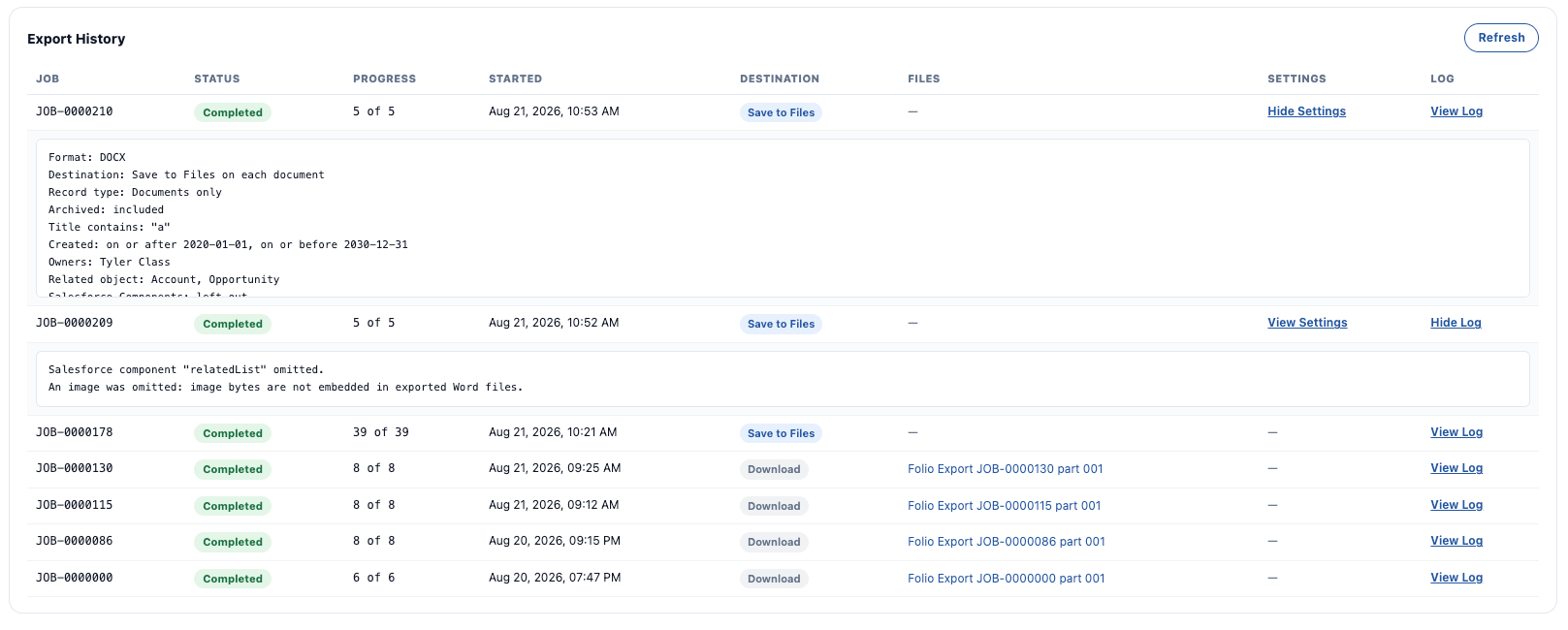 ## Limits that come from Salesforce
A few constraints aren't Folio's and apply to any org:
- **5 batch jobs running concurrently**, with 100 queued.
- A **daily asynchronous execution allowance**.
Both jobs process in chunks sized against Salesforce's **12 MB asynchronous heap limit**: **10 files per chunk on import**, **25 documents per chunk on export**.
The units differ because each job iterates over a different thing — uploaded files going in, Documents coming out. On export, **one `.zip` part is written per chunk**, which is why parts hold 25 documents each.
A very large migration may need to run across more than one day.
**Related:** [Use the Admin Panel](/docs/admin/admin-panel) · [Settings](/docs/admin/admin-panel/settings) · [Data Storage in Folio](/docs/reference/data-storage#import-and-export-files) · [Tags](/docs/admin/admin-panel/tags)
---
# Admin Panel — Recycle Bin
Source: https://foliosolutions.net/docs/admin/admin-panel/recycle-bin
Browse every archived Folio Document in the org, preview one before deciding, and restore it — plus the retention window that eventually purges the rest.
When [hard delete is disabled](/docs/admin/admin-panel/settings#delete-permissions) — the default — deleting a Document doesn't remove it. It sets an **Archived** flag, which takes the Document out of every user-facing view while leaving the record intact.
The **Recycle Bin** tab of the [Folio Admin app](/docs/admin/admin-panel) is where those Documents wait. It lists them org-wide, lets you read one before deciding, and restores it in a click.
**Admins only, and org-wide.** The tab requires the **Folio Docs Administrator** permission set, and it shows every archived Document regardless of who owned it or whether it was ever shared with you. See [Assign Permissions](/docs/getting-started/licenses-and-permissions).
## Limits that come from Salesforce
A few constraints aren't Folio's and apply to any org:
- **5 batch jobs running concurrently**, with 100 queued.
- A **daily asynchronous execution allowance**.
Both jobs process in chunks sized against Salesforce's **12 MB asynchronous heap limit**: **10 files per chunk on import**, **25 documents per chunk on export**.
The units differ because each job iterates over a different thing — uploaded files going in, Documents coming out. On export, **one `.zip` part is written per chunk**, which is why parts hold 25 documents each.
A very large migration may need to run across more than one day.
**Related:** [Use the Admin Panel](/docs/admin/admin-panel) · [Settings](/docs/admin/admin-panel/settings) · [Data Storage in Folio](/docs/reference/data-storage#import-and-export-files) · [Tags](/docs/admin/admin-panel/tags)
---
# Admin Panel — Recycle Bin
Source: https://foliosolutions.net/docs/admin/admin-panel/recycle-bin
Browse every archived Folio Document in the org, preview one before deciding, and restore it — plus the retention window that eventually purges the rest.
When [hard delete is disabled](/docs/admin/admin-panel/settings#delete-permissions) — the default — deleting a Document doesn't remove it. It sets an **Archived** flag, which takes the Document out of every user-facing view while leaving the record intact.
The **Recycle Bin** tab of the [Folio Admin app](/docs/admin/admin-panel) is where those Documents wait. It lists them org-wide, lets you read one before deciding, and restores it in a click.
**Admins only, and org-wide.** The tab requires the **Folio Docs Administrator** permission set, and it shows every archived Document regardless of who owned it or whether it was ever shared with you. See [Assign Permissions](/docs/getting-started/licenses-and-permissions).
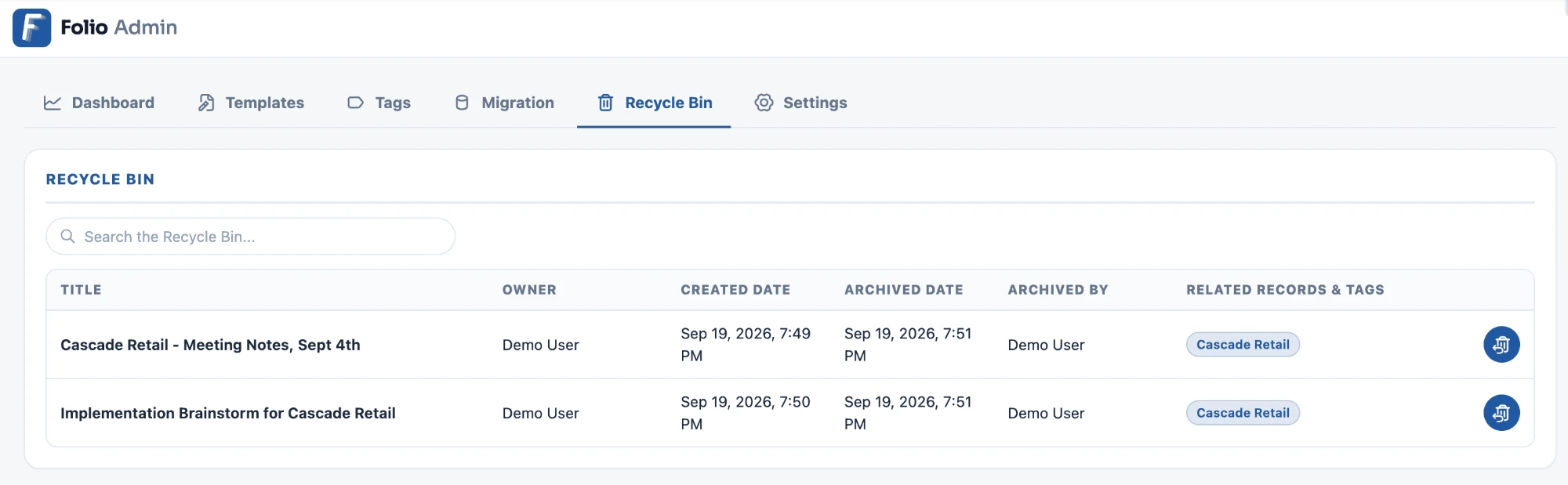 ## Browsing archived Documents
The table lists archived Documents **most recently archived first**, with six columns:
| Column | What it shows |
| --- | --- |
| **Title** | The Document's title when it was archived |
| **Owner** | Who owned it at the time |
| **Created Date** | When the Document was originally created |
| **Archived Date** | When it was deleted into the Recycle Bin |
| **Archived By** | Who deleted it |
| **Related Records & Tags** | The Document's linked records and Tags, as pills — an em dash when it has none |
**Archived Date and Archived By are stamped at the moment of deletion**, which is what makes an accidental delete traceable to a person and a time. Documents archived before these stamps existed fall back to their last-modified date and user.
**Templates never appear here.** The Recycle Bin lists Documents only; archived Templates are managed from the [Templates](/docs/admin/admin-panel/templates) tab.
When nothing is archived, the tab reads *"The Recycle Bin is empty — no archived documents."*
### Searching
**Search the Recycle Bin...** filters the table as you type, across **titles, owners, who archived it, linked records, and Tag names**. It matches on any part of a value, not just the start, and it narrows the entire list rather than only the part of it on screen.
Searching does not look inside Document content. When nothing matches, the table reads *"No archived documents match your search."* Clear the box with the **✕** to get the full list back.
## Previewing before you restore
**Click any row to open the Document read-only.** Titles alone are often not enough to tell two archived Documents apart, so the viewer opens the real content — formatting, [Salesforce components](/docs/user-guide/salesforce-components), and comments included — in the Folio editor with editing turned off.
Nothing in the viewer can change the Document: the content is not editable, comments are read-only, and the editing controls are hidden. The only action available is **Restore**, in the header.
## Restoring a Document
**Restore** — from the button on the row, or from inside the viewer — un-archives the Document immediately. It returns to its owner's view and to search with its content, sharing, Tags, related records, comments, and version history exactly as they were, and the **Archived Date** and **Archived By** stamps are cleared.
There is no confirmation step, because restoring is not destructive. Restoring the wrong Document just means deleting it again.
**The Document's owner is notified** that you restored it, so they find out without being told. Restoring a Document you own yourself is silent, as is restoring one owned by a Queue.
> **A Document deleted while hard delete was enabled never reaches the Recycle Bin.** With **Users can hard delete Docs** turned on, deleting removes the record from Salesforce outright and there is nothing to restore. See [Delete Permissions](/docs/admin/admin-panel/settings#delete-permissions).
## How long archived Documents are kept
Archived Documents do not sit in the bin forever. **Archived Document Retention**, in the [Data Retention](/docs/admin/admin-panel/settings#data-retention) section of the Settings tab, sets how many months they're kept — **6 by default**. A nightly job permanently deletes anything past that window.
**Purging is permanent and complete.** It removes the Document along with its comments, versions, Junctions, stars, and view preferences. Nothing survives to be recovered.
Set the value to `0` to keep archived Documents indefinitely. That guarantees nothing is ever lost, at the cost of an archive that only grows — see [Data Storage in Folio](/docs/reference/data-storage) for what that costs.
**The purge runs as a background job.** With [Background Jobs](/docs/admin/admin-panel/settings#asynchronous-processing) disabled, archived Documents accumulate indefinitely whatever the retention value says.
**Related:** [Use the Admin Panel](/docs/admin/admin-panel) · [Settings](/docs/admin/admin-panel/settings) · [Templates](/docs/admin/admin-panel/templates) · [Data Storage in Folio](/docs/reference/data-storage) · [Update Data in Bulk](/docs/admin/bulk-data-updates)
---
# Admin Panel — Settings
Source: https://foliosolutions.net/docs/admin/admin-panel/settings
Every Folio setting — Linkable Objects, Live Fields and write-back, background jobs, automatic sharing and linking, and delete permissions.
The **Settings** tab of the [Folio Admin app](/docs/admin/admin-panel) controls how Folio Docs behaves across the org. Documents work from the moment the package is installed — but choosing your Linkable Objects, selecting Linkable Fields, and turning on Background Jobs is what unlocks the real value: live Salesforce data in the page, search across every Document, and sharing that follows your records.
## Who can change what
> **Settings are gated by Salesforce system permissions, not by the Folio Docs Administrator permission set alone.** Holding **Folio Docs Administrator** gets you into the Admin Panel; it does not by itself let you change every setting on this tab.
The gating works like this:
| Setting group | Required permission |
| --- | --- |
| **Choose Linkable Objects** and **Choose Linkable Fields** | CRUD on the **Folio Configuration** Custom Setting only — grantable to Folio Admins who are not Salesforce Administrators. |
| Org-level Configuration — **Automatic Team Sharing**, **Automatic Record Linking**, **Delete Permissions** | **Customize Application** |
| **Asynchronous Processing** | **Customize Application** *and* **Modify All Data** |
**Asynchronous Processing needs the extra permission because it reschedules and aborts scheduled jobs owned by other users** — an operation Salesforce reserves for Modify All Data.
So the accurate summary is: **a Folio admin without those system permissions can still use the [Dashboard](/docs/admin/admin-panel/dashboard), manage [Templates](/docs/admin/admin-panel/templates) and [Tags](/docs/admin/admin-panel/tags), and configure Linkable Objects and Linkable Fields.** The remaining Settings are visible to them but read-only.
When that's the case, the Admin Panel shows a banner reading:
Most of the settings below require Salesforce System Administrator permissions and are shown as read-only. Contact your Salesforce Administrator to change them.
## Browsing archived Documents
The table lists archived Documents **most recently archived first**, with six columns:
| Column | What it shows |
| --- | --- |
| **Title** | The Document's title when it was archived |
| **Owner** | Who owned it at the time |
| **Created Date** | When the Document was originally created |
| **Archived Date** | When it was deleted into the Recycle Bin |
| **Archived By** | Who deleted it |
| **Related Records & Tags** | The Document's linked records and Tags, as pills — an em dash when it has none |
**Archived Date and Archived By are stamped at the moment of deletion**, which is what makes an accidental delete traceable to a person and a time. Documents archived before these stamps existed fall back to their last-modified date and user.
**Templates never appear here.** The Recycle Bin lists Documents only; archived Templates are managed from the [Templates](/docs/admin/admin-panel/templates) tab.
When nothing is archived, the tab reads *"The Recycle Bin is empty — no archived documents."*
### Searching
**Search the Recycle Bin...** filters the table as you type, across **titles, owners, who archived it, linked records, and Tag names**. It matches on any part of a value, not just the start, and it narrows the entire list rather than only the part of it on screen.
Searching does not look inside Document content. When nothing matches, the table reads *"No archived documents match your search."* Clear the box with the **✕** to get the full list back.
## Previewing before you restore
**Click any row to open the Document read-only.** Titles alone are often not enough to tell two archived Documents apart, so the viewer opens the real content — formatting, [Salesforce components](/docs/user-guide/salesforce-components), and comments included — in the Folio editor with editing turned off.
Nothing in the viewer can change the Document: the content is not editable, comments are read-only, and the editing controls are hidden. The only action available is **Restore**, in the header.
## Restoring a Document
**Restore** — from the button on the row, or from inside the viewer — un-archives the Document immediately. It returns to its owner's view and to search with its content, sharing, Tags, related records, comments, and version history exactly as they were, and the **Archived Date** and **Archived By** stamps are cleared.
There is no confirmation step, because restoring is not destructive. Restoring the wrong Document just means deleting it again.
**The Document's owner is notified** that you restored it, so they find out without being told. Restoring a Document you own yourself is silent, as is restoring one owned by a Queue.
> **A Document deleted while hard delete was enabled never reaches the Recycle Bin.** With **Users can hard delete Docs** turned on, deleting removes the record from Salesforce outright and there is nothing to restore. See [Delete Permissions](/docs/admin/admin-panel/settings#delete-permissions).
## How long archived Documents are kept
Archived Documents do not sit in the bin forever. **Archived Document Retention**, in the [Data Retention](/docs/admin/admin-panel/settings#data-retention) section of the Settings tab, sets how many months they're kept — **6 by default**. A nightly job permanently deletes anything past that window.
**Purging is permanent and complete.** It removes the Document along with its comments, versions, Junctions, stars, and view preferences. Nothing survives to be recovered.
Set the value to `0` to keep archived Documents indefinitely. That guarantees nothing is ever lost, at the cost of an archive that only grows — see [Data Storage in Folio](/docs/reference/data-storage) for what that costs.
**The purge runs as a background job.** With [Background Jobs](/docs/admin/admin-panel/settings#asynchronous-processing) disabled, archived Documents accumulate indefinitely whatever the retention value says.
**Related:** [Use the Admin Panel](/docs/admin/admin-panel) · [Settings](/docs/admin/admin-panel/settings) · [Templates](/docs/admin/admin-panel/templates) · [Data Storage in Folio](/docs/reference/data-storage) · [Update Data in Bulk](/docs/admin/bulk-data-updates)
---
# Admin Panel — Settings
Source: https://foliosolutions.net/docs/admin/admin-panel/settings
Every Folio setting — Linkable Objects, Live Fields and write-back, background jobs, automatic sharing and linking, and delete permissions.
The **Settings** tab of the [Folio Admin app](/docs/admin/admin-panel) controls how Folio Docs behaves across the org. Documents work from the moment the package is installed — but choosing your Linkable Objects, selecting Linkable Fields, and turning on Background Jobs is what unlocks the real value: live Salesforce data in the page, search across every Document, and sharing that follows your records.
## Who can change what
> **Settings are gated by Salesforce system permissions, not by the Folio Docs Administrator permission set alone.** Holding **Folio Docs Administrator** gets you into the Admin Panel; it does not by itself let you change every setting on this tab.
The gating works like this:
| Setting group | Required permission |
| --- | --- |
| **Choose Linkable Objects** and **Choose Linkable Fields** | CRUD on the **Folio Configuration** Custom Setting only — grantable to Folio Admins who are not Salesforce Administrators. |
| Org-level Configuration — **Automatic Team Sharing**, **Automatic Record Linking**, **Delete Permissions** | **Customize Application** |
| **Asynchronous Processing** | **Customize Application** *and* **Modify All Data** |
**Asynchronous Processing needs the extra permission because it reschedules and aborts scheduled jobs owned by other users** — an operation Salesforce reserves for Modify All Data.
So the accurate summary is: **a Folio admin without those system permissions can still use the [Dashboard](/docs/admin/admin-panel/dashboard), manage [Templates](/docs/admin/admin-panel/templates) and [Tags](/docs/admin/admin-panel/tags), and configure Linkable Objects and Linkable Fields.** The remaining Settings are visible to them but read-only.
When that's the case, the Admin Panel shows a banner reading:
Most of the settings below require Salesforce System Administrator permissions and are shown as read-only. Contact your Salesforce Administrator to change them.
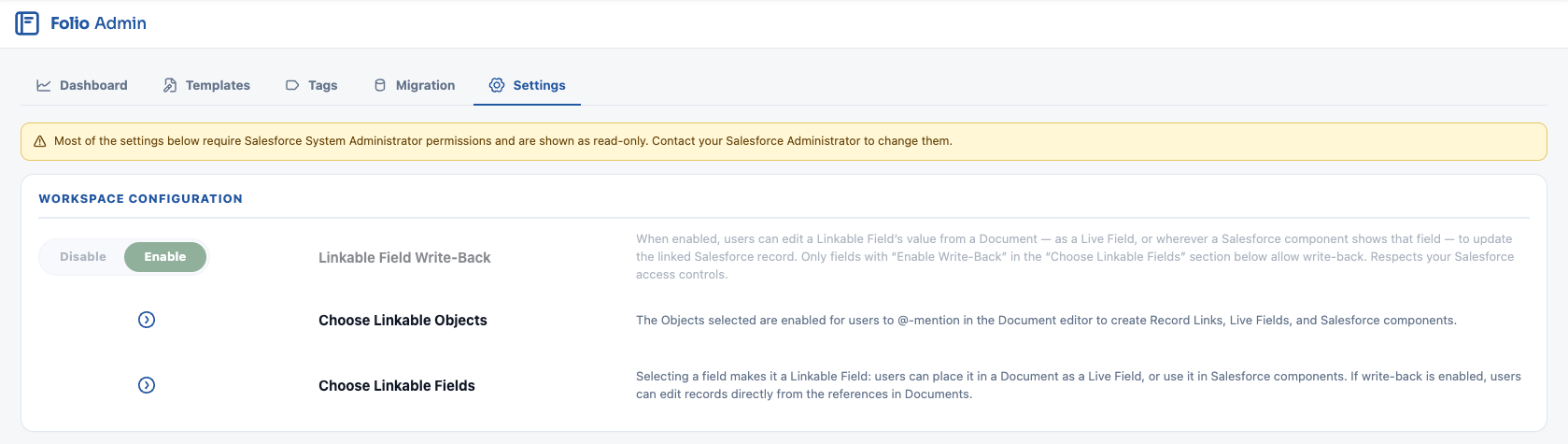 ---
## Workspace Configuration
### Linkable Field Write-Back
The org-wide master toggle — **Disable** or **Enable** — for whether [Live Fields](/docs/user-guide/at-commands#live-fields) and the [Salesforce components](/docs/user-guide/salesforce-components) can write data back to Salesforce records at all.
When disabled, Live Fields and components still display record data everywhere, but nothing in Folio can push a change back to Salesforce. When enabled, write-back is then controlled field by field in [Choose Linkable Fields](#choose-linkable-fields) below.
---
## Workspace Configuration
### Linkable Field Write-Back
The org-wide master toggle — **Disable** or **Enable** — for whether [Live Fields](/docs/user-guide/at-commands#live-fields) and the [Salesforce components](/docs/user-guide/salesforce-components) can write data back to Salesforce records at all.
When disabled, Live Fields and components still display record data everywhere, but nothing in Folio can push a change back to Salesforce. When enabled, write-back is then controlled field by field in [Choose Linkable Fields](#choose-linkable-fields) below.
 ### Choose Linkable Objects
Expand the section and drag objects from **Available Objects** on the left into **Selected Objects** on the right. Both panes have a search box, which matters in an org with hundreds of objects, and each row shows the object's label above its API name so you can tell similarly named objects apart.
Enabling an object lets users:
- Create Record Links to records on that object inside Documents
- Link Documents to records on that object from the **Related & Tags** drawer
- Reference Live Fields from a record on that object
- Use the object in any of the five [Salesforce components](/docs/user-guide/salesforce-components) — Status Bar, Record Preview, Related List, Workbench, and Kanban. For a component that spans two objects, such as a Related List of Cases under an Account, **both the parent and the child object must be linkable**
Each selected row carries an **Auto-Share Level** control — **None**, **Read**, or **Edit**. Whenever a Document is linked to a record of that object, the record's Owner automatically gets that level of access to the Document.
Auto-share is also re-applied when a linked record's owner changes — see [Set up Real-Time Updates](/docs/admin/real-time-updates).
### Choose Linkable Objects
Expand the section and drag objects from **Available Objects** on the left into **Selected Objects** on the right. Both panes have a search box, which matters in an org with hundreds of objects, and each row shows the object's label above its API name so you can tell similarly named objects apart.
Enabling an object lets users:
- Create Record Links to records on that object inside Documents
- Link Documents to records on that object from the **Related & Tags** drawer
- Reference Live Fields from a record on that object
- Use the object in any of the five [Salesforce components](/docs/user-guide/salesforce-components) — Status Bar, Record Preview, Related List, Workbench, and Kanban. For a component that spans two objects, such as a Related List of Cases under an Account, **both the parent and the child object must be linkable**
Each selected row carries an **Auto-Share Level** control — **None**, **Read**, or **Edit**. Whenever a Document is linked to a record of that object, the record's Owner automatically gets that level of access to the Document.
Auto-share is also re-applied when a linked record's owner changes — see [Set up Real-Time Updates](/docs/admin/real-time-updates).
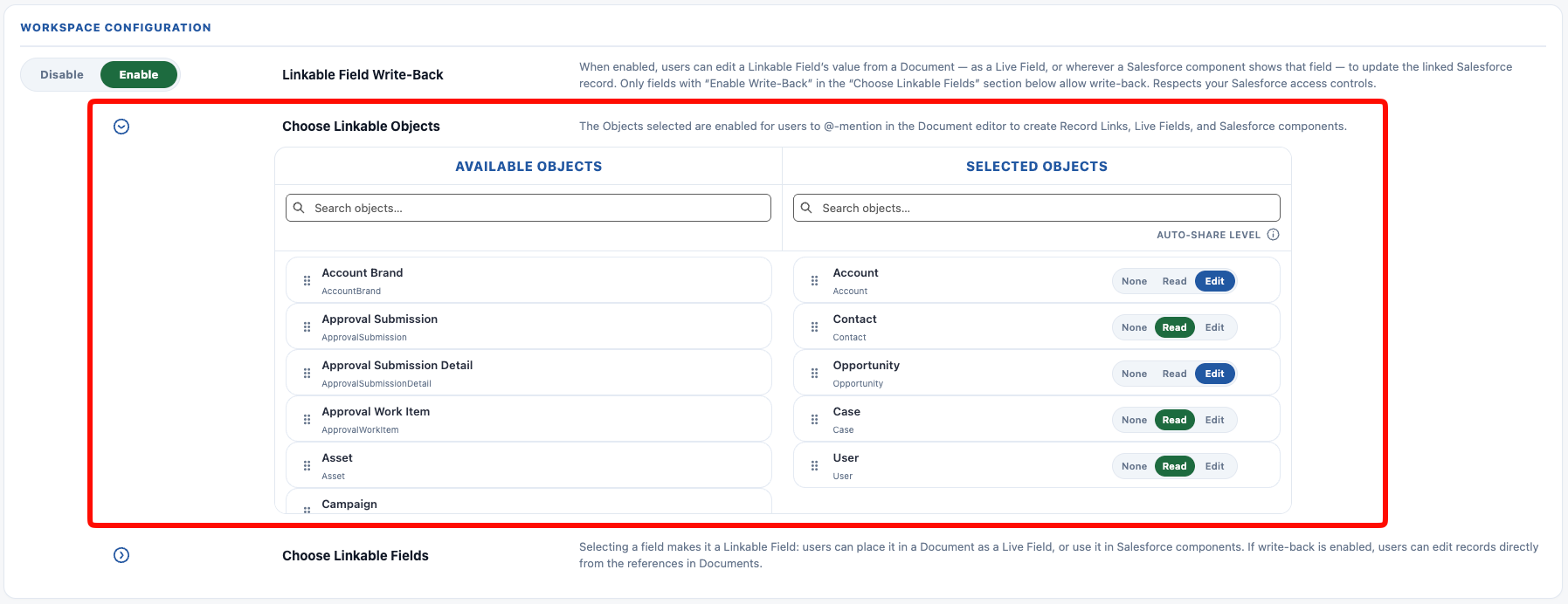 #### Special case: the User object
For the **User** object, Auto-Share Level governs something different — **@-mentions of people**. Mentioning a user directly in a Document body inserts a [User Mention](/docs/user-guide/at-commands#user-mentions) — the gray @ chip — and shares the Document with them at the configured level.
> **If User is not among your Selected Objects, users cannot be @-mentioned in Document bodies at all.** They can still be mentioned in comment threads; only body mentions are affected. Enabling User is what makes "@ someone in the doc and they get access" work.
#### Queues
A Queue can own a Folio Document outright, and a Queue can receive auto-share from a record it owns. Both paths depend on the same prerequisite.
**A Queue must list Folio Document among its supported objects**, in addition to whatever functional object it already supports. Without that, the Queue cannot be made a Document Owner, and auto-share based on the linked record's ownership cannot reach it.
Set it on the Queue itself: **Setup → Queues → the Queue → Supported Objects**.
| Record owner | Auto-Share setting | Result |
| --- | --- | --- |
| Queue | **None** | Fine — the Queue does not need Folio Document, and there is no impact. |
| Queue | **Read** or **Edit** | Queue **without** Folio Document → auto-share fails. Queue **with** Folio Document → auto-share works, granting Read/Edit to Queue members and updating automatically as membership changes. |
The share targets **the Queue itself**, and members inherit access through standard Salesforce group semantics — which is why membership changes are picked up automatically with no additional configuration. Add or remove someone from the Queue and their access to every Document linked to that Queue's records follows.
The same applies when a Queue owns a Document directly rather than through a linked record: ownership sits with the Queue, and its members hold the owner's access for as long as they are in it.
### Choose Linkable Fields
For each object selected above, choose which of its fields Folio is allowed to use.
**Linkable Field is the setting; Live Field is the node.** A **Linkable Field** is what you enable here — permission for Folio to reference that Salesforce field at all. A **Live Field** is one of the things that permission unlocks: an inline chip in a Document showing that field's value. The same Linkable Field also feeds the five Salesforce components. Enabling a field here doesn't put it anywhere; it makes it *available* to be put somewhere.
1. Select an object in the left-most **Selected Objects** column.
2. Drag fields from **Available Fields on Selected Object** into **Selected Fields**.
Both field panes have a search box, and every row shows the field label above its API name — useful when several fields share a label.
This is also where the fields available to [Templates](/docs/admin/admin-panel/templates#the-merge-field-picker) come from.
The fields you select here become available everywhere Folio surfaces Salesforce data:
- **Live Fields** — inline chips inserted in a Document body via the `@` menu
- **Record Preview** display fields
- **Status Bar** status fields — **picklists, numbers, currencies, and percents only**
- **Related List** columns — only fields enabled on the *child* object are available
- **Workbench** columns
- **Kanban** tile fields
Each selected field carries its own **Enable Write-Back** control, set to **Disable** or **Enable** independently of every other field.
#### The two-gate rule
**Write-back requires both gates to be open: the org-wide [Linkable Field Write-Back](#linkable-field-write-back) toggle *and* the per-field Enable Write-Back control.**
With the field-level gate off, the field still displays everywhere it's configured — but it is **read-only everywhere**:
- No Status Bar updates
- No Record Preview inline edits
- No Related List or Workbench inline edits
- No Kanban status drag-and-drop
- No Live Field edits in the Document body
This is what gives you precise control. You might want reps editing an Opportunity's **Amount** from a Document but never its **Stage** — enable write-back on one and not the other.
**Live Field write-back always respects Salesforce object-, record-, and field-level access. Folio will never give a user access they do not already have in Salesforce.** These settings can only ever *restrict* what a user could otherwise do, never expand it.
#### Special case: the User object
For the **User** object, Auto-Share Level governs something different — **@-mentions of people**. Mentioning a user directly in a Document body inserts a [User Mention](/docs/user-guide/at-commands#user-mentions) — the gray @ chip — and shares the Document with them at the configured level.
> **If User is not among your Selected Objects, users cannot be @-mentioned in Document bodies at all.** They can still be mentioned in comment threads; only body mentions are affected. Enabling User is what makes "@ someone in the doc and they get access" work.
#### Queues
A Queue can own a Folio Document outright, and a Queue can receive auto-share from a record it owns. Both paths depend on the same prerequisite.
**A Queue must list Folio Document among its supported objects**, in addition to whatever functional object it already supports. Without that, the Queue cannot be made a Document Owner, and auto-share based on the linked record's ownership cannot reach it.
Set it on the Queue itself: **Setup → Queues → the Queue → Supported Objects**.
| Record owner | Auto-Share setting | Result |
| --- | --- | --- |
| Queue | **None** | Fine — the Queue does not need Folio Document, and there is no impact. |
| Queue | **Read** or **Edit** | Queue **without** Folio Document → auto-share fails. Queue **with** Folio Document → auto-share works, granting Read/Edit to Queue members and updating automatically as membership changes. |
The share targets **the Queue itself**, and members inherit access through standard Salesforce group semantics — which is why membership changes are picked up automatically with no additional configuration. Add or remove someone from the Queue and their access to every Document linked to that Queue's records follows.
The same applies when a Queue owns a Document directly rather than through a linked record: ownership sits with the Queue, and its members hold the owner's access for as long as they are in it.
### Choose Linkable Fields
For each object selected above, choose which of its fields Folio is allowed to use.
**Linkable Field is the setting; Live Field is the node.** A **Linkable Field** is what you enable here — permission for Folio to reference that Salesforce field at all. A **Live Field** is one of the things that permission unlocks: an inline chip in a Document showing that field's value. The same Linkable Field also feeds the five Salesforce components. Enabling a field here doesn't put it anywhere; it makes it *available* to be put somewhere.
1. Select an object in the left-most **Selected Objects** column.
2. Drag fields from **Available Fields on Selected Object** into **Selected Fields**.
Both field panes have a search box, and every row shows the field label above its API name — useful when several fields share a label.
This is also where the fields available to [Templates](/docs/admin/admin-panel/templates#the-merge-field-picker) come from.
The fields you select here become available everywhere Folio surfaces Salesforce data:
- **Live Fields** — inline chips inserted in a Document body via the `@` menu
- **Record Preview** display fields
- **Status Bar** status fields — **picklists, numbers, currencies, and percents only**
- **Related List** columns — only fields enabled on the *child* object are available
- **Workbench** columns
- **Kanban** tile fields
Each selected field carries its own **Enable Write-Back** control, set to **Disable** or **Enable** independently of every other field.
#### The two-gate rule
**Write-back requires both gates to be open: the org-wide [Linkable Field Write-Back](#linkable-field-write-back) toggle *and* the per-field Enable Write-Back control.**
With the field-level gate off, the field still displays everywhere it's configured — but it is **read-only everywhere**:
- No Status Bar updates
- No Record Preview inline edits
- No Related List or Workbench inline edits
- No Kanban status drag-and-drop
- No Live Field edits in the Document body
This is what gives you precise control. You might want reps editing an Opportunity's **Amount** from a Document but never its **Stage** — enable write-back on one and not the other.
**Live Field write-back always respects Salesforce object-, record-, and field-level access. Folio will never give a user access they do not already have in Salesforce.** These settings can only ever *restrict* what a user could otherwise do, never expand it.
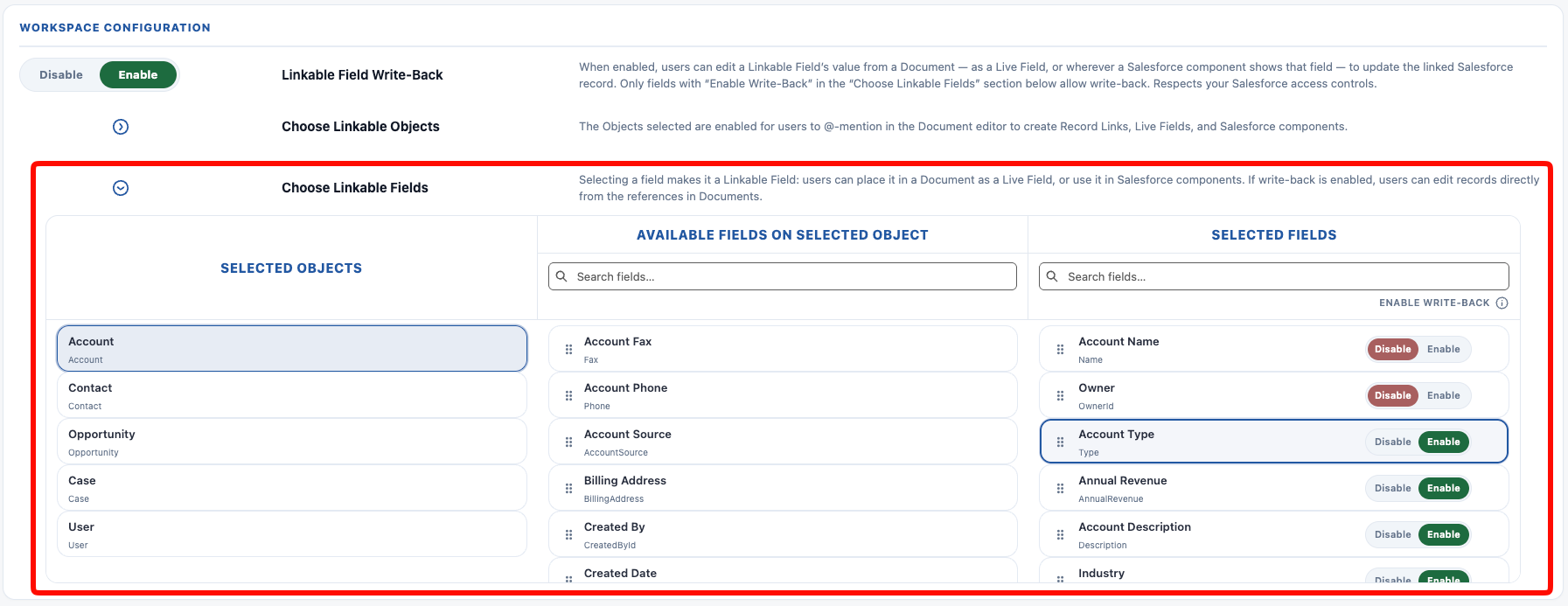 ---
## Asynchronous Processing
A single **Background Jobs** toggle — **Disable** or **Enable**.
**This should be on for Folio to work properly.** Enable it once during initial setup and leave it on.
Enabling it schedules nine jobs. You don't need to manage these individually, but it helps to know what stops when the toggle is off.
| Job | Cadence | What it does |
| --- | --- | --- |
| Indexing | Every 5 minutes | Decodes Document content, extracts text, and builds the search token index. Also runs a catch-up sync of Account, Opportunity, and Case team shares. |
| Junction sync | Hourly | Refreshes each Junction's stored parent-record name with the linked record's current Name. This powers search-by-record-name — without it, a renamed record stays invisible to search. |
| Usage rollup | Nightly | Writes the usage statistics behind the [Dashboard](/docs/admin/admin-panel/dashboard) — daily point-in-time snapshots plus monthly aggregates. |
| Log retention | Nightly | Deletes Folio Log records past their [retention period](#data-retention). |
| Alert retention | Nightly | Deletes notifications past the [alert retention period](#data-retention). |
| Export retention | Nightly | Deletes export zip files past the [export retention period](#data-retention). |
| Version maintenance | Nightly | Consolidates [version history](/docs/user-guide/version-history) and purges versions past the [retention period](#data-retention). |
| Archive purge | Nightly | Permanently deletes archived Documents past the [archive retention period](#data-retention). |
| Email digest | Hourly | Emails each user their unread notifications at that user's chosen frequency. Does nothing unless [Notification Email Digest](#notification-email-digest) is enabled. |
> **The daily usage snapshots can never be reconstructed after the fact.** If Background Jobs is off for a stretch, the Dashboard has a permanent gap for those days — the data isn't recoverable later.
### The user who enables it owns the schedule
Salesforce runs a scheduled job as the user who scheduled it, so **whoever flips this toggle on becomes the running user for all nine jobs** — and they have to stay an active Salesforce user for the jobs to keep running.
**If that user is ever deactivated, every Folio background job stops.** Nothing on this page reports it; the jobs simply stop producing results, so search results go stale, retention stops running, and the Dashboard stops advancing.
**The fix is to reschedule under someone else.** Any system administrator can open this tab, set Background Jobs to **Disable**, then back to **Enable** — that cancels the old schedule and recreates it under whoever is doing the re-enabling.
**Only deactivation breaks it.** If the scheduling user loses their Folio license or gets frozen, the jobs keep running normally. Freezing blocks login, not scheduled execution.
**Enable it as an account that will outlast the person who installed Folio.** A dedicated system automation or integration service account is the usual standard, since it isn't tied to anyone's employment and won't be deactivated when someone changes roles or leaves. A long-standing system administrator account works too, and is the sensible choice in an org that doesn't keep service accounts.
Either way, defer to your organization's own operational principles for which account runs scheduled work — Folio has no requirement here beyond the account staying active. Whichever you pick, add the disable/re-enable step to your offboarding checklist for that user.
Disabling the toggle cancels all nine. That makes it genuinely useful for pausing or resetting jobs — turn it off and back on to reschedule everything cleanly — but an org running with it off will have stale search results, team shares that never apply, and a Dashboard that stops advancing.
---
## Asynchronous Processing
A single **Background Jobs** toggle — **Disable** or **Enable**.
**This should be on for Folio to work properly.** Enable it once during initial setup and leave it on.
Enabling it schedules nine jobs. You don't need to manage these individually, but it helps to know what stops when the toggle is off.
| Job | Cadence | What it does |
| --- | --- | --- |
| Indexing | Every 5 minutes | Decodes Document content, extracts text, and builds the search token index. Also runs a catch-up sync of Account, Opportunity, and Case team shares. |
| Junction sync | Hourly | Refreshes each Junction's stored parent-record name with the linked record's current Name. This powers search-by-record-name — without it, a renamed record stays invisible to search. |
| Usage rollup | Nightly | Writes the usage statistics behind the [Dashboard](/docs/admin/admin-panel/dashboard) — daily point-in-time snapshots plus monthly aggregates. |
| Log retention | Nightly | Deletes Folio Log records past their [retention period](#data-retention). |
| Alert retention | Nightly | Deletes notifications past the [alert retention period](#data-retention). |
| Export retention | Nightly | Deletes export zip files past the [export retention period](#data-retention). |
| Version maintenance | Nightly | Consolidates [version history](/docs/user-guide/version-history) and purges versions past the [retention period](#data-retention). |
| Archive purge | Nightly | Permanently deletes archived Documents past the [archive retention period](#data-retention). |
| Email digest | Hourly | Emails each user their unread notifications at that user's chosen frequency. Does nothing unless [Notification Email Digest](#notification-email-digest) is enabled. |
> **The daily usage snapshots can never be reconstructed after the fact.** If Background Jobs is off for a stretch, the Dashboard has a permanent gap for those days — the data isn't recoverable later.
### The user who enables it owns the schedule
Salesforce runs a scheduled job as the user who scheduled it, so **whoever flips this toggle on becomes the running user for all nine jobs** — and they have to stay an active Salesforce user for the jobs to keep running.
**If that user is ever deactivated, every Folio background job stops.** Nothing on this page reports it; the jobs simply stop producing results, so search results go stale, retention stops running, and the Dashboard stops advancing.
**The fix is to reschedule under someone else.** Any system administrator can open this tab, set Background Jobs to **Disable**, then back to **Enable** — that cancels the old schedule and recreates it under whoever is doing the re-enabling.
**Only deactivation breaks it.** If the scheduling user loses their Folio license or gets frozen, the jobs keep running normally. Freezing blocks login, not scheduled execution.
**Enable it as an account that will outlast the person who installed Folio.** A dedicated system automation or integration service account is the usual standard, since it isn't tied to anyone's employment and won't be deactivated when someone changes roles or leaves. A long-standing system administrator account works too, and is the sensible choice in an org that doesn't keep service accounts.
Either way, defer to your organization's own operational principles for which account runs scheduled work — Folio has no requirement here beyond the account staying active. Whichever you pick, add the disable/re-enable step to your offboarding checklist for that user.
Disabling the toggle cancels all nine. That makes it genuinely useful for pausing or resetting jobs — turn it off and back on to reschedule everything cleanly — but an org running with it off will have stale search results, team shares that never apply, and a Dashboard that stops advancing.
 ---
## Notification Email Digest
Folio can email each user their **unread** notifications on a recurring schedule. Two things are set here — whether digests run at all, and which address they come from. Users choose their own frequency; you don't set it for them.
### Send Email Digests
A **Disable** / **Enable** switch, and the master control: with it off, no digest is ever sent, whatever individual users have chosen.
**This is separate from Background Jobs.** Digests need Background Jobs on — that's what schedules the hourly job behind them — but the reverse isn't true. If you want everything else Folio runs in the background but no digest emails, leave Background Jobs **enabled** and set this one to **Disable**. It's the one background job you can switch off on its own.
Users can still pick a frequency while digests are disabled org-wide. Their choice is saved and starts applying the moment you enable it, so turning digests on doesn't require everyone to go set their preference first.
### Send From
Digests are sent from an **Organization-Wide Email Address**, chosen from the dropdown. Only verified, unrestricted addresses appear; if the list is empty, create and verify one in **Setup → Organization-Wide Addresses**, then reopen the tab.
**Unrestricted means "Allow All Profiles to Use this From Address."** For digest emails to send, the Organization-Wide Email Address must have that setting enabled when you create or edit it. An address restricted to selected profiles doesn't appear in the dropdown at all — so if the address you just created is missing from the list, its profile setting is the first thing to check.
**A dedicated address is the recommendation** — something like `folio-alerts@yourcompany.com`, which makes the mail obviously Folio's, keeps it filterable, and means a change to it affects nothing else. A shared operational address such as `systems@` or `operations@` works just as well if your company would rather not add another sender.
**Name it "Folio Notifications."** An Organization-Wide Email Address carries a display name as well as an address, and that name is what recipients see in the From column of their inbox. Naming it for Folio makes a digest recognizable at a glance and easy to tell apart from every other system alert your org sends — which matters most on a shared `systems@` or `operations@` address, where the address alone gives no clue what the mail is about.
**A digest can't send without one.** With digests enabled and no sender chosen — or a sender that has since been deleted — nothing goes out, and a banner appears at the top of this section reporting the failure.
**Test Digest** delivers one to you immediately, built from your own unread notifications from the last 7 days and sent regardless of your own chosen frequency — the quickest way to confirm the sender address works before turning digests on for everyone.
---
## Notification Email Digest
Folio can email each user their **unread** notifications on a recurring schedule. Two things are set here — whether digests run at all, and which address they come from. Users choose their own frequency; you don't set it for them.
### Send Email Digests
A **Disable** / **Enable** switch, and the master control: with it off, no digest is ever sent, whatever individual users have chosen.
**This is separate from Background Jobs.** Digests need Background Jobs on — that's what schedules the hourly job behind them — but the reverse isn't true. If you want everything else Folio runs in the background but no digest emails, leave Background Jobs **enabled** and set this one to **Disable**. It's the one background job you can switch off on its own.
Users can still pick a frequency while digests are disabled org-wide. Their choice is saved and starts applying the moment you enable it, so turning digests on doesn't require everyone to go set their preference first.
### Send From
Digests are sent from an **Organization-Wide Email Address**, chosen from the dropdown. Only verified, unrestricted addresses appear; if the list is empty, create and verify one in **Setup → Organization-Wide Addresses**, then reopen the tab.
**Unrestricted means "Allow All Profiles to Use this From Address."** For digest emails to send, the Organization-Wide Email Address must have that setting enabled when you create or edit it. An address restricted to selected profiles doesn't appear in the dropdown at all — so if the address you just created is missing from the list, its profile setting is the first thing to check.
**A dedicated address is the recommendation** — something like `folio-alerts@yourcompany.com`, which makes the mail obviously Folio's, keeps it filterable, and means a change to it affects nothing else. A shared operational address such as `systems@` or `operations@` works just as well if your company would rather not add another sender.
**Name it "Folio Notifications."** An Organization-Wide Email Address carries a display name as well as an address, and that name is what recipients see in the From column of their inbox. Naming it for Folio makes a digest recognizable at a glance and easy to tell apart from every other system alert your org sends — which matters most on a shared `systems@` or `operations@` address, where the address alone gives no clue what the mail is about.
**A digest can't send without one.** With digests enabled and no sender chosen — or a sender that has since been deleted — nothing goes out, and a banner appears at the top of this section reporting the failure.
**Test Digest** delivers one to you immediately, built from your own unread notifications from the last 7 days and sent regardless of your own chosen frequency — the quickest way to confirm the sender address works before turning digests on for everyone.
 ### What users control
Each user sets their own cadence under **Folio Docs home → Notifications → Notification Settings**: **Every hour**, **Twice daily**, **Once daily**, or **Off**.
**New users are on Every hour** until they choose something else — digests are opt-out, not opt-in. Anyone who doesn't want them can set their own to **Off** without involving you.
Digests contain only what a user hasn't read, grouped by Document, and each recipient's access is re-checked at send time — so a Document that was unshared between the notification and the digest never appears in the email. See [Email digests](/docs/user-guide/notifications#email-digests) for what users receive.
**Whether anyone acts on them is measurable.** Every link out of a digest is tagged, and the [Dashboard](/docs/admin/admin-panel/dashboard#email-digest-settings) reports both the spread of chosen frequencies and the total number of digest links opened.
### What users control
Each user sets their own cadence under **Folio Docs home → Notifications → Notification Settings**: **Every hour**, **Twice daily**, **Once daily**, or **Off**.
**New users are on Every hour** until they choose something else — digests are opt-out, not opt-in. Anyone who doesn't want them can set their own to **Off** without involving you.
Digests contain only what a user hasn't read, grouped by Document, and each recipient's access is re-checked at send time — so a Document that was unshared between the notification and the digest never appears in the email. See [Email digests](/docs/user-guide/notifications#email-digests) for what users receive.
**Whether anyone acts on them is measurable.** Every link out of a digest is tagged, and the [Dashboard](/docs/admin/admin-panel/dashboard#email-digest-settings) reports both the spread of chosen frequencies and the total number of digest links opened.
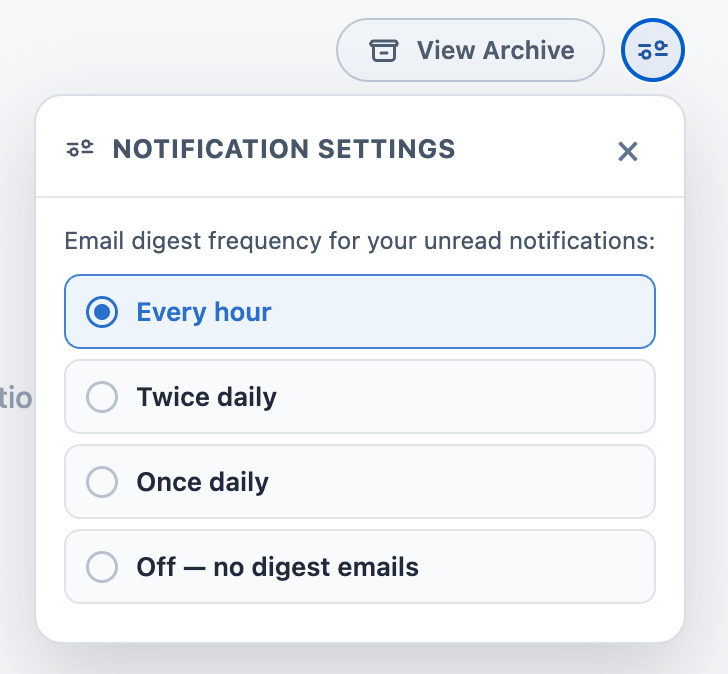 ---
## Automatic Team Sharing
Three controls — **Auto-share level with Account Team**, **with Opportunity Team**, and **with Case Team** — each set to **None**, **Read**, or **Edit**. Each governs the default access granted to that record's Team Members when a Document is linked to it.
When a Document is linked to an Account, Opportunity, or Case, the Document is automatically shared with the Team Members on that record at the configured level. Choosing **None** disables team-based sharing for that object.
**Keeping sharing in sync over time.** A batch job keeps Document sharing aligned with team membership as it changes. This sync is **additive only**:
- Team Members removed from a record do **not** lose Document access they already have.
- A user with higher access is never demoted — someone with **Edit** stays at Edit even if the team setting is **Read**.
- A user who previously had no access **is** upgraded to Read or Edit as the setting dictates.
**New Team Members may take up to 5 minutes** before linked Documents are shared with them, because this runs as a batch job rather than instantly.
This depends on [Background Jobs](#asynchronous-processing) being enabled. With Background Jobs off, the initial share still happens at link time, but ongoing membership changes are never picked up.
---
## Automatic Team Sharing
Three controls — **Auto-share level with Account Team**, **with Opportunity Team**, and **with Case Team** — each set to **None**, **Read**, or **Edit**. Each governs the default access granted to that record's Team Members when a Document is linked to it.
When a Document is linked to an Account, Opportunity, or Case, the Document is automatically shared with the Team Members on that record at the configured level. Choosing **None** disables team-based sharing for that object.
**Keeping sharing in sync over time.** A batch job keeps Document sharing aligned with team membership as it changes. This sync is **additive only**:
- Team Members removed from a record do **not** lose Document access they already have.
- A user with higher access is never demoted — someone with **Edit** stays at Edit even if the team setting is **Read**.
- A user who previously had no access **is** upgraded to Read or Edit as the setting dictates.
**New Team Members may take up to 5 minutes** before linked Documents are shared with them, because this runs as a batch job rather than instantly.
This depends on [Background Jobs](#asynchronous-processing) being enabled. With Background Jobs off, the initial share still happens at link time, but ongoing membership changes are never picked up.
 ---
## Automatic Record Linking
Two **Disable / Enable** toggles:
- **Auto-link from Opportunity to Account** — a Document linked to an Opportunity is also linked to that Opportunity's parent Account.
- **Auto-link from Contact to Account** — a Document linked to a Contact is also linked to that Contact's parent Account.
**Important behavior:**
- Auto-linking is **additive only** — the link to the Account is never automatically removed.
- It runs **only at the moment the Document is linked** to the source record, and is not maintained afterward. Moving an Opportunity to a different Account does not move the Document's Account link.
If you need links to follow records as they move, build it with [invocable Apex in Flow](/docs/admin/automation-invocable-apex) — the [Re-link Documents when an Opportunity moves Accounts](/docs/admin/invocable-apex-use-cases#re-link-documents-when-an-opportunity-moves-accounts) recipe covers exactly this.
---
## Automatic Record Linking
Two **Disable / Enable** toggles:
- **Auto-link from Opportunity to Account** — a Document linked to an Opportunity is also linked to that Opportunity's parent Account.
- **Auto-link from Contact to Account** — a Document linked to a Contact is also linked to that Contact's parent Account.
**Important behavior:**
- Auto-linking is **additive only** — the link to the Account is never automatically removed.
- It runs **only at the moment the Document is linked** to the source record, and is not maintained afterward. Moving an Opportunity to a different Account does not move the Document's Account link.
If you need links to follow records as they move, build it with [invocable Apex in Flow](/docs/admin/automation-invocable-apex) — the [Re-link Documents when an Opportunity moves Accounts](/docs/admin/invocable-apex-use-cases#re-link-documents-when-an-opportunity-moves-accounts) recipe covers exactly this.
 ---
## Delete Permissions
A single **Users can hard delete Docs** toggle. Two states:
- **Disabled (recommended, and the default)** — deleting removes the Document from the user's view but only sets an **Archived** flag on the record. Admins can still access archived Documents and un-archive them.
- **Enabled** — deleting permanently removes the record from Salesforce.
*(In Apex and on the **Folio Configuration** Custom Setting, this setting is named **Allow Document Hard Delete**.)*
Leaving hard delete disabled is the safer default for the same reason a Recycle Bin exists: users delete things they didn't mean to, and a document layer that can't recover them becomes a liability. The cost is that archived Documents accumulate — visible in the **Total Documents** tile on the [Dashboard](/docs/admin/admin-panel/dashboard#kpi-tiles).
**Archived Documents are listed on the [Recycle Bin](/docs/admin/admin-panel/recycle-bin) tab**, where you can preview one and restore it in a click. Archived Documents are kept for **6 months by default**, after which a nightly job purges them permanently — see [Archived Document Retention](#data-retention).
They can also be found and restored directly, which is the better route for a bulk restore:
```sql
SELECT Id, folio__Title__c FROM folio__Document__c WHERE folio__Is_Archived__c = TRUE
```
Set `folio__Is_Archived__c` back to `false` on the records you want to restore.
This setting is also honored by automation: the [Folio: Delete Document](/docs/admin/automation-invocable-apex#delete-document) invocable archives instead of deleting when hard delete is disabled. A raw Flow **Delete Records** element does not — see [Updating and deleting Folio data](/docs/admin/automation-invocable-apex#updating-and-deleting-folio-data).
---
## Delete Permissions
A single **Users can hard delete Docs** toggle. Two states:
- **Disabled (recommended, and the default)** — deleting removes the Document from the user's view but only sets an **Archived** flag on the record. Admins can still access archived Documents and un-archive them.
- **Enabled** — deleting permanently removes the record from Salesforce.
*(In Apex and on the **Folio Configuration** Custom Setting, this setting is named **Allow Document Hard Delete**.)*
Leaving hard delete disabled is the safer default for the same reason a Recycle Bin exists: users delete things they didn't mean to, and a document layer that can't recover them becomes a liability. The cost is that archived Documents accumulate — visible in the **Total Documents** tile on the [Dashboard](/docs/admin/admin-panel/dashboard#kpi-tiles).
**Archived Documents are listed on the [Recycle Bin](/docs/admin/admin-panel/recycle-bin) tab**, where you can preview one and restore it in a click. Archived Documents are kept for **6 months by default**, after which a nightly job purges them permanently — see [Archived Document Retention](#data-retention).
They can also be found and restored directly, which is the better route for a bulk restore:
```sql
SELECT Id, folio__Title__c FROM folio__Document__c WHERE folio__Is_Archived__c = TRUE
```
Set `folio__Is_Archived__c` back to `false` on the records you want to restore.
This setting is also honored by automation: the [Folio: Delete Document](/docs/admin/automation-invocable-apex#delete-document) invocable archives instead of deleting when hard delete is disabled. A raw Flow **Delete Records** element does not — see [Updating and deleting Folio data](/docs/admin/automation-invocable-apex#updating-and-deleting-folio-data).
 ---
## Advanced Settings
**Advanced Settings** is the last section on the Settings tab, collapsed by default. It holds the two things most admins never need to touch: how long Folio keeps records that accumulate, and which objects are eligible to be made linkable.
### Data Retention
How long Folio keeps each kind of record before its nightly job removes it. **Set any value to `0` to keep that kind forever.**
**Record Retention**
| Field | Default | What it controls |
| --- | --- | --- |
| **Notification Retention** | 6 months | How long [Folio Notifications](/docs/user-guide/notifications#what-triggers-a-notification) are kept. |
| **Document Export Retention** | 6 months | How long the `.zip` from a Document export job stays in the org and linked under its Export Job in Export History. |
| **Document Version Retention** | 12 months | How long [Document Versions](/docs/user-guide/version-history) are retained. This drives the **Version History** view on any Folio Document. |
| **Archived Document Retention** | 6 months | How long archived Documents stay in the [Recycle Bin](/docs/admin/admin-panel/recycle-bin) before the nightly purge permanently deletes them. |
**Folio Logs Retention**
| Field | Default | What it controls |
| --- | --- | --- |
| **Debug/Info Logs** | 7 days | The highest-volume rows Folio writes, so the shortest window by default. |
| **Warn Logs** | 30 days | Recoverable problems Folio handled on its own. |
| **Error Logs** | 90 days | Worth extending while investigating an incident. |
**Usage event rows are a fourth tier with no setting.** They're the raw facts behind the [Dashboard](/docs/admin/admin-panel/dashboard) and are kept for two closed months after the nightly rollup compacts them into permanent monthly statistics, then removed. The Dashboard's 30-day comparisons need that window, and the compacted monthly rows remain the permanent record regardless.
Only users with the **Folio Docs Administrator** permission set can access Folio Log records — see [Handle Invocable Apex Errors](/docs/admin/invocable-apex-errors) for using them to debug automation.
**Shortening Document Version Retention does not delete Documents.** It removes older change-history snapshots only. Every Document and its current content is untouched; users lose the ability to compare against or restore from versions older than the window, and nothing else.
Version records are roughly two-thirds of all records Folio creates, which makes **Document Version Retention** the highest-leverage storage setting on the page — halving the window roughly halves Folio's total storage footprint. See [Data Storage in Folio](/docs/reference/data-storage#which-objects-grow-fastest).
> **Retention only runs when [Background Jobs](#asynchronous-processing) is enabled.** The cleanup is handled by a nightly job, so with Background Jobs disabled these values have no effect and notifications, exports, versions, and logs grow without limit.
---
## Advanced Settings
**Advanced Settings** is the last section on the Settings tab, collapsed by default. It holds the two things most admins never need to touch: how long Folio keeps records that accumulate, and which objects are eligible to be made linkable.
### Data Retention
How long Folio keeps each kind of record before its nightly job removes it. **Set any value to `0` to keep that kind forever.**
**Record Retention**
| Field | Default | What it controls |
| --- | --- | --- |
| **Notification Retention** | 6 months | How long [Folio Notifications](/docs/user-guide/notifications#what-triggers-a-notification) are kept. |
| **Document Export Retention** | 6 months | How long the `.zip` from a Document export job stays in the org and linked under its Export Job in Export History. |
| **Document Version Retention** | 12 months | How long [Document Versions](/docs/user-guide/version-history) are retained. This drives the **Version History** view on any Folio Document. |
| **Archived Document Retention** | 6 months | How long archived Documents stay in the [Recycle Bin](/docs/admin/admin-panel/recycle-bin) before the nightly purge permanently deletes them. |
**Folio Logs Retention**
| Field | Default | What it controls |
| --- | --- | --- |
| **Debug/Info Logs** | 7 days | The highest-volume rows Folio writes, so the shortest window by default. |
| **Warn Logs** | 30 days | Recoverable problems Folio handled on its own. |
| **Error Logs** | 90 days | Worth extending while investigating an incident. |
**Usage event rows are a fourth tier with no setting.** They're the raw facts behind the [Dashboard](/docs/admin/admin-panel/dashboard) and are kept for two closed months after the nightly rollup compacts them into permanent monthly statistics, then removed. The Dashboard's 30-day comparisons need that window, and the compacted monthly rows remain the permanent record regardless.
Only users with the **Folio Docs Administrator** permission set can access Folio Log records — see [Handle Invocable Apex Errors](/docs/admin/invocable-apex-errors) for using them to debug automation.
**Shortening Document Version Retention does not delete Documents.** It removes older change-history snapshots only. Every Document and its current content is untouched; users lose the ability to compare against or restore from versions older than the window, and nothing else.
Version records are roughly two-thirds of all records Folio creates, which makes **Document Version Retention** the highest-leverage storage setting on the page — halving the window roughly halves Folio's total storage footprint. See [Data Storage in Folio](/docs/reference/data-storage#which-objects-grow-fastest).
> **Retention only runs when [Background Jobs](#asynchronous-processing) is enabled.** The cleanup is handled by a nightly job, so with Background Jobs disabled these values have no effect and notifications, exports, versions, and logs grow without limit.
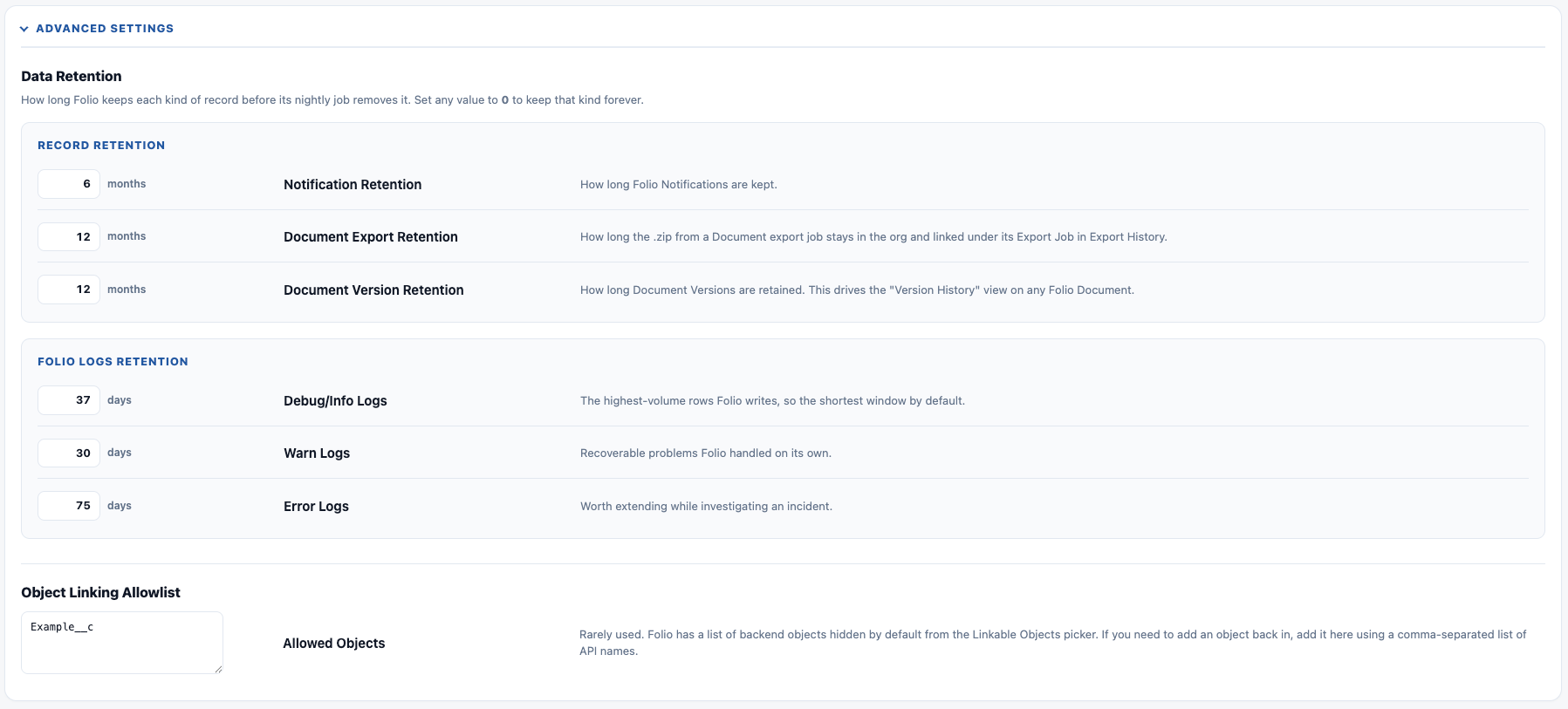 ### Object Linking Allowlist
A single **Allowed Objects** field.
Folio hides a list of backend objects from the [Choose Linkable Objects](#choose-linkable-objects) picker by default. If you need to add one back in, enter it here as a **comma-separated list of API names**.
Rarely used — reach for it when an object you expect doesn't appear in the Linkable Objects picker.
**Related:** [Use the Admin Panel](/docs/admin/admin-panel) · [Dashboard](/docs/admin/admin-panel/dashboard) · [Templates](/docs/admin/admin-panel/templates) · [Tags](/docs/admin/admin-panel/tags) · [Set up Real-Time Updates](/docs/admin/real-time-updates) · [Update Data in Bulk](/docs/admin/bulk-data-updates) · [Automate with Invocable Apex](/docs/admin/automation-invocable-apex)
---
# Add Components to Lightning Pages
Source: https://foliosolutions.net/docs/admin/adding-editors-to-record-pages
Place the Folio Document Editor Lightning component on Salesforce record pages.
Folio's editor is a Lightning web component placed on Lightning record pages in Lightning App Builder.
## Component
- **Folio Document Editor:** the full Folio Docs editor. Place on object record pages where users should create and read Documents.
## Add the component to a record page
1. Open a record of the object you're configuring (or go to **Setup** → **Lightning App Builder**).
2. **Setup** → gear icon → **Edit Page** (or edit the assigned record page from Setup).
3. In the component palette, search **Folio**.
4. Drag **Folio Document Editor** onto the layout.
5. **Save** and **Activate** the page (and assign to the right app, profile, or app page assignment as needed).
The component can sit on standard or custom object pages.
### Object Linking Allowlist
A single **Allowed Objects** field.
Folio hides a list of backend objects from the [Choose Linkable Objects](#choose-linkable-objects) picker by default. If you need to add one back in, enter it here as a **comma-separated list of API names**.
Rarely used — reach for it when an object you expect doesn't appear in the Linkable Objects picker.
**Related:** [Use the Admin Panel](/docs/admin/admin-panel) · [Dashboard](/docs/admin/admin-panel/dashboard) · [Templates](/docs/admin/admin-panel/templates) · [Tags](/docs/admin/admin-panel/tags) · [Set up Real-Time Updates](/docs/admin/real-time-updates) · [Update Data in Bulk](/docs/admin/bulk-data-updates) · [Automate with Invocable Apex](/docs/admin/automation-invocable-apex)
---
# Add Components to Lightning Pages
Source: https://foliosolutions.net/docs/admin/adding-editors-to-record-pages
Place the Folio Document Editor Lightning component on Salesforce record pages.
Folio's editor is a Lightning web component placed on Lightning record pages in Lightning App Builder.
## Component
- **Folio Document Editor:** the full Folio Docs editor. Place on object record pages where users should create and read Documents.
## Add the component to a record page
1. Open a record of the object you're configuring (or go to **Setup** → **Lightning App Builder**).
2. **Setup** → gear icon → **Edit Page** (or edit the assigned record page from Setup).
3. In the component palette, search **Folio**.
4. Drag **Folio Document Editor** onto the layout.
5. **Save** and **Activate** the page (and assign to the right app, profile, or app page assignment as needed).
The component can sit on standard or custom object pages.
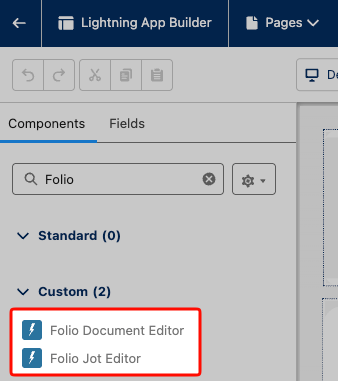 ## Recommended placement and sizing
The **Folio Document Editor** is best suited in a large segment of the page (the main content column). Adding it to a right-sidebar section will not be very usable. The most common placement is within the main segment of a Lightning page under its own Lightning Tab called "Folio Docs".
## Default height
The **Folio Document Editor** defaults to a height of 900px, but can be manually edited by admins on the component's properties in Lightning App Builder.
**Recommendation:** Put the **Folio Document Editor** on high-traffic record pages where teams collaborate on long-form content (Account, Opportunity, Case).
**Related:** [Install the Package](/docs/getting-started/installation) · [Use the Admin Panel](/docs/admin/admin-panel)
---
# Add Folio Docs to the Navigation Bar
Source: https://foliosolutions.net/docs/admin/adding-folio-docs-home-to-navigation
Make Folio Docs easily accessible by adding the tab to the navigation bar of the apps your users live in.
The **Folio Docs** tab is a Salesforce Tab and can be added onto the navigation bar for whichever apps your end users mostly use. Adding Folio Docs to those apps makes it a one-click destination for finding and editing Documents without leaving their daily workflow.
## Why surface Folio Docs in the nav bar
Beyond convenience, the Folio Docs home page is where deep search lives. From it, users can:
- **Search across every Document they have access to**, by title, body content, Tag, or linked record name.
- **Narrow results with Advanced Filters** — by ownership, Tag, related object, created date, or star status.
That combination is what turns a growing pile of Documents into something people can actually find things in. See [Browse the Folio Docs home page](/docs/user-guide/folio-docs-home).
The value of the Folio Docs home page is that it serves as a home base where users can find all their Documents in one place, easily searchable and filterable, and lets users edit directly from the page.
The embedded **Folio Document Editor** Lightning Web Component on any object's record page is great for Documents in context of the parent record. The Folio Docs home page complements this by allowing users to navigate across different contexts easily:
- Users can create and access Documents that have no parent context.
- Users can quickly navigate between different Documents with different record-linked contexts in one interface, without having to actually click into each individual Salesforce record.
- Users can view Documents that have links to objects where there is no editor Lightning Web Component on the record page. For example, you may have Contact as a Linkable Object, but not have the editor Lightning Web Component on the Contact page; under the Folio Docs home page, users can still see, access, and edit those Documents based on the Contact relationship, even though they wouldn't show up on the Contact page without the Lightning Web Component on it.
## Recommended placement and sizing
The **Folio Document Editor** is best suited in a large segment of the page (the main content column). Adding it to a right-sidebar section will not be very usable. The most common placement is within the main segment of a Lightning page under its own Lightning Tab called "Folio Docs".
## Default height
The **Folio Document Editor** defaults to a height of 900px, but can be manually edited by admins on the component's properties in Lightning App Builder.
**Recommendation:** Put the **Folio Document Editor** on high-traffic record pages where teams collaborate on long-form content (Account, Opportunity, Case).
**Related:** [Install the Package](/docs/getting-started/installation) · [Use the Admin Panel](/docs/admin/admin-panel)
---
# Add Folio Docs to the Navigation Bar
Source: https://foliosolutions.net/docs/admin/adding-folio-docs-home-to-navigation
Make Folio Docs easily accessible by adding the tab to the navigation bar of the apps your users live in.
The **Folio Docs** tab is a Salesforce Tab and can be added onto the navigation bar for whichever apps your end users mostly use. Adding Folio Docs to those apps makes it a one-click destination for finding and editing Documents without leaving their daily workflow.
## Why surface Folio Docs in the nav bar
Beyond convenience, the Folio Docs home page is where deep search lives. From it, users can:
- **Search across every Document they have access to**, by title, body content, Tag, or linked record name.
- **Narrow results with Advanced Filters** — by ownership, Tag, related object, created date, or star status.
That combination is what turns a growing pile of Documents into something people can actually find things in. See [Browse the Folio Docs home page](/docs/user-guide/folio-docs-home).
The value of the Folio Docs home page is that it serves as a home base where users can find all their Documents in one place, easily searchable and filterable, and lets users edit directly from the page.
The embedded **Folio Document Editor** Lightning Web Component on any object's record page is great for Documents in context of the parent record. The Folio Docs home page complements this by allowing users to navigate across different contexts easily:
- Users can create and access Documents that have no parent context.
- Users can quickly navigate between different Documents with different record-linked contexts in one interface, without having to actually click into each individual Salesforce record.
- Users can view Documents that have links to objects where there is no editor Lightning Web Component on the record page. For example, you may have Contact as a Linkable Object, but not have the editor Lightning Web Component on the Contact page; under the Folio Docs home page, users can still see, access, and edit those Documents based on the Contact relationship, even though they wouldn't show up on the Contact page without the Lightning Web Component on it.
 ## Add Folio Docs to an app’s navigation bar
1. Go to **Setup** → **App Manager**.
2. Find the Lightning app where you want Folio Docs to appear and click **Edit**.
3. Open the **Navigation Items** section.
4. Move **Folio Docs** from **Available Items** to **Selected Items**.
5. Optionally, drag **Folio Docs** to the desired position in the nav bar. The most common placement is **just to the right of the Home tab**, but admins can put it wherever makes sense for their organization's needs.
6. **Save**.
Once saved, all users with access to that app will see the **Folio Docs** tab in the navigation bar (subject to their Folio permission set assignment; see [Assign Permissions](/docs/getting-started/licenses-and-permissions)).
### Which Folio tabs to add
Searching **Folio** in Available Items turns up four tabs. Three are worth adding, and one isn't:
| Tab | Add it to |
| --- | --- |
| **Folio Docs** | Every app your admins **and** end users work in. This is the main entry point. |
| **Folio Admin** | Apps your admins spend time in. |
| **Folio Logs** | Apps your admins spend time in, alongside Folio Admin. |
| **Folio Documents** | **Skip it.** |
**Folio Documents** is the default Salesforce list view of Folio Document records. It works, but it offers little to end users — the useful ways into a Document are the [Folio Document Editor on a record page](/docs/admin/adding-editors-to-record-pages) and the [Folio Docs home page](/docs/user-guide/folio-docs-home), both of which show Documents in the context they belong to rather than as a flat list of records.
## Add Folio Docs to an app’s navigation bar
1. Go to **Setup** → **App Manager**.
2. Find the Lightning app where you want Folio Docs to appear and click **Edit**.
3. Open the **Navigation Items** section.
4. Move **Folio Docs** from **Available Items** to **Selected Items**.
5. Optionally, drag **Folio Docs** to the desired position in the nav bar. The most common placement is **just to the right of the Home tab**, but admins can put it wherever makes sense for their organization's needs.
6. **Save**.
Once saved, all users with access to that app will see the **Folio Docs** tab in the navigation bar (subject to their Folio permission set assignment; see [Assign Permissions](/docs/getting-started/licenses-and-permissions)).
### Which Folio tabs to add
Searching **Folio** in Available Items turns up four tabs. Three are worth adding, and one isn't:
| Tab | Add it to |
| --- | --- |
| **Folio Docs** | Every app your admins **and** end users work in. This is the main entry point. |
| **Folio Admin** | Apps your admins spend time in. |
| **Folio Logs** | Apps your admins spend time in, alongside Folio Admin. |
| **Folio Documents** | **Skip it.** |
**Folio Documents** is the default Salesforce list view of Folio Document records. It works, but it offers little to end users — the useful ways into a Document are the [Folio Document Editor on a record page](/docs/admin/adding-editors-to-record-pages) and the [Folio Docs home page](/docs/user-guide/folio-docs-home), both of which show Documents in the context they belong to rather than as a flat list of records.
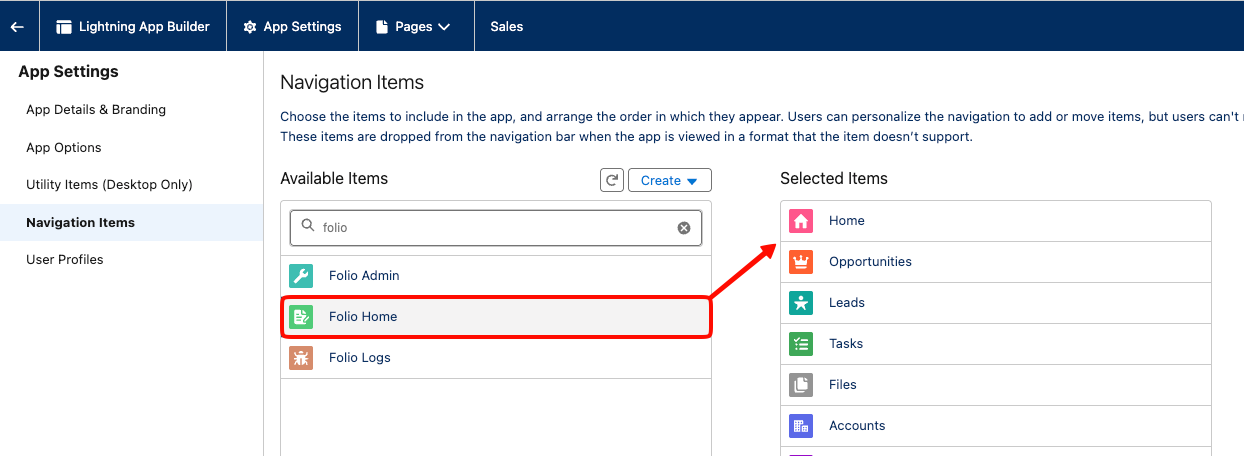 **Related:** [Browse the Folio Docs home page](/docs/user-guide/folio-docs-home) · [Add Components to Lightning Pages](/docs/admin/adding-editors-to-record-pages)
---
# Set up Real-Time Updates
Source: https://foliosolutions.net/docs/admin/real-time-updates
How Folio pushes Salesforce record changes into open Documents in real time, and the Flow action that extends it to any object.
When a Salesforce record changes, every Document that displays data from that record updates in real time — for anyone viewing it at that moment. No refresh, no stale numbers in a plan someone opened ten minutes ago.
Folio Docs comes set up out of the box for **Account**, **Contact**, **Opportunity**, and **Case**. For any other object, an admin configures it with a single invocable action in Flow.
## What works out of the box
Real-time updates are automatic via platform events, with no configuration required, on four objects:
- **Account**
- **Contact**
- **Opportunity**
- **Case**
These four ship with packaged triggers. If your Folio implementation only links Documents to these four objects, you don't need the invocable action described below.
Most implementations *do* link Documents to other objects, though, so for those objects the Flow setup below is what keeps Documents in sync with CRM data in real time.
**Even without this setup, a page refresh always shows current data.** The components in a Document re-read Salesforce when the page loads. The Flow described below is only required for **real-time** updates in Documents users are actively viewing.
## Extending it to any other object
For every other object — custom objects, and standard objects beyond the four above — add an **after-save record-triggered Flow** using the invocable action **Folio: Refresh Document from Record Changes**.
To use this invocable action:
1. Add it to a **Record-Triggered Flow** configured for **Updated** and/or **Deleted**.
2. Map `$Record` → **Record (New State)**.
3. Map `$Record__Prior` → **Record (Prior State)**.
4. In a **Deleted** flow, also set **Record Was Deleted = True**.
> **Do not set the trigger to *Created* or *Created and Updated*.** A new record has no prior state, so **Record (Prior State)** is empty and the action fails — blocking the save with *"Missing required input parameter: recordPrior"*. There is nothing to refresh when a record is created: no Document can reference a record that did not exist yet. **Updated** and **Deleted** are the only valid trigger settings.
Changed fields are detected automatically — you do not need to specify which fields to watch, and you do not need a separate flow per field.
**The action never fails the triggering save.** If the refresh cannot complete for any reason, the record update it was triggered by still succeeds. Adding this to a business-critical object's flow will not put that object's saves at risk.
**Related:** [Browse the Folio Docs home page](/docs/user-guide/folio-docs-home) · [Add Components to Lightning Pages](/docs/admin/adding-editors-to-record-pages)
---
# Set up Real-Time Updates
Source: https://foliosolutions.net/docs/admin/real-time-updates
How Folio pushes Salesforce record changes into open Documents in real time, and the Flow action that extends it to any object.
When a Salesforce record changes, every Document that displays data from that record updates in real time — for anyone viewing it at that moment. No refresh, no stale numbers in a plan someone opened ten minutes ago.
Folio Docs comes set up out of the box for **Account**, **Contact**, **Opportunity**, and **Case**. For any other object, an admin configures it with a single invocable action in Flow.
## What works out of the box
Real-time updates are automatic via platform events, with no configuration required, on four objects:
- **Account**
- **Contact**
- **Opportunity**
- **Case**
These four ship with packaged triggers. If your Folio implementation only links Documents to these four objects, you don't need the invocable action described below.
Most implementations *do* link Documents to other objects, though, so for those objects the Flow setup below is what keeps Documents in sync with CRM data in real time.
**Even without this setup, a page refresh always shows current data.** The components in a Document re-read Salesforce when the page loads. The Flow described below is only required for **real-time** updates in Documents users are actively viewing.
## Extending it to any other object
For every other object — custom objects, and standard objects beyond the four above — add an **after-save record-triggered Flow** using the invocable action **Folio: Refresh Document from Record Changes**.
To use this invocable action:
1. Add it to a **Record-Triggered Flow** configured for **Updated** and/or **Deleted**.
2. Map `$Record` → **Record (New State)**.
3. Map `$Record__Prior` → **Record (Prior State)**.
4. In a **Deleted** flow, also set **Record Was Deleted = True**.
> **Do not set the trigger to *Created* or *Created and Updated*.** A new record has no prior state, so **Record (Prior State)** is empty and the action fails — blocking the save with *"Missing required input parameter: recordPrior"*. There is nothing to refresh when a record is created: no Document can reference a record that did not exist yet. **Updated** and **Deleted** are the only valid trigger settings.
Changed fields are detected automatically — you do not need to specify which fields to watch, and you do not need a separate flow per field.
**The action never fails the triggering save.** If the refresh cannot complete for any reason, the record update it was triggered by still succeeds. Adding this to a business-critical object's flow will not put that object's saves at risk.
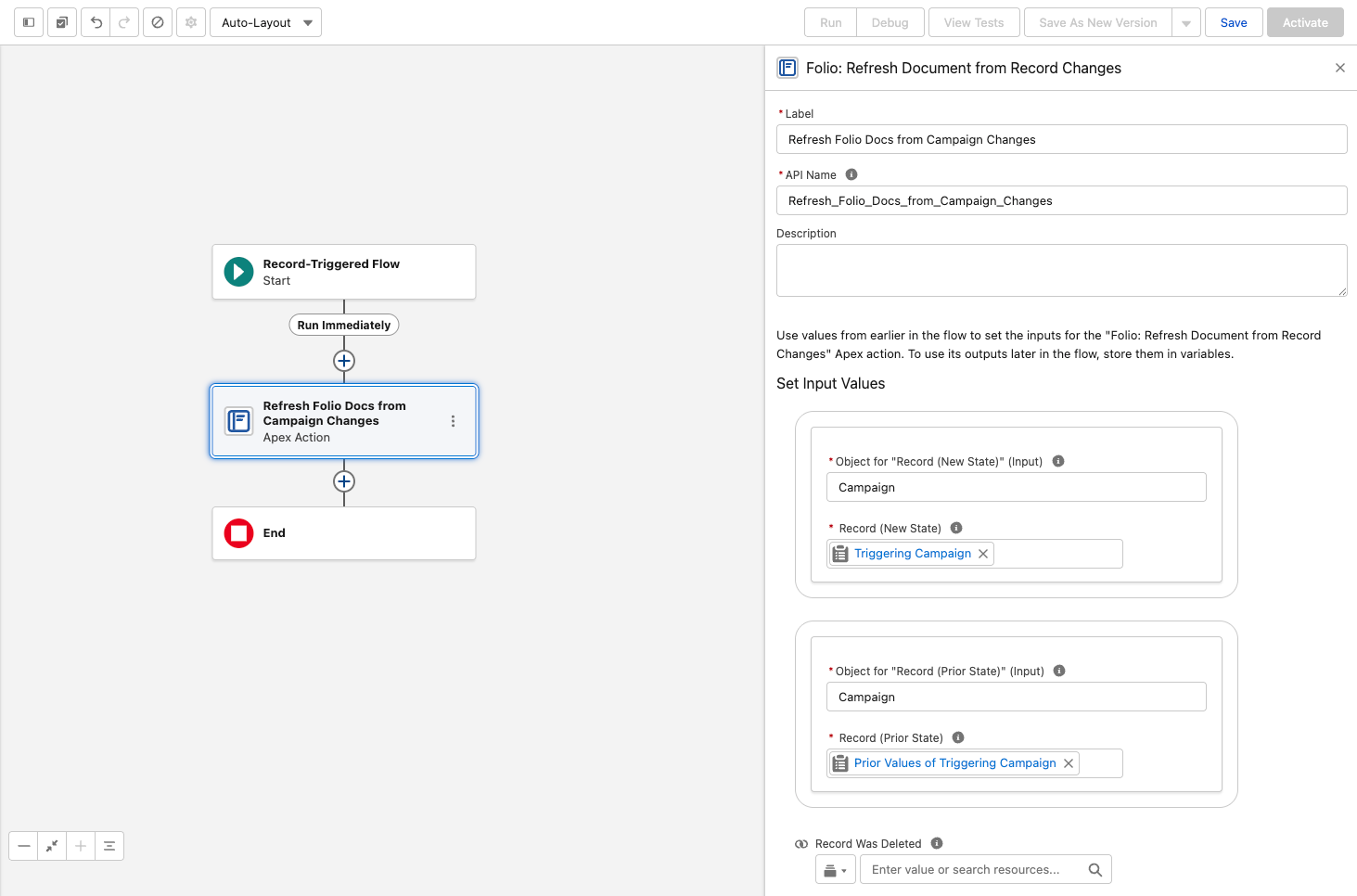 ### What the action does
It pushes the linked record's state into every Document linked to it. Specifically:
- **The record name** on direct [Record Links](/docs/user-guide/at-commands#record-links)
- **Field values** in **Related Lists**, **Workbenches**, **Status Bars**, **Record Previews**, and **Kanban** tiles
- **Owner-based sharing**, re-run at the object's configured [Auto-Share Level](/docs/admin/admin-panel/settings#choose-linkable-objects) when the record's owner has changed — including to Queues, where members inherit access automatically (see [Queues](/docs/admin/admin-panel/settings#queues))
**This action is the odd one out among Folio's invocables.** Every other Folio action operates *on* Documents and their related objects. This one runs on the **linked record** and updates Documents *from* it — so it lives in a flow on the object itself, not in a flow about Documents. It's only ever used on objects other than the four defaults, which already ship with packaged triggers. See [Automate with Invocable Apex](/docs/admin/automation-invocable-apex#refresh-document-from-record-changes) for the full action reference.
## How real-time updates work
Understanding the mechanism helps when you're deciding which objects deserve a flow.
1 **Folio indexes what your Documents display.** Whenever a Document contains a Record Link, Live Field, Status Bar, Record Preview, Related List, Kanban, or Workbench, the fields those components display are indexed and tracked.
2 **Record changes are filtered against that index.** When a record changes, an event publishes **only if a changed field matches a tracked field**. A record update that touches nothing any Document displays publishes nothing at all.
3 **Open Documents update live.** Any user viewing that Document at that moment sees the changed values update in the Document body in real time.
Step 2 is what keeps event volume proportional to Folio Docs usage. A high-volume integration updating fields that no Document displays generates no Folio events, so enabling the flow broadly is safe — the cost scales with what your Documents actually reference.
The net effect for users is that Salesforce-connected components in a Document always show current data. A Document is never out of date with the record it describes.
## Which objects to set up
A reasonable rule: **add the flow to any object your users regularly link Documents to.** The [Documents by Object](/docs/admin/admin-panel/dashboard#documents-by-object) chart on the Dashboard tells you exactly which those are — it groups record links by object, so anything with meaningful volume there is worth a flow.
Objects you enabled as [Linkable Objects](/docs/admin/admin-panel/settings#choose-linkable-objects) but which never appear in that chart can wait.
**Related:** [Use the Admin Panel](/docs/admin/admin-panel) · [Settings](/docs/admin/admin-panel/settings) · [Automate with Invocable Apex](/docs/admin/automation-invocable-apex) · [Review Invocable Apex Use Cases](/docs/admin/invocable-apex-use-cases) · [Dashboard](/docs/admin/admin-panel/dashboard)
---
# Add Fields to Chip Details
Source: https://foliosolutions.net/docs/admin/chip-details-field-sets
Show your org's own fields in the details panel that opens from related records, Record Links, User Mentions, and Live Fields, using a Folio_Docs_Info field set.
Clicking a chip in Folio opens a details panel with a set of **Folio Docs default fields** for that chip type — the record, its object, and so on. You can extend that panel with fields of your own choosing, including custom fields from your org, by creating a **field set** named `Folio_Docs_Info` on the object. The extra fields appear **underneath the default fields**, for every user, whenever they click a chip pointing at a record of that object.
There is nothing to configure in the Admin Panel: Folio looks for a field set with that exact name on the mentioned record's object, retrieves its fields, queries them on the record, and displays them in the panel.
## Where the extra fields appear
The same field set drives all four places a chip opens a details panel:
- **A related record** — clicking a record chip in the [Related & Tags drawer](/docs/user-guide/document-editor#5-related--tags-drawer).
- **A Record Link** in the Document body.
- **A User Mention** in the Document body — driven by a field set on the **User** object.
- **A Live Field** in the Document body.
Which field set is used follows the **object the chip points at** — a chip for an Opportunity shows the Opportunity's `Folio_Docs_Info` fields, a User Mention shows the User's, and so on. For what each panel shows by default, see [Chip actions](/docs/user-guide/at-commands#chip-actions).
## Create the field set
Field sets are created per object in Setup:
1. From **Setup**, open **Object Manager** and select the object — **Opportunity**, **User**, a custom object, any [Linkable Object](/docs/admin/admin-panel/settings#choose-linkable-objects).
2. Open **Field Sets** and click **New**.
3. Give it any label you like, but the **Field Set Name** (the API name) must be exactly `Folio_Docs_Info` — this is the name Folio retrieves it by.
4. Drag the fields you want into the **In the Field Set** area, and arrange them in the order you want them displayed.
5. **Save.**
> **The API name must be exactly `Folio_Docs_Info`.** A field set under any other name is ignored — Folio finds the field set by that name on each object. The label can be anything.
That's it — the next time a user clicks a chip for a record of that object, the panel shows your fields beneath the defaults.
## One field set per object
Each object gets its own `Folio_Docs_Info` field set, so you choose per object what's worth surfacing:
- On **User**, fields like Title, Department, and Phone make a User Mention a quick who's-who card.
- On **Opportunity**, Stage, Amount, and Close Date give a Record Link chip at-a-glance pipeline context.
- On a **custom object**, whatever fields your users would otherwise open the record to check.
An object with no `Folio_Docs_Info` field set simply shows the default fields — nothing breaks, and there's no requirement to create one anywhere.
**Related:** [Insert Mentions with @](/docs/user-guide/at-commands) · [Using the Folio Document Editor](/docs/user-guide/document-editor#5-related--tags-drawer) · [Admin Panel Settings](/docs/admin/admin-panel/settings#choose-linkable-objects)
---
# Update Data in Bulk
Source: https://foliosolutions.net/docs/admin/bulk-data-updates
The three Folio objects safe to update with a data loader — Document Shares, Junctions, and Tags — and the rules for each.
For the most part, bulk data work isn't needed in Folio Docs. But if you ever do need to run bulk updates — on Document sharing, on Document links to related records or Tags, or on Tags themselves — the information below is what you need for a successful data load.
**Prefer the Admin Panel and invocable actions for everything they cover.** The [Tags tab](/docs/admin/admin-panel/tags) handles merges and deletes safely, and the [invocable actions](/docs/admin/automation-invocable-apex) enforce Folio's validation rules. Bulk data operations bypass both. Reach for a data loader when the volume genuinely warrants it, and test in a sandbox first.
Before you start, read [Understand the Folio Data Model](/docs/getting-started/data-model) so the relationships below are familiar, and check **Object Manager** for the complete, current schema of each object — the fields called out here are the ones that matter for bulk work, not an exhaustive list.
## Document Share object
**`folio__Document__Share`**
The standard Salesforce share object for `folio__Document__c`. Standard `*__Share` semantics apply — there is nothing Folio-specific about how it behaves, so if you've bulk-managed sharing on any object before, this works the same way.
Use it to grant or revoke Document access at volume. Note that the platform manages the owner's own share row automatically; those rows are not yours to set.
For related automation, see [Folio: Get Document Shares](/docs/admin/automation-invocable-apex#get-document-shares) and [Folio: Share Document](/docs/admin/automation-invocable-apex#share-document).
## Junction object
**`folio__Junction__c`**
The Junction object carries **both** kinds of Document link, and this is one place a bulk data job could go wrong.
**A single Junction is either a Document→record link or a Document→Tag link — never both.**
**Record link:**
- `folio__Document__c` — a lookup to the Folio Document's ID
- `folio__Parent_Record__c` — a **text** field holding the 18-character ID of the Salesforce record
**Tag link:**
- `folio__Document__c` — a lookup to the Folio Document's ID
- `folio__Tag__c` — a lookup to the Tag record
> **Populating both `folio__Parent_Record__c` and `folio__Tag__c` on the same Junction may cause system errors.** Every row in your load file should set exactly one of the two. This is the single most common bulk-load mistake with Folio — it's easy to make when you build one spreadsheet for a mixed set of links.
Note that `folio__Parent_Record__c` is a **text** field, not a polymorphic lookup. That's what lets a Junction point at any Linkable Object, but it also means Salesforce will not validate the ID for you: a malformed or non-existent ID loads cleanly and simply fails to resolve later. Confirm your IDs are the full 18-character form before loading.
For related automation, see [Folio: Link Documents to Records](/docs/admin/automation-invocable-apex#link-documents-to-records), [Folio: Apply Tag to Document](/docs/admin/automation-invocable-apex#apply-tag-to-document), and [Folio: Get Document Junctions](/docs/admin/automation-invocable-apex#get-document-junctions).
## Tag object
**`folio__Tag__c`**
The Tag records themselves.
- `folio__Tag_Name__c` — the Tag's name
- `folio__Color__c` — optional. The complete set of valid values is exactly six, all lowercase:
`blue` · `yellow` · `green` · `red` · `orange` · `pink`
Leave it blank (or `null`) for no color.
> **Colors must be all lowercase and exactly one of the six values above.** The field is plain text with no picklist behind it, so Salesforce accepts anything you load — but a value that isn't an exact match simply won't render as a color.
Setting a color here is the same as setting an admin default color on the [Tags tab](/docs/admin/admin-panel/tags#tag-colors): **when an admin sets a color, every pill of that Tag renders in it org-wide and per-document color choices are disabled for that Tag.** With no color set, the Tag defaults to white and users may pick their own color on their own instance of it.
**Refer to the [Tags tab](/docs/admin/admin-panel/tags) for Tag management.** It handles merges and replacement-on-delete correctly, repointing every affected link for you.
## A note on deleting
**Never bulk-delete `folio__Document__c` records directly.** Deleting a Document with a data loader orphans its Junctions and ignores the archive policy entirely, regardless of your [Delete Permissions](/docs/admin/admin-panel/settings#delete-permissions) setting.
Use the [Folio: Delete Document](/docs/admin/automation-invocable-apex#delete-document) invocable action instead — it removes the linked related records and honors the hard-delete setting, archiving instead of deleting where that's configured.
Deleting **Junction** records in bulk is fine and is the correct way to unlink Tags or records from Documents at volume.
### What the action does
It pushes the linked record's state into every Document linked to it. Specifically:
- **The record name** on direct [Record Links](/docs/user-guide/at-commands#record-links)
- **Field values** in **Related Lists**, **Workbenches**, **Status Bars**, **Record Previews**, and **Kanban** tiles
- **Owner-based sharing**, re-run at the object's configured [Auto-Share Level](/docs/admin/admin-panel/settings#choose-linkable-objects) when the record's owner has changed — including to Queues, where members inherit access automatically (see [Queues](/docs/admin/admin-panel/settings#queues))
**This action is the odd one out among Folio's invocables.** Every other Folio action operates *on* Documents and their related objects. This one runs on the **linked record** and updates Documents *from* it — so it lives in a flow on the object itself, not in a flow about Documents. It's only ever used on objects other than the four defaults, which already ship with packaged triggers. See [Automate with Invocable Apex](/docs/admin/automation-invocable-apex#refresh-document-from-record-changes) for the full action reference.
## How real-time updates work
Understanding the mechanism helps when you're deciding which objects deserve a flow.
1 **Folio indexes what your Documents display.** Whenever a Document contains a Record Link, Live Field, Status Bar, Record Preview, Related List, Kanban, or Workbench, the fields those components display are indexed and tracked.
2 **Record changes are filtered against that index.** When a record changes, an event publishes **only if a changed field matches a tracked field**. A record update that touches nothing any Document displays publishes nothing at all.
3 **Open Documents update live.** Any user viewing that Document at that moment sees the changed values update in the Document body in real time.
Step 2 is what keeps event volume proportional to Folio Docs usage. A high-volume integration updating fields that no Document displays generates no Folio events, so enabling the flow broadly is safe — the cost scales with what your Documents actually reference.
The net effect for users is that Salesforce-connected components in a Document always show current data. A Document is never out of date with the record it describes.
## Which objects to set up
A reasonable rule: **add the flow to any object your users regularly link Documents to.** The [Documents by Object](/docs/admin/admin-panel/dashboard#documents-by-object) chart on the Dashboard tells you exactly which those are — it groups record links by object, so anything with meaningful volume there is worth a flow.
Objects you enabled as [Linkable Objects](/docs/admin/admin-panel/settings#choose-linkable-objects) but which never appear in that chart can wait.
**Related:** [Use the Admin Panel](/docs/admin/admin-panel) · [Settings](/docs/admin/admin-panel/settings) · [Automate with Invocable Apex](/docs/admin/automation-invocable-apex) · [Review Invocable Apex Use Cases](/docs/admin/invocable-apex-use-cases) · [Dashboard](/docs/admin/admin-panel/dashboard)
---
# Add Fields to Chip Details
Source: https://foliosolutions.net/docs/admin/chip-details-field-sets
Show your org's own fields in the details panel that opens from related records, Record Links, User Mentions, and Live Fields, using a Folio_Docs_Info field set.
Clicking a chip in Folio opens a details panel with a set of **Folio Docs default fields** for that chip type — the record, its object, and so on. You can extend that panel with fields of your own choosing, including custom fields from your org, by creating a **field set** named `Folio_Docs_Info` on the object. The extra fields appear **underneath the default fields**, for every user, whenever they click a chip pointing at a record of that object.
There is nothing to configure in the Admin Panel: Folio looks for a field set with that exact name on the mentioned record's object, retrieves its fields, queries them on the record, and displays them in the panel.
## Where the extra fields appear
The same field set drives all four places a chip opens a details panel:
- **A related record** — clicking a record chip in the [Related & Tags drawer](/docs/user-guide/document-editor#5-related--tags-drawer).
- **A Record Link** in the Document body.
- **A User Mention** in the Document body — driven by a field set on the **User** object.
- **A Live Field** in the Document body.
Which field set is used follows the **object the chip points at** — a chip for an Opportunity shows the Opportunity's `Folio_Docs_Info` fields, a User Mention shows the User's, and so on. For what each panel shows by default, see [Chip actions](/docs/user-guide/at-commands#chip-actions).
## Create the field set
Field sets are created per object in Setup:
1. From **Setup**, open **Object Manager** and select the object — **Opportunity**, **User**, a custom object, any [Linkable Object](/docs/admin/admin-panel/settings#choose-linkable-objects).
2. Open **Field Sets** and click **New**.
3. Give it any label you like, but the **Field Set Name** (the API name) must be exactly `Folio_Docs_Info` — this is the name Folio retrieves it by.
4. Drag the fields you want into the **In the Field Set** area, and arrange them in the order you want them displayed.
5. **Save.**
> **The API name must be exactly `Folio_Docs_Info`.** A field set under any other name is ignored — Folio finds the field set by that name on each object. The label can be anything.
That's it — the next time a user clicks a chip for a record of that object, the panel shows your fields beneath the defaults.
## One field set per object
Each object gets its own `Folio_Docs_Info` field set, so you choose per object what's worth surfacing:
- On **User**, fields like Title, Department, and Phone make a User Mention a quick who's-who card.
- On **Opportunity**, Stage, Amount, and Close Date give a Record Link chip at-a-glance pipeline context.
- On a **custom object**, whatever fields your users would otherwise open the record to check.
An object with no `Folio_Docs_Info` field set simply shows the default fields — nothing breaks, and there's no requirement to create one anywhere.
**Related:** [Insert Mentions with @](/docs/user-guide/at-commands) · [Using the Folio Document Editor](/docs/user-guide/document-editor#5-related--tags-drawer) · [Admin Panel Settings](/docs/admin/admin-panel/settings#choose-linkable-objects)
---
# Update Data in Bulk
Source: https://foliosolutions.net/docs/admin/bulk-data-updates
The three Folio objects safe to update with a data loader — Document Shares, Junctions, and Tags — and the rules for each.
For the most part, bulk data work isn't needed in Folio Docs. But if you ever do need to run bulk updates — on Document sharing, on Document links to related records or Tags, or on Tags themselves — the information below is what you need for a successful data load.
**Prefer the Admin Panel and invocable actions for everything they cover.** The [Tags tab](/docs/admin/admin-panel/tags) handles merges and deletes safely, and the [invocable actions](/docs/admin/automation-invocable-apex) enforce Folio's validation rules. Bulk data operations bypass both. Reach for a data loader when the volume genuinely warrants it, and test in a sandbox first.
Before you start, read [Understand the Folio Data Model](/docs/getting-started/data-model) so the relationships below are familiar, and check **Object Manager** for the complete, current schema of each object — the fields called out here are the ones that matter for bulk work, not an exhaustive list.
## Document Share object
**`folio__Document__Share`**
The standard Salesforce share object for `folio__Document__c`. Standard `*__Share` semantics apply — there is nothing Folio-specific about how it behaves, so if you've bulk-managed sharing on any object before, this works the same way.
Use it to grant or revoke Document access at volume. Note that the platform manages the owner's own share row automatically; those rows are not yours to set.
For related automation, see [Folio: Get Document Shares](/docs/admin/automation-invocable-apex#get-document-shares) and [Folio: Share Document](/docs/admin/automation-invocable-apex#share-document).
## Junction object
**`folio__Junction__c`**
The Junction object carries **both** kinds of Document link, and this is one place a bulk data job could go wrong.
**A single Junction is either a Document→record link or a Document→Tag link — never both.**
**Record link:**
- `folio__Document__c` — a lookup to the Folio Document's ID
- `folio__Parent_Record__c` — a **text** field holding the 18-character ID of the Salesforce record
**Tag link:**
- `folio__Document__c` — a lookup to the Folio Document's ID
- `folio__Tag__c` — a lookup to the Tag record
> **Populating both `folio__Parent_Record__c` and `folio__Tag__c` on the same Junction may cause system errors.** Every row in your load file should set exactly one of the two. This is the single most common bulk-load mistake with Folio — it's easy to make when you build one spreadsheet for a mixed set of links.
Note that `folio__Parent_Record__c` is a **text** field, not a polymorphic lookup. That's what lets a Junction point at any Linkable Object, but it also means Salesforce will not validate the ID for you: a malformed or non-existent ID loads cleanly and simply fails to resolve later. Confirm your IDs are the full 18-character form before loading.
For related automation, see [Folio: Link Documents to Records](/docs/admin/automation-invocable-apex#link-documents-to-records), [Folio: Apply Tag to Document](/docs/admin/automation-invocable-apex#apply-tag-to-document), and [Folio: Get Document Junctions](/docs/admin/automation-invocable-apex#get-document-junctions).
## Tag object
**`folio__Tag__c`**
The Tag records themselves.
- `folio__Tag_Name__c` — the Tag's name
- `folio__Color__c` — optional. The complete set of valid values is exactly six, all lowercase:
`blue` · `yellow` · `green` · `red` · `orange` · `pink`
Leave it blank (or `null`) for no color.
> **Colors must be all lowercase and exactly one of the six values above.** The field is plain text with no picklist behind it, so Salesforce accepts anything you load — but a value that isn't an exact match simply won't render as a color.
Setting a color here is the same as setting an admin default color on the [Tags tab](/docs/admin/admin-panel/tags#tag-colors): **when an admin sets a color, every pill of that Tag renders in it org-wide and per-document color choices are disabled for that Tag.** With no color set, the Tag defaults to white and users may pick their own color on their own instance of it.
**Refer to the [Tags tab](/docs/admin/admin-panel/tags) for Tag management.** It handles merges and replacement-on-delete correctly, repointing every affected link for you.
## A note on deleting
**Never bulk-delete `folio__Document__c` records directly.** Deleting a Document with a data loader orphans its Junctions and ignores the archive policy entirely, regardless of your [Delete Permissions](/docs/admin/admin-panel/settings#delete-permissions) setting.
Use the [Folio: Delete Document](/docs/admin/automation-invocable-apex#delete-document) invocable action instead — it removes the linked related records and honors the hard-delete setting, archiving instead of deleting where that's configured.
Deleting **Junction** records in bulk is fine and is the correct way to unlink Tags or records from Documents at volume.
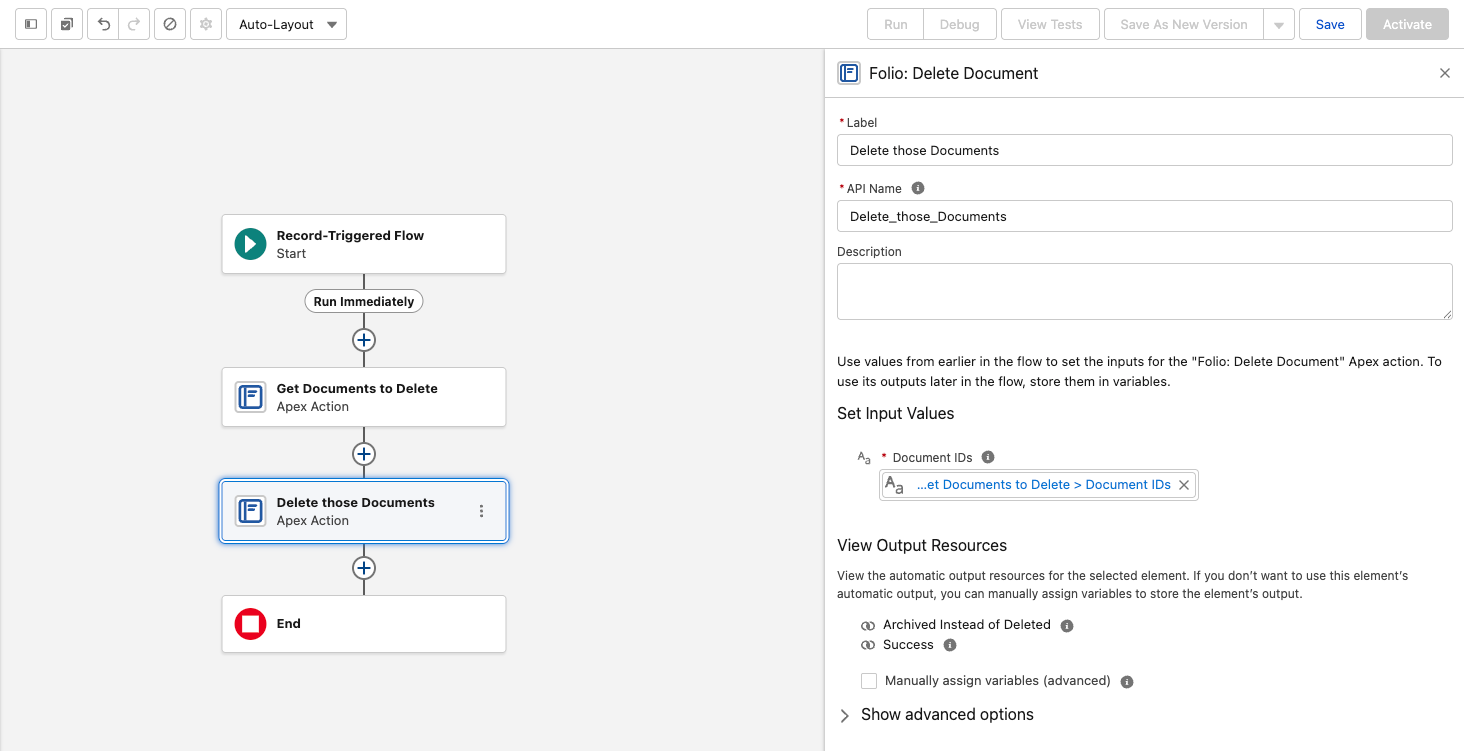 **Related:** [Understand the Folio Data Model](/docs/getting-started/data-model) · [Tags](/docs/admin/admin-panel/tags) · [Settings](/docs/admin/admin-panel/settings) · [Automate with Invocable Apex](/docs/admin/automation-invocable-apex)
---
# Automate with Invocable Apex
Source: https://foliosolutions.net/docs/admin/automation-invocable-apex
Invocable Apex actions exposed by Folio for use in Salesforce Flow and other declarative automation.
Folio exposes a set of Invocable Apex actions that you can call from Salesforce Flow (and any compatible automation framework) without writing code. These actions let admins query, create, clone, share, Tag, link, transfer, and delete Documents based on real-time business events in Salesforce — so document workflows stay in sync with the records and people they describe.
## How to use Folio invocable actions in Flow Builder
1. Open **Flow Builder** and create or edit a flow.
2. Add an **Action** element.
3. Search for **Folio** to list all available invocable actions.
4. Select the action you want, then map the inputs (record IDs, template ID, Tag name, etc.) to your flow variables.
5. Capture outputs (such as the new Document Id) into flow variables for downstream use.
**Related:** [Understand the Folio Data Model](/docs/getting-started/data-model) · [Tags](/docs/admin/admin-panel/tags) · [Settings](/docs/admin/admin-panel/settings) · [Automate with Invocable Apex](/docs/admin/automation-invocable-apex)
---
# Automate with Invocable Apex
Source: https://foliosolutions.net/docs/admin/automation-invocable-apex
Invocable Apex actions exposed by Folio for use in Salesforce Flow and other declarative automation.
Folio exposes a set of Invocable Apex actions that you can call from Salesforce Flow (and any compatible automation framework) without writing code. These actions let admins query, create, clone, share, Tag, link, transfer, and delete Documents based on real-time business events in Salesforce — so document workflows stay in sync with the records and people they describe.
## How to use Folio invocable actions in Flow Builder
1. Open **Flow Builder** and create or edit a flow.
2. Add an **Action** element.
3. Search for **Folio** to list all available invocable actions.
4. Select the action you want, then map the inputs (record IDs, template ID, Tag name, etc.) to your flow variables.
5. Capture outputs (such as the new Document Id) into flow variables for downstream use.
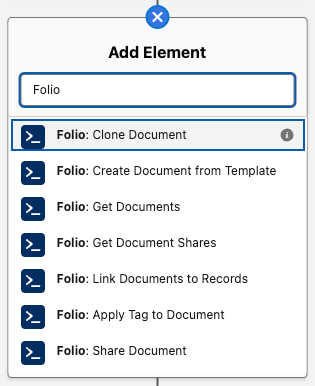 > **Every action reports failures the same way:** it raises, and you read the message from `{!$Flow.FaultMessage}` on a Flow fault path. **No action has an `errorMessage` output.** See [Handle Invocable Apex Errors](/docs/admin/invocable-apex-errors) for the full pattern.
**A note on the `success` output.** Eight actions expose a `success` Boolean, and **it is only ever `true`** — a Decision on `success = false` is unreachable, because failure raises and takes the fault path rather than returning. It exists for a technical reason: Salesforce requires a return-type class to declare at least one `@InvocableVariable`, and an empty one won't compile. The three `Get *` actions don't expose it at all; their outputs are the ID collections only.
Folio invocable actions execute in whichever security context the calling flow is configured to run in. By default, that's the running user of the transaction that triggered the flow — actions then respect the user's Salesforce object-, record-, and field-level access and will never grant access they don't already have. If the calling flow is configured to run in system context, Folio invocable actions inherit that system-level access too. Admins are responsible for choosing the flow configuration that matches their org's security preferences.
## Quick reference
Folio ships **11 invocable actions**. Ten of them operate on Documents; one runs on a linked record and updates Documents from it.
1. **Get actions** — query Folio data so you can branch logic, populate downstream inputs, or audit access. Three actions: **Get Documents**, **Get Document Junctions**, and **Get Document Shares**.
2. **Create, update, or delete Document actions** — produce, reassign, or remove Documents. Four actions: **Clone Document**, **Create Document from Template**, **Transfer Document to Owner**, and **Delete Document**.
3. **Linking actions** — connect existing Documents to users, groups, Tags, or records. Three actions: **Share Document**, **Apply Tag to Document**, and **Link Documents to Records**.
4. **Record-side action** — the one action that runs on a linked record rather than on Documents: **Refresh Document from Record Changes**.
The table below lists every action with its exact Flow label and what it does.
| Flow label | What it does |
| --- | --- |
| **Folio: Get Documents** | Retrieves Documents by Tags, linked records, owners, and/or title. Multiple inputs are additive (AND). |
| **Folio: Get Document Junctions** | Retrieves Junctions (record links and Tags) by type, Document, Tag name, or linked record. Additive (AND). |
| **Folio: Get Document Shares** | Retrieves `folio__Document__Share` records by user, Document, and/or access level (Read or Edit). Additive (AND). |
| **Folio: Clone Document** | Clones one or many Documents; each clone's title becomes "Copy of" the original. Optional inputs copy Tags, Document Shares, and linked records onto the clones, and assign a new owner. |
| **Folio: Create Document from Template** | Creates a Document per source record, with merge fields filled from that record. Only **Active** Templates can be used. Requires the Template ID. |
| **Folio: Transfer Document to Owner** | Reassigns Documents to a new owner — a User or a Queue; optionally grants the prior owner Read or Edit. A User owner must be active and hold a Folio permission set — **Folio Docs User** or **Folio Docs Administrator**. |
| **Folio: Delete Document** | Deletes Documents together with their record links and Tags, or **archives** them when [Allow Document Hard Delete](/docs/admin/admin-panel/settings#delete-permissions) is off. |
| **Folio: Share Document** | Shares Documents with Users, Queues, and/or Public Groups at Read or Edit. Additive; never downgrades existing access. |
| **Folio: Apply Tag to Document** | Applies Tags to Documents; existing Tags are matched by name and reused, otherwise a new Tag is inserted and linked. Already-applied Tags are skipped. |
| **Folio: Link Documents to Records** | Creates Junctions linking each Document to each given record. Existing links are skipped. |
| **Folio: Refresh Document from Record Changes** | Pushes a changed record's values into every Document linked to it, and re-applies owner-based sharing. See [Set up Real-Time Updates](/docs/admin/real-time-updates). |
## Core concepts and data model
Before composing flows with these actions, it helps to understand the underlying objects and conventions.
- **`folio__Document__c`** — the parent record for a Folio Document. Carries `folio__Is_Archived__c` and `folio__Document_Type__c` (a picklist of **Document** or **Template**), which the Get actions use to exclude archived items and templates.
- **`folio__Junction__c`** — the Junction object that links a Document either to a Salesforce record or to a Tag — never both on the same Junction. Created by **Link Documents to Records**, **Apply Tag to Document**, and **Create Document from Template**; queried by **Get Document Junctions**. See [Update Data in Bulk](/docs/admin/bulk-data-updates#junction-object) for the field-level detail.
- **`folio__Tag__c`** — a Folio Tag record. **Apply Tag to Document** reuses Tags by normalized name and creates new ones when needed.
- **`folio__Document__Share`** — the standard Salesforce share object for `folio__Document__c`. Read by **Get Document Shares**, written by **Share Document**, and managed implicitly by **Transfer Document to Owner** and **Refresh Document from Record Changes**.
### Text Collections vs Record Collections
Most Folio actions accept Text Collections of IDs as inputs — Document IDs, record IDs, user IDs, group IDs. Flow stores Salesforce IDs as text by design, and using text collections lets you pass IDs from any source: a record-collection loop, a Get Records output, another invocable action, or hard-coded constants.
Outputs give you both shapes. **Get Documents** returns `documentIds` and `documentRecords`; **Get Document Junctions** returns `junctionIds` and `junctionRecords`; **Get Document Shares** returns an ID collection and a Record Collection for each of its two owner variants.
**Quick rule:** use the ID collection when the next step is another Folio action — it chains straight in. Use the Record Collection when you need field values, for a Flow filter, a Loop, or an Update or Delete Records element. Either way, no follow-up **Get Records** is required.
> **Every action reports failures the same way:** it raises, and you read the message from `{!$Flow.FaultMessage}` on a Flow fault path. **No action has an `errorMessage` output.** See [Handle Invocable Apex Errors](/docs/admin/invocable-apex-errors) for the full pattern.
**A note on the `success` output.** Eight actions expose a `success` Boolean, and **it is only ever `true`** — a Decision on `success = false` is unreachable, because failure raises and takes the fault path rather than returning. It exists for a technical reason: Salesforce requires a return-type class to declare at least one `@InvocableVariable`, and an empty one won't compile. The three `Get *` actions don't expose it at all; their outputs are the ID collections only.
Folio invocable actions execute in whichever security context the calling flow is configured to run in. By default, that's the running user of the transaction that triggered the flow — actions then respect the user's Salesforce object-, record-, and field-level access and will never grant access they don't already have. If the calling flow is configured to run in system context, Folio invocable actions inherit that system-level access too. Admins are responsible for choosing the flow configuration that matches their org's security preferences.
## Quick reference
Folio ships **11 invocable actions**. Ten of them operate on Documents; one runs on a linked record and updates Documents from it.
1. **Get actions** — query Folio data so you can branch logic, populate downstream inputs, or audit access. Three actions: **Get Documents**, **Get Document Junctions**, and **Get Document Shares**.
2. **Create, update, or delete Document actions** — produce, reassign, or remove Documents. Four actions: **Clone Document**, **Create Document from Template**, **Transfer Document to Owner**, and **Delete Document**.
3. **Linking actions** — connect existing Documents to users, groups, Tags, or records. Three actions: **Share Document**, **Apply Tag to Document**, and **Link Documents to Records**.
4. **Record-side action** — the one action that runs on a linked record rather than on Documents: **Refresh Document from Record Changes**.
The table below lists every action with its exact Flow label and what it does.
| Flow label | What it does |
| --- | --- |
| **Folio: Get Documents** | Retrieves Documents by Tags, linked records, owners, and/or title. Multiple inputs are additive (AND). |
| **Folio: Get Document Junctions** | Retrieves Junctions (record links and Tags) by type, Document, Tag name, or linked record. Additive (AND). |
| **Folio: Get Document Shares** | Retrieves `folio__Document__Share` records by user, Document, and/or access level (Read or Edit). Additive (AND). |
| **Folio: Clone Document** | Clones one or many Documents; each clone's title becomes "Copy of" the original. Optional inputs copy Tags, Document Shares, and linked records onto the clones, and assign a new owner. |
| **Folio: Create Document from Template** | Creates a Document per source record, with merge fields filled from that record. Only **Active** Templates can be used. Requires the Template ID. |
| **Folio: Transfer Document to Owner** | Reassigns Documents to a new owner — a User or a Queue; optionally grants the prior owner Read or Edit. A User owner must be active and hold a Folio permission set — **Folio Docs User** or **Folio Docs Administrator**. |
| **Folio: Delete Document** | Deletes Documents together with their record links and Tags, or **archives** them when [Allow Document Hard Delete](/docs/admin/admin-panel/settings#delete-permissions) is off. |
| **Folio: Share Document** | Shares Documents with Users, Queues, and/or Public Groups at Read or Edit. Additive; never downgrades existing access. |
| **Folio: Apply Tag to Document** | Applies Tags to Documents; existing Tags are matched by name and reused, otherwise a new Tag is inserted and linked. Already-applied Tags are skipped. |
| **Folio: Link Documents to Records** | Creates Junctions linking each Document to each given record. Existing links are skipped. |
| **Folio: Refresh Document from Record Changes** | Pushes a changed record's values into every Document linked to it, and re-applies owner-based sharing. See [Set up Real-Time Updates](/docs/admin/real-time-updates). |
## Core concepts and data model
Before composing flows with these actions, it helps to understand the underlying objects and conventions.
- **`folio__Document__c`** — the parent record for a Folio Document. Carries `folio__Is_Archived__c` and `folio__Document_Type__c` (a picklist of **Document** or **Template**), which the Get actions use to exclude archived items and templates.
- **`folio__Junction__c`** — the Junction object that links a Document either to a Salesforce record or to a Tag — never both on the same Junction. Created by **Link Documents to Records**, **Apply Tag to Document**, and **Create Document from Template**; queried by **Get Document Junctions**. See [Update Data in Bulk](/docs/admin/bulk-data-updates#junction-object) for the field-level detail.
- **`folio__Tag__c`** — a Folio Tag record. **Apply Tag to Document** reuses Tags by normalized name and creates new ones when needed.
- **`folio__Document__Share`** — the standard Salesforce share object for `folio__Document__c`. Read by **Get Document Shares**, written by **Share Document**, and managed implicitly by **Transfer Document to Owner** and **Refresh Document from Record Changes**.
### Text Collections vs Record Collections
Most Folio actions accept Text Collections of IDs as inputs — Document IDs, record IDs, user IDs, group IDs. Flow stores Salesforce IDs as text by design, and using text collections lets you pass IDs from any source: a record-collection loop, a Get Records output, another invocable action, or hard-coded constants.
Outputs give you both shapes. **Get Documents** returns `documentIds` and `documentRecords`; **Get Document Junctions** returns `junctionIds` and `junctionRecords`; **Get Document Shares** returns an ID collection and a Record Collection for each of its two owner variants.
**Quick rule:** use the ID collection when the next step is another Folio action — it chains straight in. Use the Record Collection when you need field values, for a Flow filter, a Loop, or an Update or Delete Records element. Either way, no follow-up **Get Records** is required.
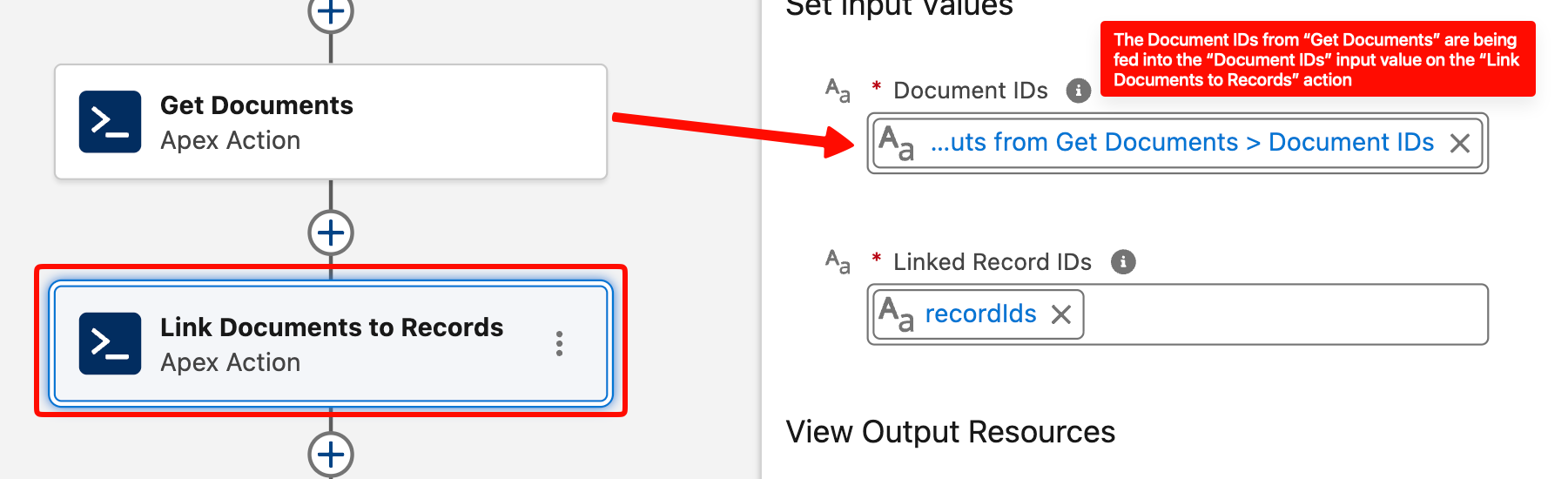 ### Bulk-safe by design
The Folio invocables are designed to handle one or many records per transaction with bulk safety in mind. They accept whole collections and process them in a single call — keep them outside Flow Loops and pass the entire collection at once.
> **Even when you're acting on a single record, you still have to put that one ID in a Text Collection.** The invocables accept Text Collections only. A collection of one is perfectly valid — but a bare Text variable is not, and it will not be accepted. This is the most common point of confusion for Salesforce Administrators using Folio invocable actions, so check it first if an action won't take your input.
### Additive sharing model
**Share Document**, **Transfer Document to Owner** (with a non-`None` `priorOwnerAccess`), and **Refresh Document from Record Changes** are all additive. They never downgrade an existing share — if a user already has Edit access, calling Share at Read level will not remove their Edit. This is intentional: invocables won't silently strip access someone already has.
If you need to remove or downgrade access, do it with standard Flow elements — see [Updating and deleting Folio data](#updating-and-deleting-folio-data).
### Get actions exclude archived and template Documents
Both **Get Documents** and **Get Document Shares** exclude:
- Documents where `folio__Is_Archived__c = true`
- Documents where `folio__Document_Type__c = 'Template'`
This means automation cannot accidentally pull templates into operational flows, and archived items stay out of the way.
### Validation expectations
Folio actions enforce safety checks before performing writes:
- **Active users only** — share/transfer targets must be active Salesforce users holding a Folio permission set, either **Folio Docs User** or **Folio Docs Administrator** (see [Enabled Folio Docs users](/docs/getting-started/licenses-and-permissions#enabled-folio-docs-users)).
- **Users, Queues, and Public Groups** — IDs passed to **Share Document** may be User IDs, Queue IDs, or Public Group IDs. Role groups and territory groups are not valid targets. A Queue must list **Folio Document** among its supported objects to be shared with — see [Queues](/docs/admin/admin-panel/settings#queues).
- **Linkable objects** — record IDs passed to **Link Documents to Records** must be of object types configured as Linkable Objects in the [Admin Panel](/docs/admin/admin-panel).
- **Template / source compatibility** — **Create Document from Template** validates that each `sourceRecordIds` entry's object type is supported by the chosen template's Source Object configuration.
- **Sharing/FLS context** — Get actions run in the running user's context, so users only see Documents they already have access to, unless the calling flow is configured to run in system context.
## Invocable actions in detail
Each action below has its own reference section covering what it does, its inputs and outputs, and its behavior. Use these as a lookup for the action you need.
### Get Documents
Query Documents by one or more filter dimensions. Filters are AND-combined, and empty/null inputs are ignored. If every filter is empty, the action returns an empty result rather than every Document in the org.
**Inputs**
- `byTags` (Text Collection) — Document Tag names to match. Case-insensitive.
- `byParentRecordIds` (Text Collection) — IDs of records the Documents are linked to (via `folio__Junction__c`).
- `byOwnerIds` (Text Collection of User IDs) — Document owners to match.
- `byTitle` (Text) — Title match using a SOQL `LIKE` operator: `folio__Title__c LIKE '%
### Bulk-safe by design
The Folio invocables are designed to handle one or many records per transaction with bulk safety in mind. They accept whole collections and process them in a single call — keep them outside Flow Loops and pass the entire collection at once.
> **Even when you're acting on a single record, you still have to put that one ID in a Text Collection.** The invocables accept Text Collections only. A collection of one is perfectly valid — but a bare Text variable is not, and it will not be accepted. This is the most common point of confusion for Salesforce Administrators using Folio invocable actions, so check it first if an action won't take your input.
### Additive sharing model
**Share Document**, **Transfer Document to Owner** (with a non-`None` `priorOwnerAccess`), and **Refresh Document from Record Changes** are all additive. They never downgrade an existing share — if a user already has Edit access, calling Share at Read level will not remove their Edit. This is intentional: invocables won't silently strip access someone already has.
If you need to remove or downgrade access, do it with standard Flow elements — see [Updating and deleting Folio data](#updating-and-deleting-folio-data).
### Get actions exclude archived and template Documents
Both **Get Documents** and **Get Document Shares** exclude:
- Documents where `folio__Is_Archived__c = true`
- Documents where `folio__Document_Type__c = 'Template'`
This means automation cannot accidentally pull templates into operational flows, and archived items stay out of the way.
### Validation expectations
Folio actions enforce safety checks before performing writes:
- **Active users only** — share/transfer targets must be active Salesforce users holding a Folio permission set, either **Folio Docs User** or **Folio Docs Administrator** (see [Enabled Folio Docs users](/docs/getting-started/licenses-and-permissions#enabled-folio-docs-users)).
- **Users, Queues, and Public Groups** — IDs passed to **Share Document** may be User IDs, Queue IDs, or Public Group IDs. Role groups and territory groups are not valid targets. A Queue must list **Folio Document** among its supported objects to be shared with — see [Queues](/docs/admin/admin-panel/settings#queues).
- **Linkable objects** — record IDs passed to **Link Documents to Records** must be of object types configured as Linkable Objects in the [Admin Panel](/docs/admin/admin-panel).
- **Template / source compatibility** — **Create Document from Template** validates that each `sourceRecordIds` entry's object type is supported by the chosen template's Source Object configuration.
- **Sharing/FLS context** — Get actions run in the running user's context, so users only see Documents they already have access to, unless the calling flow is configured to run in system context.
## Invocable actions in detail
Each action below has its own reference section covering what it does, its inputs and outputs, and its behavior. Use these as a lookup for the action you need.
### Get Documents
Query Documents by one or more filter dimensions. Filters are AND-combined, and empty/null inputs are ignored. If every filter is empty, the action returns an empty result rather than every Document in the org.
**Inputs**
- `byTags` (Text Collection) — Document Tag names to match. Case-insensitive.
- `byParentRecordIds` (Text Collection) — IDs of records the Documents are linked to (via `folio__Junction__c`).
- `byOwnerIds` (Text Collection of User IDs) — Document owners to match.
- `byTitle` (Text) — Title match using a SOQL `LIKE` operator: `folio__Title__c LIKE '%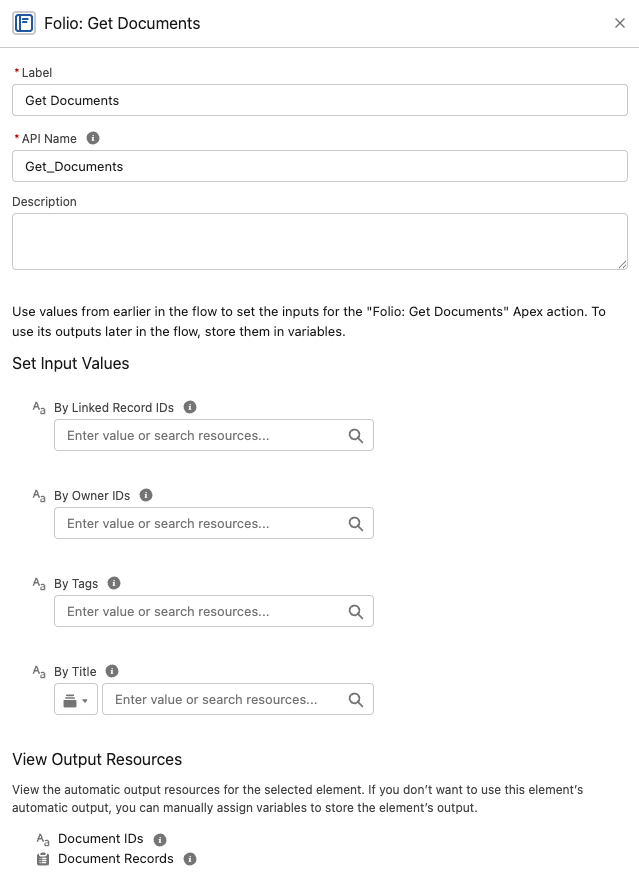 ### Get Document Junctions
Retrieve Junction records — both record links and Tag links — so a flow can inspect what a Document is connected to before acting on it.
**Inputs**
- `junctionType` (Text) — restrict to record links or Tag links.
- `byDocumentIds` (Text Collection)
- `byTagNames` (Text Collection)
- `byLinkedRecordIds` (Text Collection) — linked Salesforce record IDs.
**Outputs**
- `junctionIds` (Text Collection)
- `junctionRecords` (Record Collection of `folio__Junction__c`)
**Behavior notes**
- Filters are additive (AND-combined). Empty inputs are ignored.
- **Take `junctionRecords` to read or report on the Junctions**, and `junctionIds` when you only need to count them or pass IDs along.
- A Junction is either a record link **or** a Tag link, never both — `junctionType` is the cleanest way to get just one kind. See [Update Data in Bulk](/docs/admin/bulk-data-updates#junction-object) for the underlying fields.
- This is the action to pair with a standard Flow **Delete Records** element when you need to unlink a Tag or a record from a Document — feed it `junctionRecords`. See [Updating and deleting Folio data](#updating-and-deleting-folio-data).
### Get Document Junctions
Retrieve Junction records — both record links and Tag links — so a flow can inspect what a Document is connected to before acting on it.
**Inputs**
- `junctionType` (Text) — restrict to record links or Tag links.
- `byDocumentIds` (Text Collection)
- `byTagNames` (Text Collection)
- `byLinkedRecordIds` (Text Collection) — linked Salesforce record IDs.
**Outputs**
- `junctionIds` (Text Collection)
- `junctionRecords` (Record Collection of `folio__Junction__c`)
**Behavior notes**
- Filters are additive (AND-combined). Empty inputs are ignored.
- **Take `junctionRecords` to read or report on the Junctions**, and `junctionIds` when you only need to count them or pass IDs along.
- A Junction is either a record link **or** a Tag link, never both — `junctionType` is the cleanest way to get just one kind. See [Update Data in Bulk](/docs/admin/bulk-data-updates#junction-object) for the underlying fields.
- This is the action to pair with a standard Flow **Delete Records** element when you need to unlink a Tag or a record from a Document — feed it `junctionRecords`. See [Updating and deleting Folio data](#updating-and-deleting-folio-data).
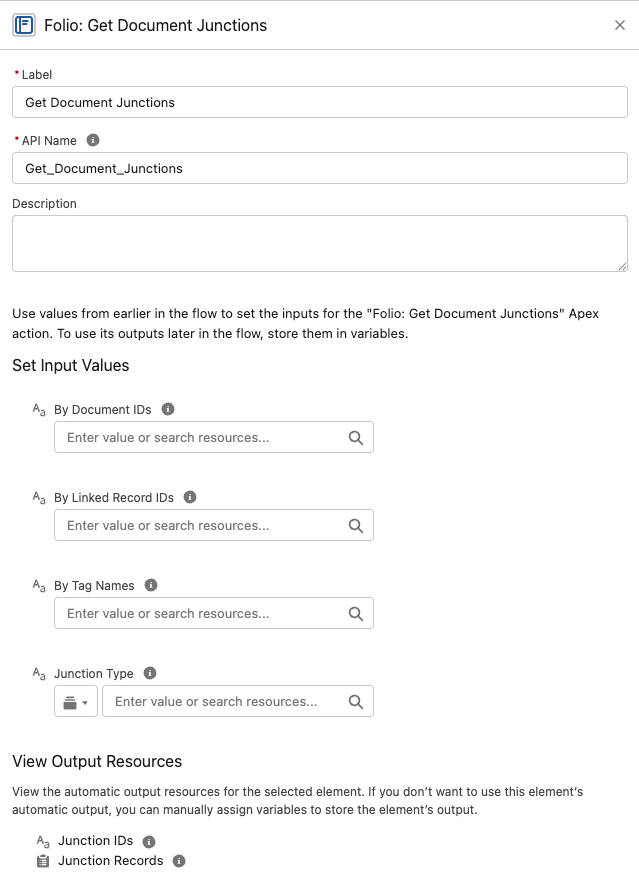 ### Get Document Shares
Look up existing `folio__Document__Share` rows by user, by Document, by access level, or any combination.
**Inputs**
- `byUserIds` (Text Collection)
- `byDocumentIds` (Text Collection)
- `byAccessLevel` (Text) — `Read` or `Edit`
**Outputs — four of them, split two ways**
| Output | Contains |
| --- | --- |
| `documentShareIdsNoOwners` | ID collection, owner rows excluded |
| `documentShareRecordsNoOwners` | Record collection, owner rows excluded |
| `documentShareIdsWithOwners` | ID collection, owner rows included |
| `documentShareRecordsWithOwners` | Record collection, owner rows included |
**Pick the right output.** **With Owners** returns every matching share row including the owner's — use it for auditing and reporting. **No Owners** excludes rows whose `RowCause` is `Owner` — **use it for anything that changes access**, because owner share records cannot be edited or deleted by anyone. Most of the time, No Owners is the one you want.
Within each pair, use the **record** collection when feeding a Flow filter or an Update Records element, and the **ID** collection when you only need to count or pass IDs along.
**Behavior notes**
- Filters are AND-combined; if all are empty, returns empty.
- Excludes shares pointing at archived or template Documents.
### Get Document Shares
Look up existing `folio__Document__Share` rows by user, by Document, by access level, or any combination.
**Inputs**
- `byUserIds` (Text Collection)
- `byDocumentIds` (Text Collection)
- `byAccessLevel` (Text) — `Read` or `Edit`
**Outputs — four of them, split two ways**
| Output | Contains |
| --- | --- |
| `documentShareIdsNoOwners` | ID collection, owner rows excluded |
| `documentShareRecordsNoOwners` | Record collection, owner rows excluded |
| `documentShareIdsWithOwners` | ID collection, owner rows included |
| `documentShareRecordsWithOwners` | Record collection, owner rows included |
**Pick the right output.** **With Owners** returns every matching share row including the owner's — use it for auditing and reporting. **No Owners** excludes rows whose `RowCause` is `Owner` — **use it for anything that changes access**, because owner share records cannot be edited or deleted by anyone. Most of the time, No Owners is the one you want.
Within each pair, use the **record** collection when feeding a Flow filter or an Update Records element, and the **ID** collection when you only need to count or pass IDs along.
**Behavior notes**
- Filters are AND-combined; if all are empty, returns empty.
- Excludes shares pointing at archived or template Documents.
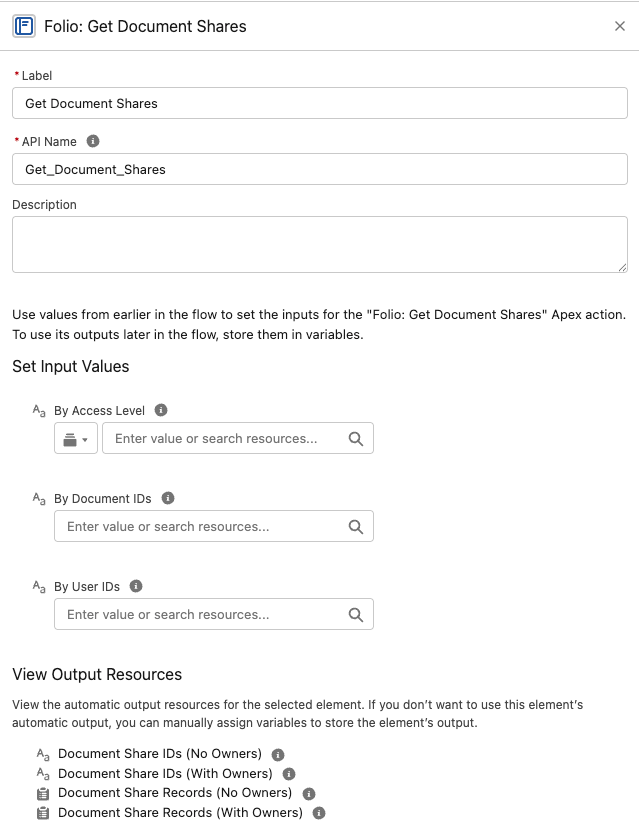 ### Clone Document
Create independent copies of one or more Documents, with optional carry-over of Tags, sharing, and linked records.
> **Every optional input defaults to `False`.** A bare **Clone Document** call copies the Document's *content only* — no Tags, no shares, no record links. This is the most common surprise with this action: admins expect a clone to be a full duplicate and get a bare copy instead. Set the flags you actually want.
**Inputs**
- **Source Document IDs** — `sourceDocumentIds` (Text Collection, required).
- **Clone Tags** — `cloneTags` (Boolean) — copies the source's Tags onto the clone. Default `False`.
- **Clone Sharing** — `cloneSharing` (Boolean) — copies Folio-created shares and native manual shares, each keeping its access level. **Owner and sharing-rule shares are not copied** — the platform recreates those for the clone automatically. Default `False`.
- **Clone Relationships** — `cloneRelationships` (Boolean) — copies the source's linked records onto the clone. Default `False`.
- **New Owner ID** — `newOwnerId` (Text, optional) — a single User ID; every clone gets this owner. If blank, each clone inherits its source Document's owner. The user must be active and hold a Folio permission set — **Folio Docs User** or **Folio Docs Administrator**.
**Outputs**
- `success` (Boolean) — only ever `true`; failures raise instead
- `newDocumentIds` (Text Collection)
**Behavior notes**
- Clones are titled `Copy of {original title}`.
- If more than one ID is passed in `sourceDocumentIds`, each source Document gets its own clone created in the same invocable run.
- **`newDocumentIds` comes back in the same order as the `sourceDocumentIds` input.** That positional guarantee is what makes this action chainable — you can correlate each clone with the Document it came from by index in a loop.
- **`sourceDocumentIds` accepts the `documentIds` output of [Folio: Get Documents](#get-documents) directly**, with no transformation step in between. It's the most natural pairing in Flow; see [Get Documents, then Clone them](/docs/admin/invocable-apex-use-cases#get-documents-then-clone-them).
- A `newOwnerId` assignment applies to all clones created in that invocable instance — this action does not support different owners for different clones in a single call.
- Source IDs and `newOwnerId` are validated; invalid inputs raise an error, so read the message from `{!$Flow.FaultMessage}` on a fault path.
- This action does not instantiate from a template — for that, use **Create Document from Template**.
### Clone Document
Create independent copies of one or more Documents, with optional carry-over of Tags, sharing, and linked records.
> **Every optional input defaults to `False`.** A bare **Clone Document** call copies the Document's *content only* — no Tags, no shares, no record links. This is the most common surprise with this action: admins expect a clone to be a full duplicate and get a bare copy instead. Set the flags you actually want.
**Inputs**
- **Source Document IDs** — `sourceDocumentIds` (Text Collection, required).
- **Clone Tags** — `cloneTags` (Boolean) — copies the source's Tags onto the clone. Default `False`.
- **Clone Sharing** — `cloneSharing` (Boolean) — copies Folio-created shares and native manual shares, each keeping its access level. **Owner and sharing-rule shares are not copied** — the platform recreates those for the clone automatically. Default `False`.
- **Clone Relationships** — `cloneRelationships` (Boolean) — copies the source's linked records onto the clone. Default `False`.
- **New Owner ID** — `newOwnerId` (Text, optional) — a single User ID; every clone gets this owner. If blank, each clone inherits its source Document's owner. The user must be active and hold a Folio permission set — **Folio Docs User** or **Folio Docs Administrator**.
**Outputs**
- `success` (Boolean) — only ever `true`; failures raise instead
- `newDocumentIds` (Text Collection)
**Behavior notes**
- Clones are titled `Copy of {original title}`.
- If more than one ID is passed in `sourceDocumentIds`, each source Document gets its own clone created in the same invocable run.
- **`newDocumentIds` comes back in the same order as the `sourceDocumentIds` input.** That positional guarantee is what makes this action chainable — you can correlate each clone with the Document it came from by index in a loop.
- **`sourceDocumentIds` accepts the `documentIds` output of [Folio: Get Documents](#get-documents) directly**, with no transformation step in between. It's the most natural pairing in Flow; see [Get Documents, then Clone them](/docs/admin/invocable-apex-use-cases#get-documents-then-clone-them).
- A `newOwnerId` assignment applies to all clones created in that invocable instance — this action does not support different owners for different clones in a single call.
- Source IDs and `newOwnerId` are validated; invalid inputs raise an error, so read the message from `{!$Flow.FaultMessage}` on a fault path.
- This action does not instantiate from a template — for that, use **Create Document from Template**.
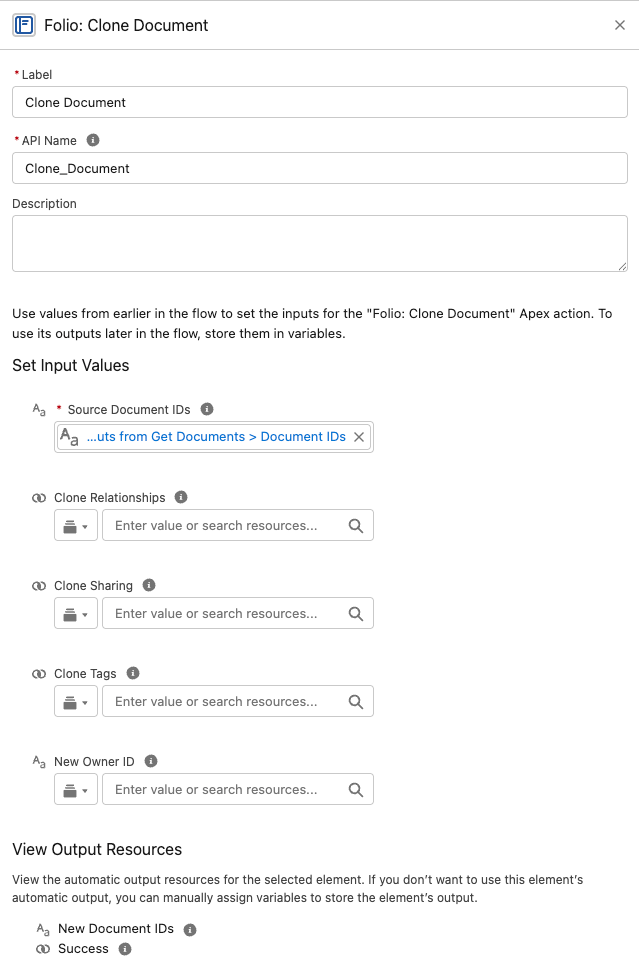 ### Create Document from Template
Instantiate one new Document per source record from a chosen template.
**Inputs**
- `sourceRecordIds` (Text Collection, required)
- `templateId` (Text, required)
- `newOwnerId` (Text, optional)
**Outputs**
- `success` (Boolean) — only ever `true`; failures raise instead
- `newDocumentIds` (Text Collection)
**Behavior notes**
- Resolves merge placeholders (Record Links, Live Fields, Salesforce components) against each source record at instantiation. See [Manage Templates](/docs/admin/admin-panel/templates) for the full merge-syntax walkthrough.
- Validates that each source record's object type matches the template's configured Source Object.
- Optionally assign the new Document to a specific `newOwnerId`. Defaults to the Owner of the Source Record. Each Document created in an invocable run assigns to the same `newOwnerId` if entered.
- Updates the new owner's **Last Viewed** tracker so the Documents surface naturally for them on the Folio Docs home page.
- **Related records and Tags on the Template carry over to each new Document and arrive locked**, exactly as they do when a user instantiates the Template in the editor. See [Related Records and Tags on a Template](/docs/admin/admin-panel/templates#related-records-and-tags-on-a-template).
### Create Document from Template
Instantiate one new Document per source record from a chosen template.
**Inputs**
- `sourceRecordIds` (Text Collection, required)
- `templateId` (Text, required)
- `newOwnerId` (Text, optional)
**Outputs**
- `success` (Boolean) — only ever `true`; failures raise instead
- `newDocumentIds` (Text Collection)
**Behavior notes**
- Resolves merge placeholders (Record Links, Live Fields, Salesforce components) against each source record at instantiation. See [Manage Templates](/docs/admin/admin-panel/templates) for the full merge-syntax walkthrough.
- Validates that each source record's object type matches the template's configured Source Object.
- Optionally assign the new Document to a specific `newOwnerId`. Defaults to the Owner of the Source Record. Each Document created in an invocable run assigns to the same `newOwnerId` if entered.
- Updates the new owner's **Last Viewed** tracker so the Documents surface naturally for them on the Folio Docs home page.
- **Related records and Tags on the Template carry over to each new Document and arrive locked**, exactly as they do when a user instantiates the Template in the editor. See [Related Records and Tags on a Template](/docs/admin/admin-panel/templates#related-records-and-tags-on-a-template).
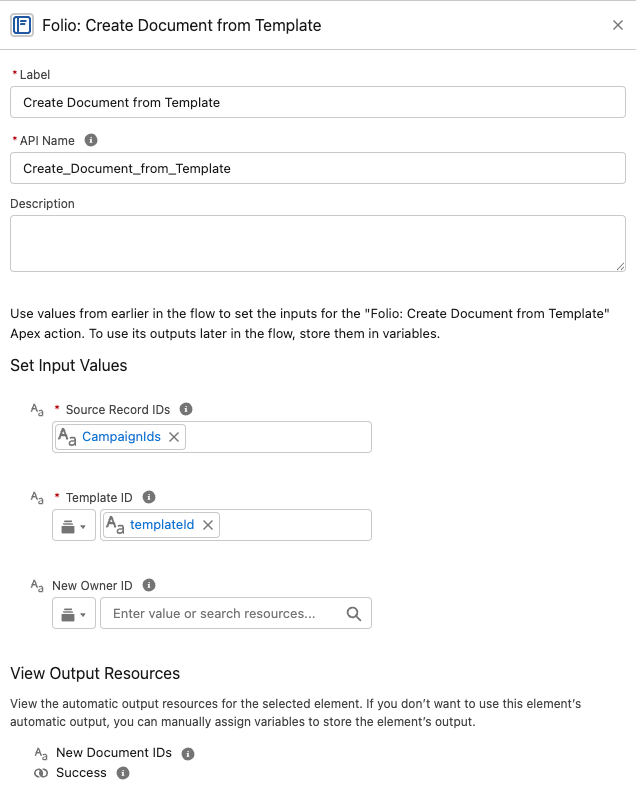 ### Transfer Document to Owner
Bulk reassign Document ownership to a single new owner — a User or a Queue — optionally retaining access for prior owners.
**Inputs**
- `documentIds` (Text Collection, required)
- `newOwnerId` (Text, required) — a User ID or a Queue ID.
- `priorOwnerAccess` (Text, optional) — `None` (default), `Read`, or `Edit`.
**Outputs**
- `success` (Boolean) — only ever `true`; failures raise instead
**Behavior notes**
- All input Documents are transferred to the same `newOwnerId`.
- When `priorOwnerAccess` is `Read` or `Edit`, the prior owner is added as a manual share at that level.
- **A User given as `newOwnerId` must be active and be an [enabled Folio Docs user](/docs/getting-started/licenses-and-permissions#enabled-folio-docs-users) — holding either Folio Docs User or Folio Docs Administrator.** A departed or unlicensed user fails the whole call. `priorOwnerAccess` carries no such requirement — retaining access for a now-deactivated prior owner is fine.
- **A Queue given as `newOwnerId` must list Folio Document among its supported objects** — see [Queues](/docs/admin/admin-panel/settings#queues). Its members hold the owner's access for as long as they are in the Queue.
- Updates the new owner's **Last Viewed** tracker so the Documents surface naturally for them on the Folio Docs home page.
### Transfer Document to Owner
Bulk reassign Document ownership to a single new owner — a User or a Queue — optionally retaining access for prior owners.
**Inputs**
- `documentIds` (Text Collection, required)
- `newOwnerId` (Text, required) — a User ID or a Queue ID.
- `priorOwnerAccess` (Text, optional) — `None` (default), `Read`, or `Edit`.
**Outputs**
- `success` (Boolean) — only ever `true`; failures raise instead
**Behavior notes**
- All input Documents are transferred to the same `newOwnerId`.
- When `priorOwnerAccess` is `Read` or `Edit`, the prior owner is added as a manual share at that level.
- **A User given as `newOwnerId` must be active and be an [enabled Folio Docs user](/docs/getting-started/licenses-and-permissions#enabled-folio-docs-users) — holding either Folio Docs User or Folio Docs Administrator.** A departed or unlicensed user fails the whole call. `priorOwnerAccess` carries no such requirement — retaining access for a now-deactivated prior owner is fine.
- **A Queue given as `newOwnerId` must list Folio Document among its supported objects** — see [Queues](/docs/admin/admin-panel/settings#queues). Its members hold the owner's access for as long as they are in the Queue.
- Updates the new owner's **Last Viewed** tracker so the Documents surface naturally for them on the Folio Docs home page.
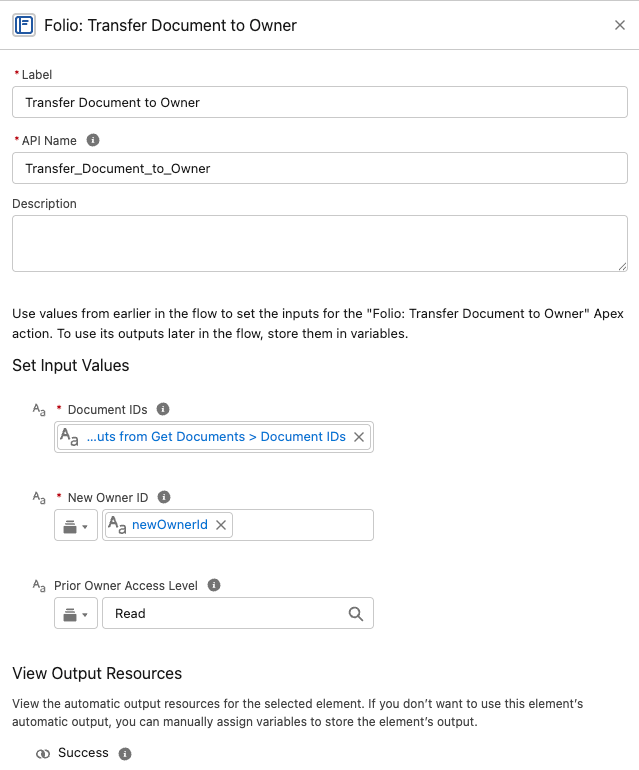 ### Share Document
Grant Read or Edit access to Users, Queues, and/or Public Groups.
**Inputs**
- `documentIds` (Text Collection, required)
- `shareWithIds` (Text Collection, required) — User IDs, Queue IDs, and/or Public Group IDs.
- `accessLevel` (Text, required) — `Read` or `Edit`.
**Outputs**
- `success` (Boolean) — only ever `true`; failures raise instead
**Behavior notes**
- Additive — never downgrades existing higher access.
- Idempotent — re-sharing with an existing Document share row is skipped, so it's safe to call repeatedly without creating duplicate or noisy share rows.
- Every user in `shareWithIds` must be active and be an [enabled Folio Docs user](/docs/getting-started/licenses-and-permissions#enabled-folio-docs-users) — holding either Folio Docs User or Folio Docs Administrator. One stale ID fails the whole call.
- Groups must be Public Groups or Queues, not role groups or territory groups. A Queue must list **Folio Document** among its supported objects — see [Queues](/docs/admin/admin-panel/settings#queues).
### Share Document
Grant Read or Edit access to Users, Queues, and/or Public Groups.
**Inputs**
- `documentIds` (Text Collection, required)
- `shareWithIds` (Text Collection, required) — User IDs, Queue IDs, and/or Public Group IDs.
- `accessLevel` (Text, required) — `Read` or `Edit`.
**Outputs**
- `success` (Boolean) — only ever `true`; failures raise instead
**Behavior notes**
- Additive — never downgrades existing higher access.
- Idempotent — re-sharing with an existing Document share row is skipped, so it's safe to call repeatedly without creating duplicate or noisy share rows.
- Every user in `shareWithIds` must be active and be an [enabled Folio Docs user](/docs/getting-started/licenses-and-permissions#enabled-folio-docs-users) — holding either Folio Docs User or Folio Docs Administrator. One stale ID fails the whole call.
- Groups must be Public Groups or Queues, not role groups or territory groups. A Queue must list **Folio Document** among its supported objects — see [Queues](/docs/admin/admin-panel/settings#queues).
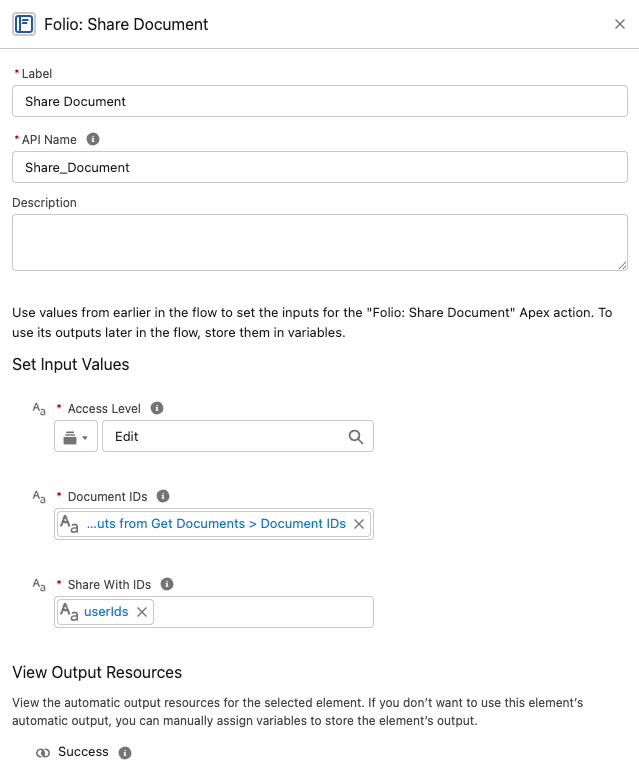 ### Apply Tag to Document
Apply one or more Tags to one or more Documents.
**Inputs**
- `documentIds` (Text Collection, required)
- `tagNames` (**Text**, required) — a single comma-separated string, e.g. `Priority, Renewal, Q3`.
> **`tagNames` is a single Text value, not a Text Collection.** This is the one Folio input that breaks the collection convention — pass one comma-separated string rather than a Flow Text Collection. The comma is the separator, so spaces inside a name are part of it: `Strategic Account Plan` is one Tag.
**Outputs**
- `success` (Boolean) — only ever `true`; failures raise instead
**Behavior notes**
- Tags are matched by normalized name; existing Tags are reused.
- Missing Tags are created on the fly.
- Idempotent — re-running with the same inputs does not apply duplicate Tags to the Document.
### Apply Tag to Document
Apply one or more Tags to one or more Documents.
**Inputs**
- `documentIds` (Text Collection, required)
- `tagNames` (**Text**, required) — a single comma-separated string, e.g. `Priority, Renewal, Q3`.
> **`tagNames` is a single Text value, not a Text Collection.** This is the one Folio input that breaks the collection convention — pass one comma-separated string rather than a Flow Text Collection. The comma is the separator, so spaces inside a name are part of it: `Strategic Account Plan` is one Tag.
**Outputs**
- `success` (Boolean) — only ever `true`; failures raise instead
**Behavior notes**
- Tags are matched by normalized name; existing Tags are reused.
- Missing Tags are created on the fly.
- Idempotent — re-running with the same inputs does not apply duplicate Tags to the Document.
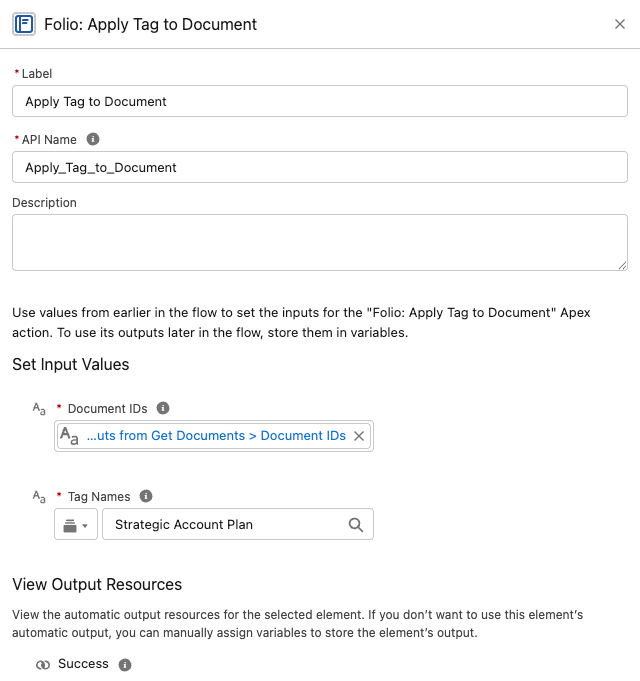 ### Link Documents to Records
Create Junction links between Documents and any combination of Salesforce records.
**Inputs**
- `documentIds` (Text Collection, required)
- `recordIds` (Text Collection, required) — labeled **Linked Record IDs** in Flow. IDs of any object configured as a Linkable Object.
**Outputs**
- `success` (Boolean) — only ever `true`; failures raise instead
**Behavior notes**
- Creates a Junction from every Document in `documentIds` to every record in `recordIds`. For example, passing 3 Documents and 2 records produces 6 Junction links (every Document gets linked to every record).
- Object types are validated; passing a record whose object isn't on the [Object Linking Allowlist](/docs/admin/admin-panel/settings#object-linking-allowlist) will fail.
- Idempotent — existing links are de-duped, so reruns won't create duplicates.
### Link Documents to Records
Create Junction links between Documents and any combination of Salesforce records.
**Inputs**
- `documentIds` (Text Collection, required)
- `recordIds` (Text Collection, required) — labeled **Linked Record IDs** in Flow. IDs of any object configured as a Linkable Object.
**Outputs**
- `success` (Boolean) — only ever `true`; failures raise instead
**Behavior notes**
- Creates a Junction from every Document in `documentIds` to every record in `recordIds`. For example, passing 3 Documents and 2 records produces 6 Junction links (every Document gets linked to every record).
- Object types are validated; passing a record whose object isn't on the [Object Linking Allowlist](/docs/admin/admin-panel/settings#object-linking-allowlist) will fail.
- Idempotent — existing links are de-duped, so reruns won't create duplicates.
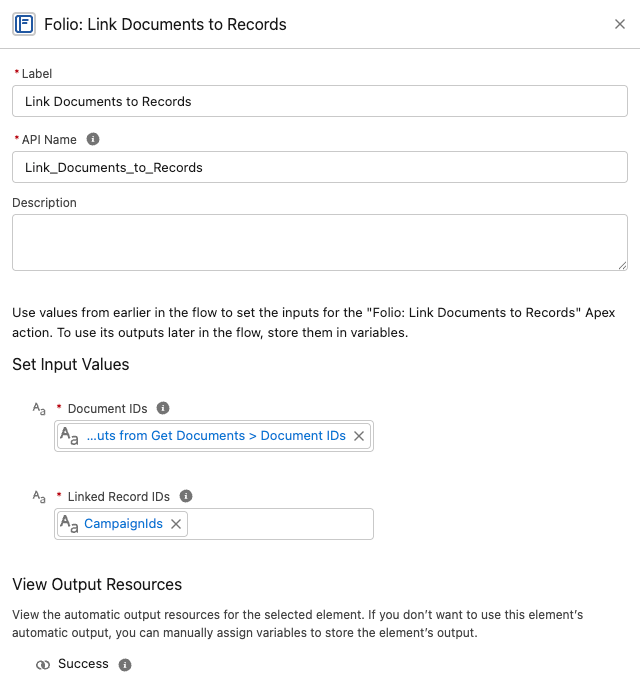 ### Delete Document
Delete Documents together with their record links and Tags — or archive them, depending on your org's configuration.
**Inputs**
- `documentIds` (Text Collection, required)
**Outputs**
- `success` (Boolean) — only ever `true`; failures raise instead
- `archivedInsteadOfDeleted` (Boolean) — `true` when the org's hard-delete setting caused an archive rather than a delete
**Behavior notes**
- **Honors the [Delete Permissions](/docs/admin/admin-panel/settings#delete-permissions) setting.** When **Allow Document Hard Delete** is off — the default and the recommendation — this action sets the Document's **Archived** flag instead of deleting the record.
- When hard delete is enabled, the Document is removed along with its Junctions (both record links and Tag links).
- Respects the running user's access; a user who cannot delete a Document cannot delete it through this action either.
**Branch on `archivedInsteadOfDeleted` to tell the two outcomes apart.** Both an archive and a hard delete return `success = true`, so this Boolean is the only way a flow knows which happened — useful for logging, notifying, or taking a different follow-up step.
### Delete Document
Delete Documents together with their record links and Tags — or archive them, depending on your org's configuration.
**Inputs**
- `documentIds` (Text Collection, required)
**Outputs**
- `success` (Boolean) — only ever `true`; failures raise instead
- `archivedInsteadOfDeleted` (Boolean) — `true` when the org's hard-delete setting caused an archive rather than a delete
**Behavior notes**
- **Honors the [Delete Permissions](/docs/admin/admin-panel/settings#delete-permissions) setting.** When **Allow Document Hard Delete** is off — the default and the recommendation — this action sets the Document's **Archived** flag instead of deleting the record.
- When hard delete is enabled, the Document is removed along with its Junctions (both record links and Tag links).
- Respects the running user's access; a user who cannot delete a Document cannot delete it through this action either.
**Branch on `archivedInsteadOfDeleted` to tell the two outcomes apart.** Both an archive and a hard delete return `success = true`, so this Boolean is the only way a flow knows which happened — useful for logging, notifying, or taking a different follow-up step.
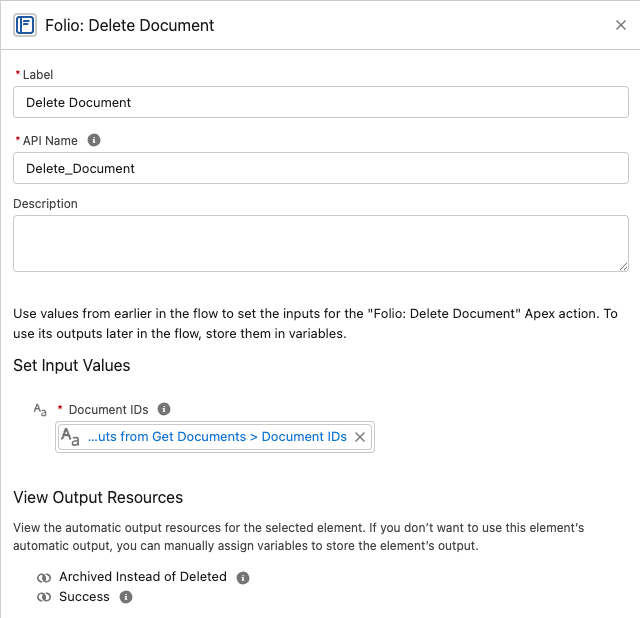 > **Always delete Documents through this action rather than a raw Flow Delete Records element.** See [Updating and deleting Folio data](#updating-and-deleting-folio-data) for why.
### Refresh Document from Record Changes
Pushes a changed Salesforce record's state into every Document linked to it, and re-applies owner-based sharing.
**This is the one Folio invocable that runs on the linked record rather than on Documents**, so it belongs in a flow on your Account, Case, or custom object — not in a flow about Documents.
**Inputs**
- **Object for "Record (New State)"** and **Object for "Record (Prior State)"** — the triggering object, e.g. `Campaign`. Both are required; Flow needs the object type before it will accept the record variables below.
- **Record (New State)** — map `$Record`
- **Record (Prior State)** — map `$Record__Prior`
- **Record Was Deleted** (Boolean) — set to `True` in a **Deleted** flow
**Outputs**
- `success` (Boolean) — only ever `true`; failures raise instead
**Behavior notes**
- Add it to an **after-save record-triggered Flow** configured for **Updated** and/or **Deleted**.
- **Never trigger it on record creation.** *Created* and *Created and Updated* both break it — a brand-new record has no prior state, so **Record (Prior State)** has nothing to map and the action fails, taking the save with it:
> We can't save this record because the "Custom Object Record Publish to Folio Docs" process failed. Give your Salesforce admin these details. Missing required input parameter: recordPrior
That's the correct behavior rather than a bug to work around. Refreshing means pushing a change into Documents that already reference the record, and a record that has just been created can't be referenced anywhere yet. Use **Updated** and **Deleted** only.
- Changed fields are detected automatically — you don't specify which fields to watch.
- **It never fails the triggering save.** If the refresh can't complete, the record update it was triggered by still succeeds.
- Updates the record name on Record Links, and field values in Related Lists, Workbenches, Status Bars, Record Previews, and Kanban tiles.
- Re-applies owner-based sharing at the **Auto-Share Level** configured for that object when the record's owner has changed — including to queues, where members inherit access through standard group semantics.
- Not needed for **Account**, **Contact**, **Opportunity**, or **Case** — those four ship with packaged triggers and work with no setup.
For the full picture of how real-time updates work and which objects warrant a flow, see [Set up Real-Time Updates](/docs/admin/real-time-updates).
## Updating and deleting Folio data
Folio deliberately does not ship invocables for every operation. For updates and deletes, standard Flow elements are the right tool — with two important exceptions.
### Document Shares
**There is no invocable for updating or deleting Document Shares.** Use **Folio: Get Document Shares** to retrieve the rows you want — take `documentShareRecordsNoOwners` — then standard Flow **Update Records** or **Delete Records** elements to change the access level or revoke access.
**Use the No Owners outputs for anything that changes access.** Owner share rows exist to represent ownership, are managed by the platform, and cannot be edited or deleted by anyone — including them in an Update or Delete Records element fails the step. The **With Owners** variants are there for auditing, where you want the complete picture.
### Junctions (record links and Tag links)
Use **Folio: Get Document Junctions**, then standard Flow **Update Records** or **Delete Records** elements.
In practice **Update** is rarely what you want — a Junction is little more than a pair of pointers. **Delete** is the operation that matters: deleting a Junction effectively unlinks a Tag or a record from the Document.
### Documents
**Always use Folio: Delete Document. Never use a raw Flow Delete Records element on `folio__Document__c`.**
The invocable removes all linked related records and honors the hard-delete setting, archiving instead of deleting when hard delete is disabled. A raw delete does neither: it **orphans the Document's Junctions** — leaving Tag and record links pointing at nothing — and **ignores the archive policy** entirely, permanently destroying content your org's configuration says should be recoverable.
If you see a **Deleted** bar on the [Documents Archived or Deleted](/docs/admin/admin-panel/dashboard#documents-archived-or-deleted) chart in an org where hard delete is disabled, a raw delete is the likely cause.
For bulk operations outside of Flow, see [Update Data in Bulk](/docs/admin/bulk-data-updates).
## Where to go next
- For chaining recipes (Get → Share, Get → Tag, Clone → Share, etc.) and end-to-end business scenarios, see [Review Invocable Apex Use Cases](/docs/admin/invocable-apex-use-cases).
- For failure categories, fault-path design, debugging checklists, and idempotency rules, see [Handle Invocable Apex Errors](/docs/admin/invocable-apex-errors).
## Best practices and guardrails
- **Capture the new Document Id** from **Create Document from Template** or **Clone Document** so you can chain follow-up actions (apply a Tag, share with a group, link to additional records) in the same flow.
- **Combine actions.** A single flow can create from a template → apply a Tag → share with a group → link to a related record, all in one run.
- **Always supply at least one filter to Get Documents.** Returning the entire org is intentionally not allowed — protect your bulkification quotas by being specific.
- **Delete Documents only through Folio: Delete Document.** A raw Flow Delete Records element orphans Junctions and ignores the archive policy — see [Updating and deleting Folio data](#updating-and-deleting-folio-data).
- **Use Refresh Document from Record Changes for any object beyond the built-in four.** Account, Contact, Opportunity, and Case ship with packaged triggers and need no setup; add a record-triggered flow calling this action to extend the same real-time updates and owner re-sharing to every other object (see [Set up Real-Time Updates](/docs/admin/real-time-updates)).
- **Tag automatically created Documents** (e.g., `Auto-created`, `Renewal Draft`, `Handoff`) so users can filter and audit them on the Folio Docs home page.
- **Set a clear ownership policy** before turning on auto-creation — decide who should own auto-created Documents and pass `newOwnerId` accordingly to avoid orphaned content.
## FAQ
> **Always delete Documents through this action rather than a raw Flow Delete Records element.** See [Updating and deleting Folio data](#updating-and-deleting-folio-data) for why.
### Refresh Document from Record Changes
Pushes a changed Salesforce record's state into every Document linked to it, and re-applies owner-based sharing.
**This is the one Folio invocable that runs on the linked record rather than on Documents**, so it belongs in a flow on your Account, Case, or custom object — not in a flow about Documents.
**Inputs**
- **Object for "Record (New State)"** and **Object for "Record (Prior State)"** — the triggering object, e.g. `Campaign`. Both are required; Flow needs the object type before it will accept the record variables below.
- **Record (New State)** — map `$Record`
- **Record (Prior State)** — map `$Record__Prior`
- **Record Was Deleted** (Boolean) — set to `True` in a **Deleted** flow
**Outputs**
- `success` (Boolean) — only ever `true`; failures raise instead
**Behavior notes**
- Add it to an **after-save record-triggered Flow** configured for **Updated** and/or **Deleted**.
- **Never trigger it on record creation.** *Created* and *Created and Updated* both break it — a brand-new record has no prior state, so **Record (Prior State)** has nothing to map and the action fails, taking the save with it:
> We can't save this record because the "Custom Object Record Publish to Folio Docs" process failed. Give your Salesforce admin these details. Missing required input parameter: recordPrior
That's the correct behavior rather than a bug to work around. Refreshing means pushing a change into Documents that already reference the record, and a record that has just been created can't be referenced anywhere yet. Use **Updated** and **Deleted** only.
- Changed fields are detected automatically — you don't specify which fields to watch.
- **It never fails the triggering save.** If the refresh can't complete, the record update it was triggered by still succeeds.
- Updates the record name on Record Links, and field values in Related Lists, Workbenches, Status Bars, Record Previews, and Kanban tiles.
- Re-applies owner-based sharing at the **Auto-Share Level** configured for that object when the record's owner has changed — including to queues, where members inherit access through standard group semantics.
- Not needed for **Account**, **Contact**, **Opportunity**, or **Case** — those four ship with packaged triggers and work with no setup.
For the full picture of how real-time updates work and which objects warrant a flow, see [Set up Real-Time Updates](/docs/admin/real-time-updates).
## Updating and deleting Folio data
Folio deliberately does not ship invocables for every operation. For updates and deletes, standard Flow elements are the right tool — with two important exceptions.
### Document Shares
**There is no invocable for updating or deleting Document Shares.** Use **Folio: Get Document Shares** to retrieve the rows you want — take `documentShareRecordsNoOwners` — then standard Flow **Update Records** or **Delete Records** elements to change the access level or revoke access.
**Use the No Owners outputs for anything that changes access.** Owner share rows exist to represent ownership, are managed by the platform, and cannot be edited or deleted by anyone — including them in an Update or Delete Records element fails the step. The **With Owners** variants are there for auditing, where you want the complete picture.
### Junctions (record links and Tag links)
Use **Folio: Get Document Junctions**, then standard Flow **Update Records** or **Delete Records** elements.
In practice **Update** is rarely what you want — a Junction is little more than a pair of pointers. **Delete** is the operation that matters: deleting a Junction effectively unlinks a Tag or a record from the Document.
### Documents
**Always use Folio: Delete Document. Never use a raw Flow Delete Records element on `folio__Document__c`.**
The invocable removes all linked related records and honors the hard-delete setting, archiving instead of deleting when hard delete is disabled. A raw delete does neither: it **orphans the Document's Junctions** — leaving Tag and record links pointing at nothing — and **ignores the archive policy** entirely, permanently destroying content your org's configuration says should be recoverable.
If you see a **Deleted** bar on the [Documents Archived or Deleted](/docs/admin/admin-panel/dashboard#documents-archived-or-deleted) chart in an org where hard delete is disabled, a raw delete is the likely cause.
For bulk operations outside of Flow, see [Update Data in Bulk](/docs/admin/bulk-data-updates).
## Where to go next
- For chaining recipes (Get → Share, Get → Tag, Clone → Share, etc.) and end-to-end business scenarios, see [Review Invocable Apex Use Cases](/docs/admin/invocable-apex-use-cases).
- For failure categories, fault-path design, debugging checklists, and idempotency rules, see [Handle Invocable Apex Errors](/docs/admin/invocable-apex-errors).
## Best practices and guardrails
- **Capture the new Document Id** from **Create Document from Template** or **Clone Document** so you can chain follow-up actions (apply a Tag, share with a group, link to additional records) in the same flow.
- **Combine actions.** A single flow can create from a template → apply a Tag → share with a group → link to a related record, all in one run.
- **Always supply at least one filter to Get Documents.** Returning the entire org is intentionally not allowed — protect your bulkification quotas by being specific.
- **Delete Documents only through Folio: Delete Document.** A raw Flow Delete Records element orphans Junctions and ignores the archive policy — see [Updating and deleting Folio data](#updating-and-deleting-folio-data).
- **Use Refresh Document from Record Changes for any object beyond the built-in four.** Account, Contact, Opportunity, and Case ship with packaged triggers and need no setup; add a record-triggered flow calling this action to extend the same real-time updates and owner re-sharing to every other object (see [Set up Real-Time Updates](/docs/admin/real-time-updates)).
- **Tag automatically created Documents** (e.g., `Auto-created`, `Renewal Draft`, `Handoff`) so users can filter and audit them on the Folio Docs home page.
- **Set a clear ownership policy** before turning on auto-creation — decide who should own auto-created Documents and pass `newOwnerId` accordingly to avoid orphaned content.
## FAQ
Do these actions run in the running user's context, or as a system user?
Whichever context the calling flow is configured for. By default, flows run as the running user, and Folio invocables respect that user's Salesforce sharing, FLS, and Folio permissions. If the flow is set to system context (with or without sharing), Folio invocables inherit that elevated access. Choose the flow configuration that matches your org's security model.What happens if I pass an empty Text Collection?
The action treats it as "no filter" (for Get actions) or as "nothing to do" (for write actions). It is not an error, but downstream Decision nodes should branch on emptiness so the flow logs are explicit.Can I share with a Salesforce Queue or Role?
**A Queue, yes.** Pass its ID in `shareWithIds` alongside any User or Public Group IDs. The Queue must list **Folio Document** among its supported objects first — see [Queues](/docs/admin/admin-panel/settings#queues). Queues also receive Documents automatically when they own a linked record and the object's Auto-Share Level is **Read** or **Edit**. **A Role, no.** Roles, Role-and-Subordinates groups, and Customer Portal groups are rejected with an error naming the offending group, and a Role cannot receive a share through auto-share either. Use a Public Group instead.Will Share Document overwrite an existing Edit share with Read?
No — sharing is additive and never downgrades. To remove or downgrade access, use a separate revocation path: call **Get Document Shares**, take `documentShareRecordsNoOwners`, and use a standard Flow **Update Records** element to change `AccessLevel` (or **Delete Records** to revoke access entirely). See [Updating and deleting Folio data](#updating-and-deleting-folio-data).How do I share with a Salesforce Account/Opportunity/Case Team?
Use the [**Automatic Team Sharing**](/docs/admin/admin-panel/settings#automatic-team-sharing) settings in the Folio Admin app to automatically share Documents with the Team Members of linked Accounts, Opportunities, and Cases. For any other sharing automation needs, use the **Share Document** invocable action.Can Get Documents return archived Documents?
No — both Get actions exclude archived and template Documents by design. To work with archived Documents, use a **Get Records** element directly on `folio__Document__c` filtered by `folio__Is_Archived__c = true` **and** `folio__Document_Type__c = 'Document'` (subject to user access). Without the second filter you'll pull archived templates in alongside archived Documents.Why do most inputs use Text Collections of IDs instead of Record Collections?
IDs are stored as text in Flow, and Text Collections accept IDs from any source — Get actions, Get Records loops, manually-entered constants. Record Collections are returned where you need field values for downstream decisions.Does Refresh Document from Record Changes remove the prior owner's access?
No — it is additive. It grants the new owner access at the configured Auto-Share Level but never strips the prior owner's. If you need to remove the prior owner, do that explicitly via separate logic.How do I delete or downgrade a Document Share?
There is no invocable for it. Use **Get Document Shares**, take `documentShareRecordsNoOwners`, then a standard Flow **Update Records** or **Delete Records** element — see [Updating and deleting Folio data](#updating-and-deleting-folio-data).Are Folio invocables bulkified?
Yes — they're designed to accept collections and process them in bulk. Keep them outside Flow Loops and pass the whole collection in one call. For single-record use, wrap the one record ID in a Text Collection of one and pass that — the inputs only accept Text Collections, but a collection of one is fine.Where do I find the in-org help text and parameter labels?
Inside Flow Builder, after adding the action element, expand the input/output panels to see the latest authoritative description for each parameter as it ships.
flowchart TB
A["Get Documents
filter by parent record, owner, Tag, or title"] -->|documentIds| Z["Share Document
+ shareWithIds: Text Collection of User and/or Group IDs
+ accessLevel: Read or Edit"]
### Get Documents, then Apply a Tag to them
Look up Documents by filter conditions, then apply one or more Tags to all of them so they can be grouped, searched, and filtered together on the Folio Docs home page.
filter by parent record, owner, Tag, or title"] -->|documentIds| Z["Share Document
+ shareWithIds: Text Collection of User and/or Group IDs
+ accessLevel: Read or Edit"]
flowchart TB
A["Get Documents
filter by parent record, owner, Tag, or title"] -->|documentIds| Z["Apply Tag to Document
+ tagNames: single Text, comma-separated"]
**`tagNames` is a single Text value, not a Text Collection.** Pass one comma-separated string — `Priority, Renewal, Q3` — not a Flow Text Collection. This is the one Folio input that breaks the collection convention. Existing Tags are matched by name and reused; unmatched names create a new Tag.
Idempotent — safe to rerun if the flow loops or retries.
### Get Documents, then Link them to Salesforce records
Look up existing Documents by filter conditions, then attach them to one or more additional Salesforce records so they surface on those records' pages too.
filter by parent record, owner, Tag, or title"] -->|documentIds| Z["Apply Tag to Document
+ tagNames: single Text, comma-separated"]
flowchart TB
A["Get Documents
filter by parent record, owner, Tag, or title"] -->|documentIds| Z["Link Documents to Records
+ recordIds: Text Collection of Salesforce record IDs"]
The target object type must be configured as a Linkable Object in the Admin Panel.
### Get Documents, then Transfer their Owner
Look up Documents by filter conditions (typically by current owner), then bulk reassign ownership to a different user, optionally retaining Read or Edit access for the prior owner during the transition.
filter by parent record, owner, Tag, or title"] -->|documentIds| Z["Link Documents to Records
+ recordIds: Text Collection of Salesforce record IDs"]
flowchart TB
A["Get Documents
filter by current owner (or any other filter)"] -->|documentIds| Z["Transfer Document to Owner
+ newOwnerId: User ID of the new owner
+ priorOwnerAccess: Read, Edit, or None"]
### Get Documents, then Clone them
Look up Documents by filter conditions, then create copies of all of them — optionally with their relationships preserved and ownership reassigned to a different user — so a team has pre-populated starting points instead of blank Documents.
filter by current owner (or any other filter)"] -->|documentIds| Z["Transfer Document to Owner
+ newOwnerId: User ID of the new owner
+ priorOwnerAccess: Read, Edit, or None"]
flowchart TB
A["Get Documents
filter by parent record, owner, Tag, or title"] -->|documentIds → sourceDocumentIds| Z["Clone Document
+ cloneRelationships: true / false
+ newOwnerId: User ID of the clone's owner (optional)"]
**Get Documents' `documentIds` output feeds Clone Document's `sourceDocumentIds` input directly** — no Assignment or transformation element in between. It's the most natural pairing in the whole action set.
**Set the clone flags you actually want.** All four of Clone Document's optional inputs default to `False`, so a bare call copies content only — no Tags, no shares, no linked records. For a "pre-populated starting point" use case you almost always want **Clone Relationships** set to `True`, and often **Clone Tags** as well.
**`newDocumentIds` comes back in the same order as `sourceDocumentIds`.** That positional guarantee is what makes this chainable: index *n* of the output is the clone of index *n* of the input, so you can correlate each clone with its source in a downstream loop.
If you only want to clone the most recent matching Document, pair this with a **Get Records** step on `folio__Document__c` ordered by `LastModifiedDate DESC` and capped to 1 — Get Documents itself does not provide a sort/limit interface.
### Clone Documents, then Share, Tag, or Link the new ones
**Clone Document** returns `newDocumentIds`. Use it as the `documentIds` input on any modify-action — share the new clones with a group, apply Tags, link them to additional records, etc.
filter by parent record, owner, Tag, or title"] -->|documentIds → sourceDocumentIds| Z["Clone Document
+ cloneRelationships: true / false
+ newOwnerId: User ID of the clone's owner (optional)"]
flowchart TB
A["Clone Document"] -->|newDocumentIds| Z["Any modify-action
Share Document, Apply Tag to Document,
or Link Documents to Records
+ remaining inputs for the chosen action"]
The same pattern works for **Create Document from Template** — feed its `newDocumentIds` into any modify-action's `documentIds`.
### Get Document Shares, then downgrade everyone to Read except the Owner
Look up existing share rows on a set of Documents, filter the result down to rows where the user is **not** the record owner and the access level is **Edit**, then update those rows to **Read** access. Useful for locking down a Document set after a project closes, or for enforcing a periodic access review.
Because **Share Document** is additive only and never downgrades, the actual downgrade has to be performed via a Salesforce **Update Records** step on the `folio__Document__Share` records returned by **Get Document Shares**.
Share Document, Apply Tag to Document,
or Link Documents to Records
+ remaining inputs for the chosen action"]
flowchart TB
A["Get Document Shares
byDocumentIds"] -->|documentShareRecordsNoOwners| F["Filter in Flow
AccessLevel = Edit"] F -->|matching share rows| Z["Update Records (Salesforce standard action)
Object: folio__Document__Share
Set AccessLevel = Read"]
**Use the `documentShareRecordsNoOwners` output and skip the owner filter.** That output already excludes rows whose `RowCause` is `Owner`, so there's no need to compare `UserOrGroupId` against `OwnerId` in Flow. Owner share rows can't be modified by anyone, and including them fails the Update Records step.
### Get Document Shares, then revoke access entirely
Remove access outright rather than reducing it — the standard offboarding or access-review pattern.
byDocumentIds"] -->|documentShareRecordsNoOwners| F["Filter in Flow
AccessLevel = Edit"] F -->|matching share rows| Z["Update Records (Salesforce standard action)
Object: folio__Document__Share
Set AccessLevel = Read"]
flowchart TB
A["Get Document Shares
byDocumentIds
(optionally byUserIds to target specific people)"] -->|documentShareRecordsNoOwners| Z["Delete Records (Salesforce standard action)
Object: folio__Document__Share"]
Deleting the share row removes the access outright, rather than reducing it as the downgrade recipe above does.
> **Use the No Owners output.** Owner share rows can't be deleted, and including them causes the Delete Records step to fail.
Note what this does and doesn't reach: access granted by other means — auto-share from record ownership, [team sharing](/docs/admin/admin-panel/settings#automatic-team-sharing), or Salesforce sharing rules — is recreated by the platform or the package and will reappear. This recipe removes **explicitly granted shares**. See [Update Data in Bulk](/docs/admin/bulk-data-updates#document-share-object) for the underlying schema and [Handle Invocable Apex Errors](/docs/admin/invocable-apex-errors) for failure handling.
### Get Document Junctions, then remove a Tag from Documents
Unlink a Tag from a set of Documents without touching the Tag itself.
byDocumentIds
(optionally byUserIds to target specific people)"] -->|documentShareRecordsNoOwners| Z["Delete Records (Salesforce standard action)
Object: folio__Document__Share"]
flowchart TB
A["Get Document Junctions
junctionType = Tag
+ byTagNames"] -->|junctionRecords| Z["Delete Records (Salesforce standard action)"]
Deleting a Tag junction unlinks the Tag from that Document without touching the Tag record itself, or any other Document that carries it.
For a one-off cleanup, the [Tags tab](/docs/admin/admin-panel/tags) does the same thing in the UI, with merge and replacement-tag handling built in. Use this recipe when the removal needs to be automated or conditional. See [Update Data in Bulk](/docs/admin/bulk-data-updates#junction-object) for the Junction schema.
### Get Document Junctions, then unlink a record
Remove a Document's link to a Salesforce record.
junctionType = Tag
+ byTagNames"] -->|junctionRecords| Z["Delete Records (Salesforce standard action)"]
flowchart TB
A["Get Document Junctions
junctionType = record link
+ byDocumentIds and/or byLinkedRecordIds"] -->|junctionRecords| Z["Delete Records (Salesforce standard action)"]
**Linking is additive — Link Documents to Records never removes an existing link — so unlinking is always a separate deletion step.** There is no "unlink" invocable, and this is why.
Every other relationship on the Document — Tags, other linked records — is untouched. This is the deletion half of [Re-link Documents when an Opportunity moves Accounts](#re-link-documents-when-an-opportunity-moves-accounts); pair the two when a record needs to move rather than merely gain a link. See [Update Data in Bulk](/docs/admin/bulk-data-updates#junction-object) and [Handle Invocable Apex Errors](/docs/admin/invocable-apex-errors).
### Create Documents from a Template in bulk
Instantiate a template across an entire collection of records in a single call.
junctionType = record link
+ byDocumentIds and/or byLinkedRecordIds"] -->|junctionRecords| Z["Delete Records (Salesforce standard action)"]
flowchart TB
A["Get Records
(or any collection of record IDs)"] --> B["Transform
into a Text Collection"] B -->|sourceRecordIds| C["Create Document from Template
+ templateId"] C -->|newDocumentIds| Z["Any modify-action
Share, Tag, or Link"]
`sourceRecordIds` is a Text Collection, and the action creates **one Document per source record** — so a single call can instantiate a template across a whole set of records. Merge fields resolve per record.
**`newDocumentIds` comes back in the same order as `sourceRecordIds`**, so index *n* of the output corresponds to index *n* of the input. That positional guarantee makes the results correlatable in a downstream loop, exactly the way [Clone Document](#get-documents-then-clone-them) works.
The template must be in **Active** status — see [Template Status](/docs/admin/admin-panel/templates#template-status). You'll also need its ID, available from **Copy ID** on the template's row in the [Templates tab](/docs/admin/admin-panel/templates#the-template-list).
### Common chaining mistakes
- **Empty/null collections.** Passing an empty `documentIds` from an upstream Get is a no-op, but make sure your Decision node checks for emptiness so the flow logs reflect "no Documents matched" rather than silently doing nothing.
- **Wrong ID type.** `shareWithIds` accepts User IDs, Queue IDs, and Public Group IDs. The error is explicit: *"Only public groups (Type = "Regular") are allowed as share targets… Queues, Roles, Role-and-Subordinates groups, and Customer Portal groups are not supported here."* It names the offending group, its ID, and its type.
- **Draft or Archived template IDs.** Only templates in **Active** status can instantiate a Document. Passing a Draft or Archived `templateId` fails at runtime, not at design time — a common surprise when a template is built and tested but never activated. See [Template Status](/docs/admin/admin-panel/templates#template-status).
- **Sharing with inactive or unlicensed users.** `shareWithIds` validates every user target: each must be active and hold a Folio permission set — **Folio Docs User** or **Folio Docs Administrator**. In the custom user lookup recipe, a stale lookup pointing at a departed user fails the whole call. Add a Decision or a Get Records filter on `IsActive` before building the collection. The same active-plus-licensed rule applies to `newOwnerId` on **Transfer**, **Clone**, and **Create from Template**. It does *not* apply to `priorOwnerAccess` — retaining access for a now-deactivated prior owner is fine.
- **Overbroad filters.** Leaving every Get Documents filter empty returns empty (by design). Always supply at least one filter.
- **Mixing record-collection loops with text-collection inputs.** If you have a Record Collection from a Get Records step, use a **Transform** element to map the record IDs into a Text Collection — don't try to map the record collection directly into a `documentIds` slot.
## Business use cases
The recipes below are examples of real business problems and how Folio's invocable Apex actions can be combined in Flow to solve them. Each example highlights a primary action, but most production flows chain several together — use these as starting points and adapt the inputs and triggers to fit your org's processes.
### Account Plan refresh
Functionally, this flow **freezes last year's Account Plan**, **spins up a fresh one from a clone of it**, and **notifies the owner** to start updating the new copy — all 90 days before the Account's renewal.
- **Trigger:**
Scheduled flow that runs daily and identifies any Account whose renewal date is exactly 90 days out.
- **Step 1 — Find the most recent Account Plan.**
Call **Get Documents** filtered by `byParentRecordIds = {Account Id}` and `byTags = ["Account Plan"]`. Use a follow-up **Get Records** on `folio__Document__c` ordered by `CreatedDate DESC` and limited to 1 to pick the most recent matching Document.
- **Step 2 — Clone it into a new Account Plan.**
Call **Clone Document** with `sourceDocumentIds = {That Doc Id}`, `cloneTags = true` and `cloneRelationships = true` so the new clone inherits the `Account Plan` Tag and the existing Account record link, and `cloneSharing = false` so the new Document starts shared only with the owner by default (plus any Account Team sharing that applies automatically).
- **Step 3 — Lock down the original.**
Use the [Get Document Shares, then downgrade everyone to Read except the Owner](#get-document-shares-then-downgrade-everyone-to-read-except-the-owner) recipe on the original Document so the prior year's plan can no longer be edited by anyone except the Owner. Note this doesn't technically prevent the Owner from editing the Document. If the original truly needs to be fully locked, transfer it to a Salesforce Administrator via **Transfer Document to Owner** with `priorOwnerAccess = "Read"` so the Account owner retains read access but loses edit access.
- **Step 4 — Mark the original as historical.**
Use Salesforce **Update Records** on the original Document to prepend `Old — ` (or your preferred convention) to its `folio__Title__c` so it's clearly archived. Optionally apply a `Historical` Tag as per your organization's preferences using **Apply Tag to Document**.
- **Step 5 — Email the owner.**
Pull the new Document's **Document Deep Link** field and email it to the Account owner. The Document Deep Link opens the new Document directly inside the Folio Docs home page, so the owner doesn't have to hunt for it.
### Create a Close Plan on Stage change
When an Opportunity moves to a late-stage like Legal Negotiation, sales reps benefit from a structured Close Plan tied to the deal. This pattern instantiates a Close Plan Template the moment the Opportunity hits that stage, sets the Opportunity owner as the Document owner, and emails them a deep link to start filling it in.
- **Trigger:**
Record-triggered flow on Opportunity (`StageName` becomes "Legal Negotiation").
- **Step 1 — Instantiate the Close Plan Template.**
Call **Create Document from Template** with `templateId = {Close Plan Template}`, `sourceRecordIds = {Opportunity Id}` (Text Collection of one), and `newOwnerId = {Opportunity.OwnerId}`. The Close Plan Template should have a `Close Plan` Tag configured on it so the new Document inherits the Tag automatically. With the right Admin Panel settings, the rest of the linking and sharing happens for you with no extra Flow steps:
- The new Document is **default-linked to the Opportunity** (the Source Record).
- If **Auto-link from Opportunity to Account** is enabled, the package also links the new Document to the Opportunity's parent Account.
- If **Auto-Share Level with Record Owner** on the Account Linkable Object is set to **Read** or **Edit**, the Account Owner is automatically granted that level of access on the new Document as well.
Net effect: the Document is created from the Template, linked to both the Opportunity and the Account, and shared with both the Opportunity Owner and the Account Owner — all automatically.
- **Step 2 — Email the Opportunity owner.**
Send an email to the Opportunity owner prompting them to complete their Close Plan by the target close date. Include the new Document's **Document Deep Link** field in the email body so they can click to easily access the Document on the Folio Docs home page without hunting for it.
- **Business outcome:**
Every late-stage Opportunity has a structured Close Plan ready for the rep the moment they need it, pre-tagged for downstream filtering and reporting on the Folio Docs home page.
### Share Case Documents on escalation
- **Trigger:**
Record-triggered flow on Case (`IsEscalated` becomes `true`).
- **Inputs used:**
`documentIds = {Documents linked to Case}`, `shareWithIds = {Support Manager Group ID}`, `accessLevel = "Edit"`.
- **Action sequence:**
Get Documents (`byParentRecordIds = {Case Id}`) → Share Document.
- **Business outcome:**
Escalation managers get immediate access to all Case context without manual sharing.
### Share Documents with users in a custom user lookup field
It's common practice to track role-specific ownership on a record using a **custom user lookup** that's distinct from the standard Owner — for example a **Customer Success Manager**, **Solution Consultant**, **Implementation Manager**, or **Renewal Manager** on an Account, Opportunity, or Case. Because these users aren't the record Owner, Folio's built-in auto-share rules and Account Team sharing don't always cover them. To grant read or edit access to the user sitting in any custom user-lookup field, use the pattern below.
- **Trigger:**
Record-triggered after-save flow on `folio__Junction__c` (the object that links a Document to a record), firing on **Created** events.
- **Step 1 — Filter to the right parent object.**
Add a Decision element that checks whether the new Junction's parent record ID begins with the Salesforce key prefix for the object you care about (e.g. `001` for Account, `006` for Opportunity, `500` for Case). If not, exit the flow.
- **Step 2 — Look up the parent and the custom user-lookup field.**
Use a Salesforce **Get Records** on the parent object, filtered by the Junction's parent record ID, retrieving the custom user-lookup field(s) you want to share with — Customer Success Manager, Solution Consultant, Implementation Manager, Renewal Manager, or any other role-specific user lookup.
- **Step 3 — Share the Document.**
Build a Text Collection containing the user IDs from those lookup fields, then call **Share Document** with `documentIds = {The Junction's Document Id}`, `shareWithIds = {User Id Collection}`, and `accessLevel = "Edit"` (or `"Read"` depending on your access policy).
- **Business outcome:**
Every Document attached to the parent record is shared with the role-specific users the moment it's linked, without manual sharing or relying on Account Team membership. The same pattern works for any custom user-lookup field on any Linkable Object.
### Tag Account Documents by industry
- **Trigger:**
Record-triggered flow on Account (`Industry` field change).
- **Inputs used:**
`documentIds = {Documents linked to Account}`, `tagNames = "{Industry name}"`.
- **Action sequence:**
Get Documents → Apply Tag to Document.
- **Business outcome:**
Documents become filterable on the Folio Docs home page by industry without manual tagging.
### Re-link Documents when an Opportunity moves Accounts
- **Trigger:**
Record-triggered flow on Opportunity (`AccountId` change).
- **Inputs used:**
`documentIds = {Documents linked to Opportunity}`, `recordIds = {New AccountId}`.
- **Action sequence:**
Get Documents → Link Documents to Records.
- **Optional — remove the link to the prior Account at the same time.**
Linking the Documents to the new Account does not remove the existing link to the prior Account, so by default the Documents stay linked to both. If you want the move to also drop the old link, follow the link step with a Salesforce **Get Records** on `folio__Junction__c` filtered by Document = {Documents linked to Opportunity} AND Linked Record = {Prior AccountId}, then **Delete Records** on the returned Junctions. Every other relationship on those Documents (Opportunity, Tags, other linked records) is left untouched.
- **Business outcome:**
Existing Opportunity Documents now appear in the Folio Document Editor component on the new Account's record page — and, if you opt into the cleanup step, no longer appear on the previous Account's record page.
### Reassign Documents when a rep leaves
- **Trigger:**
Screen flow run by an Ops admin from the user's record page.
- **Inputs used:**
`documentIds = {Documents owned by departing user}`, `newOwnerId = {New owner User Id}`, `priorOwnerAccess = "Read"`.
- **Action sequence:**
Get Documents (`byOwnerIds = {departing user}`) → Transfer Document to Owner.
- **Business outcome:**
Ownership transitions cleanly with a Read window for the original owner during handoff.
### Create a Sales-to-CS Handoff on close
- **Trigger:**
Record-triggered flow on Opportunity (`StageName` becomes "Closed Won").
- **Inputs used:**
`templateId = {Sales-to-CS Handoff Template}`, `sourceRecordIds = {Opportunity Id}`, `newOwnerId = {Assigned CSM Id}`.
- **Action sequence:**
Create Document from Template → Apply Tag (`Handoff`) → Share Document with the CS team Group.
- **Business outcome:**
A pre-filled handoff doc is waiting for the CSM the moment the deal closes.
### Keep Documents current when a custom object changes
- **Trigger:**
After-save record-triggered flow on a custom object (e.g., `Project__c`), configured for **Updated** and/or **Deleted**.
- **Inputs used:**
`$Record` → **Record (New State)**; `$Record__Prior` → **Record (Prior State)**. In a **Deleted** flow, also set **Record Was Deleted = True**.
- **Action sequence:**
Folio: Refresh Document from Record Changes.
- **Prerequisite:**
The object must be configured as a **Linkable Object**. For the owner re-sharing half of this to do anything, its **Auto-Share Level with Record Owner** must be **Read** or **Edit** — with auto-share set to **None**, field updates still propagate but no sharing is applied.
- **Business outcome:**
Every Document linked to the project stays current with the project record — names on Record Links, and values in Related Lists, Workbenches, Status Bars, Record Previews, and Kanban tiles all update live for anyone viewing. When the project changes owner, linked Documents are re-shared to the new owner at the configured level.
- **Note:**
This action replaces the former **Apply New Owner Sharing**, which only handled the sharing half. It is also the only Folio invocable that lives in a flow on the *linked record* rather than a flow about Documents. **Account**, **Contact**, **Opportunity**, and **Case** need no flow at all — they ship with packaged triggers. See [Set up Real-Time Updates](/docs/admin/real-time-updates).
### Clean up Documents when a parent record is retired
- **Trigger:**
Record-triggered flow on the parent object when a status field moves to a terminal value (e.g., `Project__c.Status__c = 'Cancelled'`).
- **Inputs used:**
Text Collection of Document IDs from **Get Documents** filtered by the parent record.
- **Action sequence:**
Get Documents → Folio: Delete Document.
- **Business outcome:**
Documents tied to the retired record are removed — or **archived**, if [hard delete is disabled](/docs/admin/admin-panel/settings#delete-permissions), which is the default. Using the invocable rather than a raw **Delete Records** element is what makes that distinction work, and what keeps Junctions from being orphaned. See [Updating and deleting Folio data](/docs/admin/automation-invocable-apex#updating-and-deleting-folio-data).
- **Note:**
**Delete Document** returns `archivedInsteadOfDeleted` (Boolean) alongside `success`. Branch on it to tailor what happens next — logging, notifying, or a different follow-up when the org's **Allow Document Hard Delete** setting caused an archive rather than a delete. This is how a flow tells the two outcomes apart, since both return `success = true`.
### Audit which Documents carry a given Tag
- **Trigger:**
Scheduled flow, or an on-demand screen flow.
- **Inputs used:**
`junctionType` = Tag links; `byTagNames` = the Tag(s) you're auditing.
- **Action sequence:**
Folio: Get Document Junctions → loop / report over `junctionRecords`.
- **Business outcome:**
A list of every Document carrying a governance-relevant Tag.
- **Note:**
Take the `junctionRecords` output rather than `junctionIds` — it carries the field values a report needs, with no separate **Get Records** step. To remove the Tag rather than report on it, see [Get Document Junctions, then remove a Tag from Documents](#get-document-junctions-then-remove-a-tag-from-documents).
**Related:** [Automate with Invocable Apex](/docs/admin/automation-invocable-apex) · [Handle Invocable Apex Errors](/docs/admin/invocable-apex-errors) · [Manage Templates](/docs/admin/admin-panel/templates) · [Set up Real-Time Updates](/docs/admin/real-time-updates) · [Update Data in Bulk](/docs/admin/bulk-data-updates)
---
# Handle Invocable Apex Errors
Source: https://foliosolutions.net/docs/admin/invocable-apex-errors
Folio Log records every invocable Apex failure automatically. How to read it, the fault path pattern every action uses, and which actions are safe to retry.
**When something goes wrong, go to Folio Log.** Every error raised anywhere in the Folio package lands there automatically, with no wiring on your part. Flow's fault path carries the same message, but Folio Log is the record that persists and the one to work from.
For the per-action reference, see [Automate with Invocable Apex](/docs/admin/automation-invocable-apex). For chaining recipes and end-to-end scenarios, see [Review Invocable Apex Use Cases](/docs/admin/invocable-apex-use-cases).
## Start with Folio Log
Whenever an error is raised anywhere inside the Folio package — invocable Apex actions, triggers, and editor backend calls alike — Folio writes a record to the **Folio Log** object automatically. It's the package's built-in error trail, and it's already running.
**The log survives a rollback.** It's published as a platform event with `PublishImmediately`, so it commits outside the transaction. When an action fails and rolls back everything it did, the log record is still there. The error trail exists even when nothing else does.
**Folio Log is the first place to look, and the first thing to point Folio Support at when you open a ticket.** It carries errors a Flow fault path never sees — failures from the editor, from triggers, and from anything running outside a flow you built. Add the **Folio Logs** tab to the apps your admins work in so it's one click away; see [Add Folio Docs to the Navigation Bar](/docs/admin/adding-folio-docs-home-to-navigation).
See the [data model reference](/docs/getting-started/data-model#folio-log) for the key fields and [Log retention](/docs/admin/admin-panel/settings#data-retention) for how long records are kept.
## What happens when an action fails
All 11 actions do the same three things, in order:
1 **Write a Folio Log record**, which survives the rollback as described above.
2 **Raise**, with the action label prefixed, so the message names the action that failed.
3 **Flow takes the fault path**, where you read `{!$Flow.FaultMessage}`.
### Two consequences worth stating plainly
**All-or-nothing processing.** One bad request fails the entire invocation and rolls back every request in the batch, not just the failing one. A record-triggered flow over 200 records with a single bad ID gets nothing at all. Filtering inputs upstream matters more here than in typical Flow work.
**With no fault path, the end user sees the error.** This is intentional, so record-triggered before- and after-save flows surface the message on the record page immediately. On a before-save flow it also blocks the save.
## Fault path design
The pattern is identical for every action:
1. Add a **Fault Path** out of the action.
2. **End the flow on a controlled error path**, not a hard failure, so the running user never sees a raw Apex error.
Because the action's output variables are unavailable on a fault path, `{!$Flow.FaultMessage}` is the only place the message exists inside Flow.
**The fault path doesn't need to record the error.** Folio Log already has it. Assign the fault message to a variable when you want it for a screen message, an email alert, or a downstream decision — not to create an error trail you already have.
If your org's policy requires errors in a particular system, `{!$Flow.FaultMessage}` is the value to pass to it, whether that's RFLIB, a custom log object, or a platform event. That's a subscriber-org decision rather than something Folio needs.
## Common failure categories
| Failure | Likely cause | Fix |
| --- | --- | --- |
| Fault message names invalid IDs | One or more ID values are blank, malformed, or point to deleted or missing records. Applies to every action, including the `Get *` actions | Trim empty and null values upstream; the message names every bad value, so fix them all in one pass |
| Share target rejected as an invalid group type | A Role, Role-and-Subordinates group, or Customer Portal group was passed as a share target | Use User, Queue, or Public Group IDs. The error names the offending group, its ID, and its type |
| "User does not have access" / "no rows" | Running user lacks sharing or FLS to the targeted Documents | Confirm the running user has Folio permissions and Document access |
| "User is inactive" / "missing permission set" | A share, transfer, or new-owner target is inactive or holds neither Folio permission set — **Folio Docs User** nor **Folio Docs Administrator** | Filter on `IsActive` upstream and confirm permission set assignment |
| "Object not linkable" | Record ID for an object not configured as a Linkable Object | Add the object under [Choose Linkable Objects](/docs/admin/admin-panel/settings#choose-linkable-objects) |
| "Template / source mismatch" | Source record's object type doesn't match the template's configured Source Object | Confirm template configuration; route the wrong-object branch upstream |
| Template fails at runtime with no design-time warning | The template is in **Draft** or **Archived** status | Only **Active** templates can instantiate — see [Template Status](/docs/admin/admin-panel/templates#template-status) |
| Archived Document cannot be modified | Action targeted a Document that was archived rather than hard deleted | Un-archive it first, or filter archived Documents out upstream |
| "Missing required input parameter: recordPrior" | **Refresh Document from Record Changes** is on a flow triggered by *Created* or *Created and Updated*, where there is no prior record state | Set the trigger to **Updated** and/or **Deleted** — see [Refresh Document from Record Changes](/docs/admin/automation-invocable-apex#refresh-document-from-record-changes) |
| Empty result, no error | All filters were empty, or the running user has no access to matching Documents | Always supply at least one filter; consider `byOwnerIds` or `byParentRecordIds` |
## Idempotency and retries
- **Apply Tag to Document**, **Link Documents to Records**, and **Share Document** are safe to rerun — Folio de-dupes existing Tag links, Junctions, and shares.
- **Refresh Document from Record Changes** is safe to rerun; it recomputes from the record's current state.
- **Transfer Document to Owner** is idempotent in that re-running with the same `newOwnerId` is a no-op.
> **Delete Document is not safe to retry.** Re-running it against a Document that was already actioned raises, either with *"The following Document Id(s) could not be found, or the running user does not have access to them…"* if it was hard deleted, or *"The following Document(s) are archived and cannot be modified: `(or any collection of record IDs)"] --> B["Transform
into a Text Collection"] B -->|sourceRecordIds| C["Create Document from Template
+ templateId"] C -->|newDocumentIds| Z["Any modify-action
Share, Tag, or Link"]